
Technology Guide
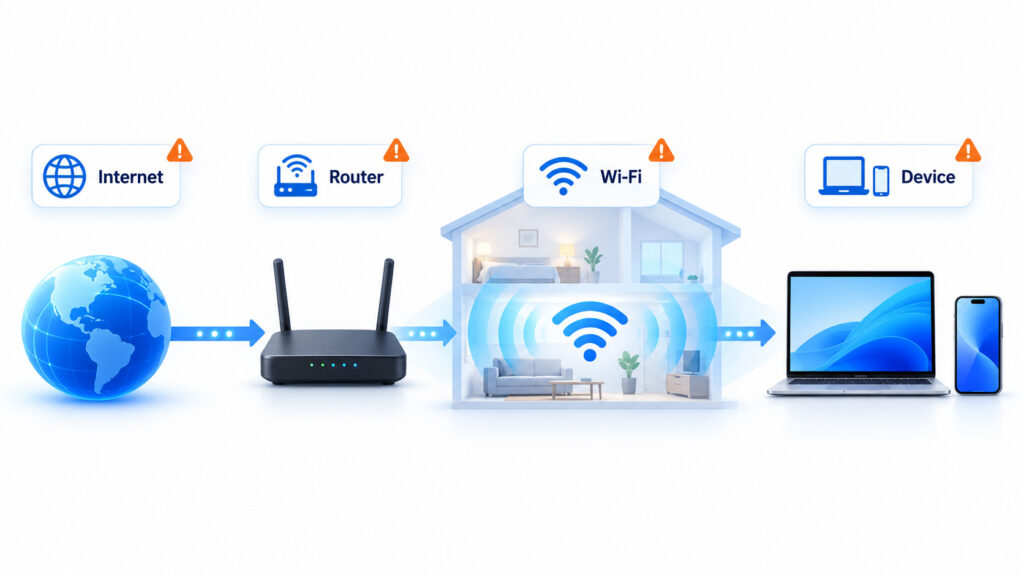
Slow Wi-Fi is frustrating because the problem is not always the internet connection itself. A fast broadband plan can still feel slow when the router is badly positioned, the wireless signal has to pass through several walls, nearby networks are competing for the same radio space, or one device has an older Wi-Fi adapter.
The opposite can happen as well. Your Wi-Fi connection to the router may be perfectly healthy while the internet service coming into the home is experiencing congestion, an outage, or another problem. That is why replacing the router should not be the first reaction to every speed issue.
This guide explains how to identify where the slowdown is happening and what to fix first. The steps apply to most home and small-office networks using phones, laptops, smart televisions, tablets, gaming devices, and other Wi-Fi equipment.
Why Is My Wi-Fi Slow? Quick Answer
Slow Wi-Fi usually comes from one or more of these problems:
- The device is too far from the router.
- Walls, floors, furniture, or metal objects weaken the wireless signal.
- The device is connected to an unsuitable Wi-Fi frequency band.
- Nearby wireless networks or household electronics create interference.
- Several devices are using the connection heavily at the same time.
- The router is placed in a poor location.
- The router, modem, or connected device is outdated.
- The internet service itself is slower than expected.
- A mesh node or wireless extender has a weak connection back to the main network.
- Background downloads, cloud backups, or software updates are consuming bandwidth.
- A device has a driver, VPN, software, or network-configuration problem.
- The router needs a restart, firmware update, or configuration adjustment.
The fastest way to troubleshoot the problem is to determine whether the slowdown affects one device, one room, Wi-Fi only, or the complete internet connection.
First, Find Out What Is Actually Slow
Before changing router settings or buying new equipment, run a few simple tests. They can help determine whether the problem is caused by the internet connection, the wireless network, or an individual device.
| What You Notice | Likely Area to Investigate |
|---|---|
| All devices are slow everywhere | Internet service, modem, router, or heavy network usage |
| Only one device is slow | Device Wi-Fi adapter, software, driver, VPN, or background activity |
| Wi-Fi is fast near the router but slow in another room | Coverage, distance, walls, interference, or router placement |
| Ethernet is fast but Wi-Fi is slow | Wireless signal, interference, Wi-Fi configuration, or router radio performance |
| Both Ethernet and Wi-Fi are slow | Internet service, modem, router, network load, or remote service |
| Speed looks good but calls or games still lag | Latency, packet loss, congestion, or an unstable wireless connection |
Run More Than One Speed Test
Perform a speed test close to the router while large downloads, cloud backups, software updates, and other bandwidth-heavy activities are paused. Repeat the test two or three times rather than relying on a single result.
Then repeat the same test from the room where the connection normally feels slow. A large difference between the two locations often points to a Wi-Fi coverage problem rather than an internet-plan problem.
For a stronger baseline, test a computer through Ethernet if your router and device provide suitable ports. If the wired connection is consistently fast while Wi-Fi remains slow, focus your troubleshooting on the wireless part of the network.
1. Weak Wi-Fi Signal
Wireless performance normally decreases as the distance between the device and the router or access point increases. Walls, floors, doors, furniture, appliances, and other physical objects can weaken the radio signal further.
A device may still display a Wi-Fi connection even when the available signal is no longer strong enough for reliable high-speed communication. In that situation, downloads may slow down, video quality may drop, web pages may hesitate, and video calls may become unstable.
Google’s Wi-Fi guidance also identifies distance, physical barriers, frequency, and the capabilities of the connected device as factors that can affect wireless performance. For additional technical guidance, see Google’s Wi-Fi speed and performance recommendations.
How to Check for a Weak Signal
Stand close to the router and repeat the same activity that was slow in another room. If performance improves substantially, distance or physical obstructions are probably contributing to the issue.
You can also compare the Wi-Fi signal indicator on the device, although signal bars should be treated only as a general guide. Actual performance depends on more than the number of bars shown on the screen.
How to Fix a Weak Wi-Fi Signal
- Move the router closer to the centre of the area that needs coverage.
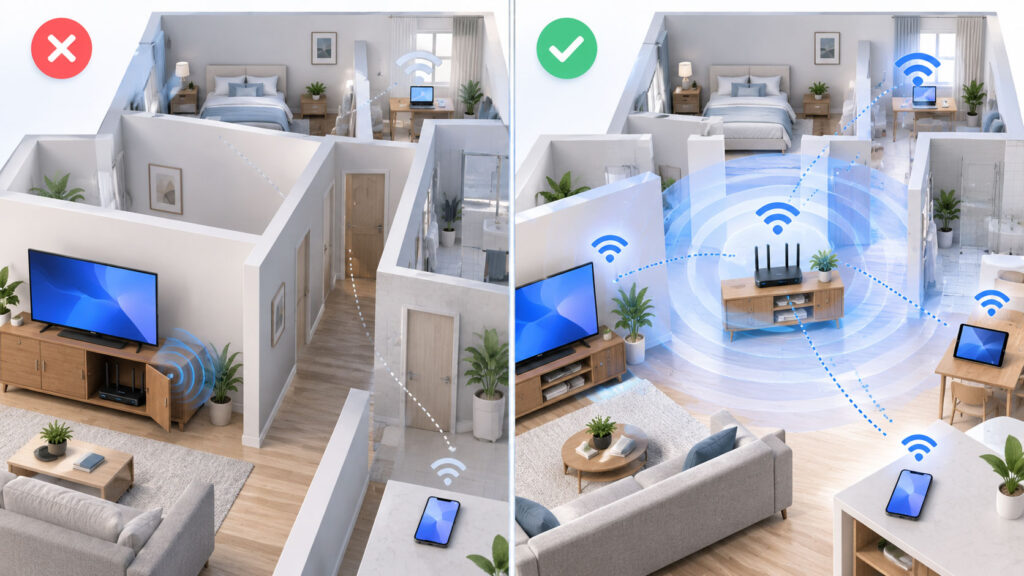
- Keep the router in an open location rather than inside a cabinet.
- Place it above floor level where practical.
- Avoid positioning it directly behind a television, metal cabinet, refrigerator, or other large obstruction.
- For larger properties, consider additional access points or a properly positioned mesh system.
2. Poor Router Placement
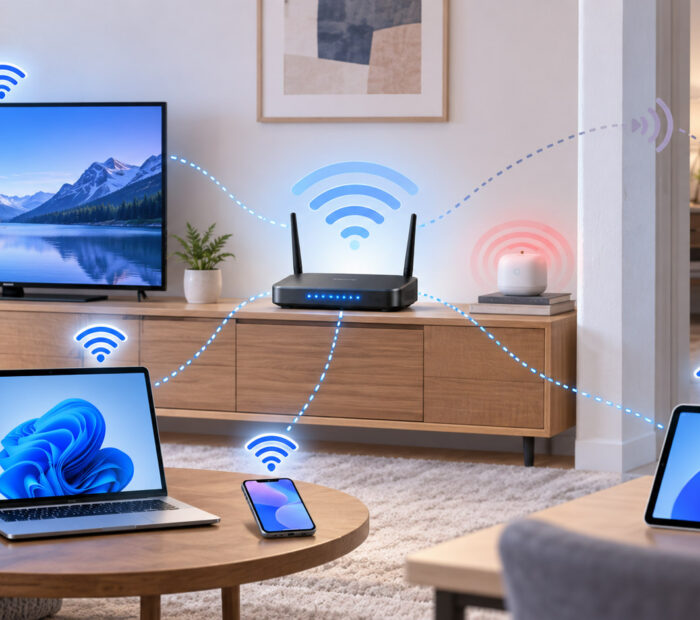
Router placement can matter as much as the router model. A high-performance router located at one corner of a large home may provide worse everyday coverage than a more modest router positioned centrally.
Wireless signals must travel from the router to the device and back again. If the router is hidden in a cabinet, placed behind large electronic equipment, or installed at the far edge of the property, some rooms may receive a much weaker connection.
Where Should a Wi-Fi Router Be Placed?
A good starting position is an open, reasonably central location close to the devices that use Wi-Fi most frequently. Avoid enclosing the router in metal furniture or placing it beside equipment likely to obstruct or interfere with the signal.
If the internet connection enters the property at an inconvenient location, an Ethernet cable connected to a better-positioned wireless access point can sometimes provide a more reliable solution than leaving the only Wi-Fi radio beside the modem.
3. You Are Using the Wrong Wi-Fi Band for the Situation
Modern routers may provide 2.4 GHz, 5 GHz, and, on compatible equipment, 6 GHz connectivity. These frequency bands behave differently, so the fastest band is not necessarily the best choice in every location.
| Wi-Fi Band | Typical Strength | Typical Limitation | Useful For |
|---|---|---|---|
| 2.4 GHz | Better reach through distance and obstacles | More congestion and lower practical capacity | Distant rooms, wider coverage, and many basic smart devices |
| 5 GHz | Higher capacity and less 2.4 GHz congestion | Usually loses strength sooner through distance and walls | Laptops, phones, streaming, and gaming closer to an access point |
| 6 GHz | Additional spectrum for compatible modern equipment | Requires compatible hardware and suitable local coverage | Newer high-performance devices close to compatible access points |
If a distant device is struggling on a higher-frequency connection, 2.4 GHz may provide a more stable link even if its maximum potential speed is lower. On the other hand, a nearby laptop connected to a busy 2.4 GHz network may perform much better on 5 GHz.
Many modern routers automatically steer devices between available bands. If your router uses one network name across multiple bands, automatic band steering is usually a sensible starting point unless you have a specific troubleshooting reason to separate them.
If you want to understand how newer wireless generations use these bands and whether an upgrade would actually help, read our Wi-Fi 6 vs Wi-Fi 7 comparison.
4. Wireless Interference and Congestion
Wi-Fi shares radio spectrum with neighbouring networks and, depending on the frequency band, other wireless equipment. In a dense apartment building or office, many nearby networks may compete for available airtime.
The 2.4 GHz band can become particularly busy because it is used by many Wi-Fi networks as well as other types of wireless equipment. Bluetooth equipment and some household devices can contribute additional radio activity in the same general spectrum.
Symptoms of congestion or interference can include inconsistent speed, short pauses, increased latency, unstable video calls, or a connection that performs differently at different times of day.
Should You Change the Wi-Fi Channel?
Most modern routers can select channels automatically, and that is usually the safest starting point. Manual channel selection may help in some congested environments, but choosing a channel without understanding nearby networks can make performance worse rather than better.
Apple’s current recommended Wi-Fi router settings advise automatic channel selection where available. Apple also recommends a 20 MHz channel width for the 2.4 GHz band and Auto or all supported widths for 5 GHz and 6 GHz.
If your router includes automatic channel optimisation, use that feature before making advanced channel changes manually.
5. Too Many Devices Are Using the Network at Once
A Wi-Fi router does not simply divide the connection into one fixed equal portion for every connected device. However, all active devices still share available wireless airtime and the internet connection behind the router.
A household can therefore feel slow when several bandwidth-heavy activities happen at the same time. Examples include:
- Multiple high-resolution video streams.
- Large game downloads.
- Operating-system updates.
- Cloud photo and file backups.
- Video meetings.
- Security-camera uploads.
- Large software downloads.
- Local network file transfers over Wi-Fi.
Pause large transfers temporarily and repeat the same speed test. If performance improves immediately, network load is likely contributing to the problem.
Check for Devices You Do Not Recognise
Open the management application or administration page for your router or mesh system and review its list of connected devices.
Device names are not always obvious, so identify unknown equipment carefully before blocking anything. Phones, smart televisions, speakers, cameras, watches, printers, and home-automation products can appear under unexpected names.
If you genuinely find an unauthorised device, change the Wi-Fi password and use an appropriate modern wireless-security mode supported by your router and connected devices.
6. Background Downloads and Cloud Synchronisation
The device you are actively using can consume substantial bandwidth without displaying an obvious foreground download.
Operating-system updates, cloud-storage synchronisation, photo backups, game launchers, application updates, offline media downloads, and backup software can all transfer large amounts of data in the background.
If only one computer or phone appears slow while other devices work normally, inspect its active downloads and background applications before making major changes to the router.
Check Network Activity on Windows
Open Task Manager and review network activity for running applications. Also check whether Windows Update, cloud-storage software, game launchers, or backup applications are transferring data.
Check Phones and Tablets
Look for operating-system updates, application downloads, cloud-photo uploads, offline media downloads, or backup activity. Temporarily pausing a large synchronisation task can help confirm whether it is responsible for the slowdown.
7. The Internet Connection Is the Real Bottleneck
Wi-Fi describes the wireless connection between your device and the local network. Your broadband, fibre, cable, fixed-wireless, or other internet service connects that network to the wider internet.
These are related but separate connections.
You can therefore have:
- Strong Wi-Fi with slow internet.
- Weak Wi-Fi with a fast internet plan.
- Problems affecting both at the same time.
If every device is slow, including a computer connected through Ethernet, check whether your internet provider is reporting an outage or service problem.
Google also recommends checking whether the internet service itself is performing as expected when diagnosing poor Wi-Fi performance. Its Wi-Fi performance guidance notes that slower-than-expected service from the internet provider can contribute to disappointing network speed.
Remember that advertised plan rates and real application performance are not always identical. Remote servers, congestion, Wi-Fi conditions, device capabilities, and network overhead can all affect the speed you actually experience.
8. Your Router or Modem Needs a Restart
Routers and modems are small computers that often run continuously. A restart can clear temporary conditions and allow the equipment to establish fresh connections with the internet provider and connected devices.
If the connection has suddenly become slow without an obvious change in the home, restarting the network equipment is a reasonable early troubleshooting step.
How to Restart Your Modem and Router
- Save any work that depends on the network.
- Disconnect power from the router.
- If you have a separate modem or internet gateway, disconnect its power as well.
- Wait at least 30 seconds.
- Reconnect the modem or internet gateway first.
- Wait until its normal connection lights become stable.
- Reconnect the Wi-Fi router.
- Allow the wireless network to start fully before testing again.
If your modem and Wi-Fi router are combined into one device, you only need to restart that single unit. Microsoft’s official Windows Wi-Fi troubleshooting guide also recommends restarting modem and router equipment as part of the troubleshooting process.
Do not confuse a normal restart with a factory reset. A factory reset can erase the Wi-Fi network name, password, ISP settings, parental controls, port-forwarding rules, and other configuration. It should not be used as a routine speed fix.
9. Old Router, Old Wi-Fi Adapter, or Device Limitation
The maximum performance of a Wi-Fi connection depends on both ends of the wireless link. Buying a modern router does not automatically upgrade the wireless hardware inside an older laptop, television, phone, or other device.
An older client may support fewer spatial streams, older Wi-Fi generations, narrower channel widths, or fewer frequency bands. Its processor, operating system, storage, browser, or application can also affect perceived performance.
Likewise, an older router may become the bottleneck when a household adds faster broadband, more connected devices, higher-resolution streaming, cloud backups, and other demanding workloads.
When Should You Consider Replacing the Router?
Router replacement becomes more reasonable when the device no longer receives security updates, lacks features required by current equipment, cannot handle the available internet connection effectively, crashes regularly, or provides inadequate coverage even after good placement and configuration.
Do not replace working networking equipment only because a newer Wi-Fi generation exists. First identify the actual bottleneck.
10. Router Firmware or Device Software Is Outdated
Firmware updates can improve router stability, compatibility, performance, and security. Many current routers can install updates automatically, while others require the administrator to approve them through an application or management page.
Apple recommends keeping router firmware current and enabling automatic firmware updates when the router supports them. Its router configuration guidance also covers bands, channels, channel width, security, and other relevant Wi-Fi settings.
Check the router manufacturer’s own instructions before changing firmware, and do not interrupt power while an update is being installed.
Connected computers and mobile devices should also receive current operating-system and networking updates. This becomes particularly relevant when one device performs poorly while others on the same network work normally.
Check the Wi-Fi Driver on Windows
Install available Windows updates first. If a Wi-Fi problem started after a hardware or software change, check the computer manufacturer’s support resources for an appropriate wireless-network driver for your exact model.
Avoid downloading networking drivers from unknown third-party driver websites.
11. Mesh Wi-Fi or Extender Placement Is Poor
A mesh node or wireless extender needs a reliable connection back to the main router or another suitable mesh point. Placing an extender inside a room where the original Wi-Fi signal is already extremely weak does not automatically create a strong upstream connection.
The phone or laptop may show a strong signal to the nearby extender while the extender itself struggles to communicate with the rest of the network.
How to Improve Mesh Wi-Fi Performance
- Move the satellite node closer to the main router or another strong mesh point.
- Avoid hiding mesh units inside cabinets or behind large furniture.
- Follow the placement recommendations provided by the mesh manufacturer.
- Use Ethernet backhaul where practical and supported.
- Do not assume that adding more nodes automatically increases speed.
Too many poorly positioned nodes can add unnecessary complexity. Coverage quality and the connection between mesh points matter more than simply increasing the number of access points.
12. The Problem Is Specific to One Device
If every other device performs normally, avoid making major changes to the router. The problem is more likely to be local to the slow phone, tablet, computer, television, or other client device.
Start with these checks:
- Restart the affected device.
- Turn Wi-Fi off and back on.
- Forget the wireless network and reconnect to it.
- Install available operating-system updates.
- Pause VPN software temporarily for a controlled comparison.
- Check background network activity.
- Test the same device close to the router.
- Try another Wi-Fi band if your router exposes separate bands.
If you normally use a VPN for work, privacy, or access to organisational resources, do not leave it disabled simply to obtain higher speed. The temporary comparison is intended only to determine whether the VPN route contributes to the slowdown.
Wi-Fi Slow on Windows 11? Try These Extra Checks
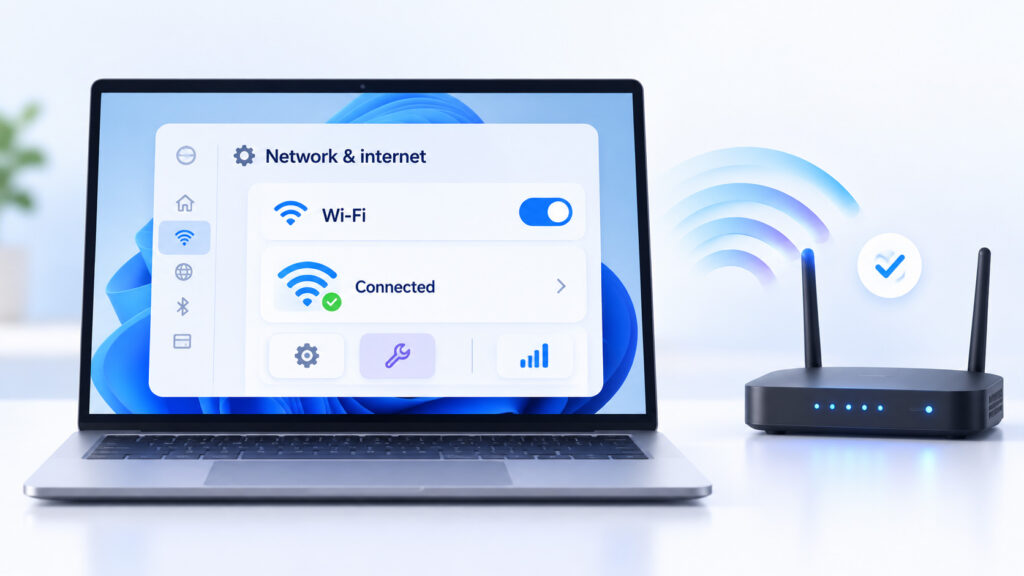
If your Wi-Fi problem affects a Windows 11 computer while phones and other devices work normally, Windows provides several additional troubleshooting options.
Microsoft recommends working through basic Wi-Fi troubleshooting before using more disruptive options such as Network Reset. For the latest Windows-specific procedures, you can also consult Microsoft’s official Wi-Fi connection troubleshooting guide.
Run the Network Troubleshooter
On Windows 11, Microsoft recommends starting with the automated Network and Internet troubleshooter available through the Get Help experience. It can run diagnostics and attempt to resolve common connectivity problems automatically.
If the issue affects only this computer, running the built-in troubleshooter before changing router settings can save unnecessary work elsewhere on the network.
Forget and Reconnect to the Wi-Fi Network
Open Settings > Network & internet > Wi-Fi > Manage known networks, select the affected Wi-Fi network, choose Forget, and then reconnect using the correct password.
This removes the saved wireless profile and creates a fresh connection when you join the network again.
Check Windows Updates
Install available Windows updates before manually replacing network drivers. Networking fixes and updated hardware support may arrive through Windows Update.
If one computer continues to have problems while other devices work normally, check the computer manufacturer’s official support page for an appropriate Wi-Fi driver for the exact model.
Use Network Reset Only as a Later Step
Windows also provides a Network Reset feature that removes installed network adapters and reinstalls them with default settings after the computer restarts.
Microsoft describes Network Reset as a last troubleshooting step after simpler approaches have failed. On Windows 11, it is available under Settings > Network & internet > Advanced network settings > Network reset.
Because this process can also affect VPN software, virtual network adapters, and other networking configuration, do not use Network Reset as the first response to slow Wi-Fi.
Does Changing DNS Make Wi-Fi Faster?
Changing the Domain Name System, or DNS, does not increase the raw wireless speed between your device and router. It also does not increase the bandwidth supplied by your internet provider.
DNS is primarily responsible for translating domain names into network addresses. A slow or unreliable DNS resolver can sometimes make the beginning of a website visit feel delayed, but it does not turn a weak Wi-Fi signal into a strong one.
If large downloads, video streams, and speed tests are already slow, troubleshoot the Wi-Fi and internet connection before treating DNS as the primary cause.
Does a Wi-Fi Extender Increase Internet Speed?
A wireless extender can improve usable coverage in an area where the original signal is weak, but it does not increase the speed of the internet service entering your property.
Depending on the extender and how it communicates with the router, a wireless extension may also have less available capacity than a well-positioned access point connected through Ethernet.
Use an extender when coverage is the real problem. Do not purchase one as a universal solution for slow internet throughout the property.
Should You Upgrade to Wi-Fi 6 or Wi-Fi 7?
A newer router can help when the existing router is genuinely the bottleneck, particularly on a busy network with several modern devices. However, a Wi-Fi 7 router will not repair a slow internet connection, poor router placement, weak mesh backhaul, or an older device that cannot use newer wireless features.
Before upgrading, check:
- The speed of your internet plan.
- The Wi-Fi standards supported by your important devices.
- The size and layout of the property.
- Whether the current problem is coverage, capacity, or internet speed.
- Whether you need a single router, mesh system, or wired access points.
- The Ethernet speeds supported by your modem, router, switches, and computers.
For a more detailed explanation of the differences between the two generations, read our Wi-Fi 6 vs Wi-Fi 7 – What Is the Difference and Should You Upgrade?.
A 15-Minute Slow Wi-Fi Troubleshooting Plan
If you do not want to change several settings randomly, work through the problem in this order:
- Test close to the router. Run the same speed test two or three times.
- Test another device. Determine whether the problem affects one device or the entire network.
- Pause large transfers. Temporarily stop cloud backups, updates, game downloads, and other bandwidth-heavy activity.
- Restart the modem and router. Allow both devices to reconnect fully.
- Test from the problem room again. A large performance drop can indicate a coverage issue.
- Compare Wi-Fi bands. Try 5 GHz closer to the router and 2.4 GHz where additional reach is useful.
- Test through Ethernet where possible. A strong wired result helps isolate the problem to Wi-Fi.
- Check router placement. Move it away from cabinets and major obstructions where practical.
- Check firmware and device updates. Install updates from official sources.
- Contact the ISP if wired performance is also poor. Ask whether there is an outage, connection problem, or service-related limitation.
Changing only one major variable at a time makes troubleshooting easier. If you change the Wi-Fi channel, router position, DNS provider, firmware, network name, and mesh placement simultaneously, you may never know which change actually solved the problem.
Common Wi-Fi Troubleshooting Mistakes
| Common Mistake | Better Approach |
|---|---|
| Buying a new router immediately | First compare wired, wireless, near-router, and distant-room performance |
| Running only one speed test | Repeat tests under similar conditions and compare multiple locations |
| Placing an extender in a dead zone | Position it where it can still receive a reliable upstream signal |
| Assuming full signal bars mean fast internet | Check both Wi-Fi quality and the internet connection |
| Using one Wi-Fi band for every situation | Use the band that provides the best balance of coverage and capacity |
| Factory-resetting the router too early | Restart first and preserve the configuration unless a reset becomes necessary |
| Changing several advanced settings at once | Make one controlled change and measure the result |
Frequently Asked Questions
Why Is My Wi-Fi Suddenly Slow?
A sudden slowdown can result from an ISP problem, modem or router issue, new background download, network congestion, wireless interference, software update, VPN route, or device-specific problem. Check another device and compare wired performance before making major changes to the router.
Why Is Wi-Fi Slow Even With Full Signal?
Signal strength describes only one part of the connection. Heavy network traffic, interference, an overloaded router, a slow ISP connection, packet loss, an older device, or the remote website or service can still cause poor performance even when the Wi-Fi icon shows a strong signal.
Why Is Wi-Fi Slow on One Device but Fast on Others?
The affected device may have an older Wi-Fi adapter, outdated driver, background transfer, VPN connection, power-saving setting, software problem, or saved network configuration issue. Troubleshoot that device before changing settings for the entire network.
Does Restarting the Router Really Help?
It can. A restart can clear temporary conditions and allow network equipment to establish fresh connections. However, repeatedly restarting a router should not be necessary on a healthy network. Frequent problems may indicate a firmware, hardware, internet-service, power, or configuration issue.
Is 2.4 GHz or 5 GHz Better for Slow Wi-Fi?
Neither frequency band is always better. The 2.4 GHz band generally provides broader reach, while 5 GHz can provide greater capacity when the device has a strong connection. Test both when troubleshooting, or allow a modern router’s band-steering feature to choose automatically where appropriate.
Will a New Router Make My Internet Faster?
A new router can improve Wi-Fi performance when the existing router is the bottleneck. It cannot make the internet service exceed the capacity available from the provider. Test wired performance and identify the current limitation before upgrading.
Can Too Many Devices Make Wi-Fi Slow?
Yes, particularly when several devices are actively transferring substantial amounts of data. The effect depends more on what those devices are doing than simply how many appear in the router’s connected-device list. Ten mostly idle devices may have less impact than one computer performing a large cloud backup.
Final Thoughts
When Wi-Fi feels slow, avoid assuming that the router is automatically at fault. Start by finding out whether the problem affects one device, one room, the wireless network, or the internet connection itself.
Test close to the router, compare another device, pause large transfers, restart the network equipment, and use Ethernet as a baseline where possible. These simple checks can narrow the problem down quickly.
If speed improves close to the router, focus on placement, coverage, frequency bands, interference, or mesh design. If every device remains slow even through Ethernet, investigate the modem, internet service, or provider. If only one device is affected, troubleshoot that device before changing the complete network.
The goal is not simply to maximise a single speed-test number. A good home network should provide stable coverage, appropriate capacity, low disruption, current security, and consistent performance where people actually use their devices.

AboutTPJ Technical Team
The Project Jugaad Technical Team creates practical, easy-to-follow content on software development, web technologies, artificial intelligence, cybersecurity, cloud platforms, and digital tools. Our articles are informed by more than 13 years of hands-on experience with .NET, Angular, SQL Server, AWS, WordPress, Linux hosting, application deployment, and real-world troubleshooting. Each guide is researched, reviewed, and updated to provide accurate, useful, and actionable information for developers, businesses, and everyday technology users.