
Cyber Security
If your phone suddenly starts behaving strangely, it is easy to assume that someone has hacked it. However, one unusual symptom does not automatically mean that an attacker controls your device.
Battery drain can come from an ageing battery or a demanding application. A phone may run slowly because storage is nearly full. Mobile service can disappear because of a carrier outage. Even unexpected pop-ups can sometimes come from a poorly designed website rather than malware installed on the phone.
The better approach is to look for multiple security warning signs, check your accounts and installed software, and investigate unusual activity before deciding what happened.
This guide covers both Android phones and iPhones and explains how to distinguish device malware, stolen account access, suspicious apps, and phone-number takeover.
How to Know If Your Phone Has Been Hacked: Quick Answer
You should investigate your phone when you notice security-related changes that you cannot explain, especially when several happen together.
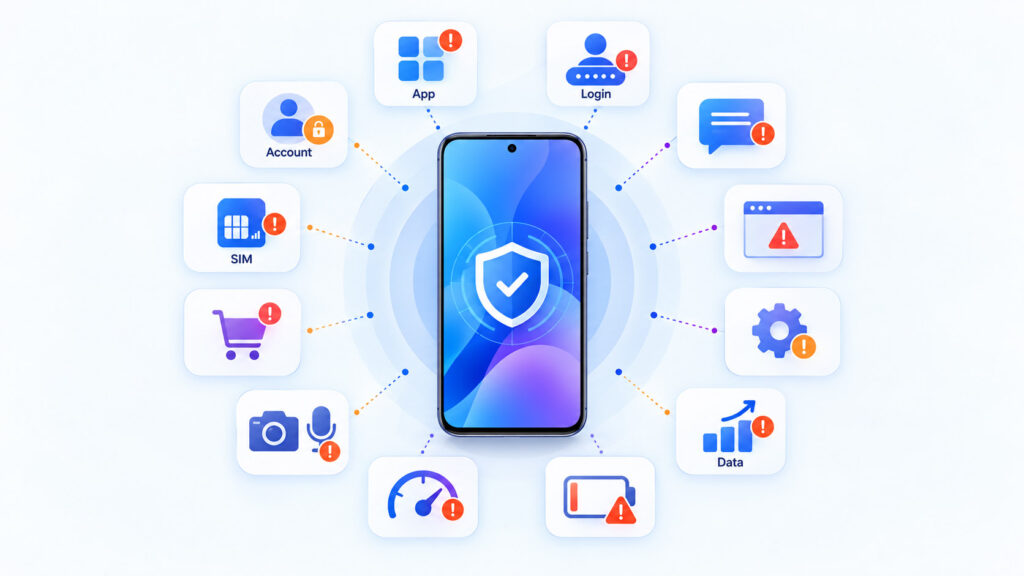
Common warning signs include:
- Security alerts or login attempts you do not recognise.
- Messages, calls, emails, or posts you did not send.
- Apps you do not remember installing.
- Persistent pop-ups or browser redirects.
- Security, browser, VPN, or device settings that changed unexpectedly.
- Unusual mobile-data usage.
- Sudden battery drain or overheating while the phone is mostly idle.
- Severe unexplained slowdown, crashes, or storage changes.
- Camera or microphone activity you cannot explain.
- Purchases or account activity you did not authorise.
- Sudden loss of calls, texts, and mobile data combined with a SIM or carrier alert.
- Password, recovery information, or trusted-device changes you did not make.
None of these signs alone proves that the phone is hacked. The strongest evidence is usually specific unauthorised activity, such as an unknown account login, an unfamiliar installed app with powerful permissions, a password change you did not request, or transactions you did not make.
What Does “My Phone Has Been Hacked” Actually Mean?
The phrase “phone hacked” can describe several different security problems. Identifying which one is happening matters because the correct response is different for each situation.
| Security Problem | What It Means | Typical Clues |
|---|---|---|
| Malicious app or malware | Unsafe software is installed or running on the device | Persistent pop-ups, redirects, unknown apps, unusual permissions, severe performance problems |
| Account compromise | Someone has gained access to email, Google, Apple, social media, or another account | Unknown logins, password resets, messages, purchases, or changed recovery information |
| Phishing | You were tricked into providing credentials or other sensitive information | Suspicious login after entering details on an unexpected website or form |
| SIM swap or number takeover | An attacker gains control of your mobile number through the carrier | Sudden loss of cellular service, unexpected SIM-change notification, missing verification texts |
| Physical access | Someone who can unlock the phone changes settings, accounts, sharing, or applications | Settings or accounts changed without your knowledge |
Account Hacking and Phone Hacking Are Not the Same Thing
If someone logs into your email account from another computer, your phone itself may be perfectly clean. Similarly, if your mobile number is taken over through a fraudulent SIM change, the attacker may never physically access or infect your phone.
This distinction is important because resetting a clean phone will not automatically recover a stolen email account or reverse a SIM swap.
Before You Panic: Look for Evidence
A security investigation should begin with facts rather than assumptions. Write down what changed and approximately when you first noticed it.
Useful questions include:
- Did you recently install a new app?
- Did you open an unexpected link or attachment?
- Did you enter a password after following a link from an email, SMS message, social-media message, or QR code?
- Did the problem begin after an operating-system update?
- Does the problem affect only one app or the entire phone?
- Are there actual unauthorised account changes, or only performance problems?
If the problem started after an unexpected message or login page, review our Phishing Email Examples – How to Identify Fake Emails guide. If the incident involved scanning an unfamiliar QR code, our QR Code Safety Tips article explains what to check next.
1. You Receive Security Alerts or Login Notifications You Do Not Recognise
An unexpected login notification is one of the more useful warning signs because it points to specific account activity rather than a vague performance problem.
You might receive an alert that:
- A new device signed in to your account.
- Your password was changed.
- A recovery email address or phone number was updated.
- A new trusted device was added.
- A two-factor authentication code was requested when you were not signing in.
Do not approve an authentication prompt simply because it appears on your phone. Open the affected service directly through its official app or website and review recent security activity.
Apple specifically lists unknown sign-ins, unexpected two-factor authentication codes, unrecognised trusted devices, and account changes as signs that an Apple Account may have been compromised. Reference: Apple Support – If you think your Apple Account has been compromised.
2. Messages, Calls, Emails, or Social Posts Appear That You Did Not Send
If your contacts receive messages from you that you did not send, investigate immediately. The problem may be malware on the phone, but it may also be a compromised messaging, email, or social-media account.
Check the sent-message history, logged-in devices, account sessions, and recent sign-in activity for the affected service.
Google’s Android malware guidance specifically includes contacts receiving emails or messages that the user did not send as one possible sign of unsafe software. Reference: Google Account Help – Remove malware or unsafe software on Android.
3. You Find an App You Do Not Remember Installing
Review the complete installed-app list rather than relying only on icons visible on the home screen.
An unfamiliar app does not automatically mean malware. Phones may contain manufacturer utilities, carrier software, accessibility services, system components, and apps restored from an older backup.
Investigate an app when:
- You cannot identify where it came from.
- It appeared around the same time the problem began.
- It requests permissions unrelated to its purpose.
- It has access to messages, notifications, accessibility controls, device administration, microphone, camera, or location without a clear reason.
Do not remove system components randomly. Search the exact app name and package information through the phone manufacturer’s support resources if you are unsure what it is.
4. Persistent Pop-Ups or Browser Redirects Keep Appearing
A website can display a misleading pop-up without infecting your device, so one suspicious browser message is not enough to prove compromise.
However, repeated pop-ups, unwanted tabs, changed search settings, or redirects to unfamiliar pages deserve investigation, particularly when they continue after you leave the original website.
Google identifies pop-ups that do not go away, pages redirecting unexpectedly, and unwanted browser changes as possible malware symptoms on Android. Reference: Google Account Help – Remove malware or unsafe software.
Do not trust pop-ups claiming that your phone has “17 viruses” or demanding an immediate security-app download. Close the page and use the security tools already provided by your operating system or a security product you deliberately installed from a trusted source.
5. Security or Device Settings Changed Without Your Knowledge
Pay attention to changes involving:
- Screen-lock settings.
- Biometric authentication.
- VPN configuration.
- Accessibility permissions.
- Device-management settings.
- Browser homepage or search engine.
- Location sharing.
- Account-recovery information.
Settings can also change legitimately after a software update, work-account enrolment, parental-control setup, or device migration. The important question is whether you can explain the change.
6. Mobile-Data Usage Is Much Higher Than Normal
Unexpected background data activity can be worth checking, especially when it appears alongside other suspicious symptoms.
However, legitimate applications can also consume large amounts of data through:
- Photo and video backups.
- Operating-system updates.
- App updates.
- Video streaming.
- Cloud storage synchronisation.
- Offline music or video downloads.
Review per-app mobile-data usage and identify which application is responsible before concluding that the traffic is malicious.
7. The Battery Drains Quickly or the Phone Gets Hot While Idle
Malicious or badly behaved software can use processor, network, GPS, camera, or other resources in the background. That activity may increase battery consumption and temperature.
But battery drain is a weak security indicator when it appears by itself. Battery age, poor cellular coverage, gaming, navigation, video recording, background synchronisation, and software updates can create similar symptoms.
Check the operating system’s battery-usage screen to identify which apps are consuming energy. A previously unknown app using substantial battery in the background deserves more attention than battery drain alone.
8. The Phone Becomes Extremely Slow, Crashes, or Loses Storage Unexpectedly
Google lists severe slowdown and unexplained storage reduction among possible malware symptoms on Android. However, these symptoms also occur when storage is nearly full, an application is malfunctioning, or the phone is old enough to struggle with newer software.
Check available storage, recently installed apps, background processes, and software updates before treating poor performance as proof of hacking.
9. Camera or Microphone Activity Appears Unexpectedly
Modern phones display privacy indicators when an application accesses the camera or microphone. An indicator appearing while you are using a camera, calling, voice assistant, video meeting, or recording application is expected.
Investigate when a privacy indicator repeatedly appears while you are not knowingly using an app that requires those sensors.
Review which apps recently used the camera or microphone and remove unnecessary permissions where appropriate.
10. You See Purchases or Financial Activity You Did Not Authorise
Unknown app-store purchases, payment transactions, subscriptions, banking activity, or wallet changes are more serious than general performance symptoms.
If money is involved, do not spend hours troubleshooting the phone before protecting the financial account. Contact the bank, card issuer, payment service, or relevant provider promptly using contact information you know is genuine.
11. Your Phone Suddenly Loses Calls, Texts, and Mobile Data
A sudden loss of cellular service can be a normal carrier outage or SIM problem. However, it deserves urgent attention when it occurs together with a message that your SIM or eSIM changed, your number was moved, or your carrier account was modified.
This can indicate a SIM swap or port-out attack, where an attacker takes control of the phone number through the mobile provider rather than hacking the handset itself.
The U.S. Federal Trade Commission advises contacting the mobile provider immediately if you become the target of SIM-swap fraud and changing affected account passwords after regaining control of the number. Reference: FTC Consumer Advice – SIM Swap Scams.
12. Your Password or Recovery Information Changes Without You
Treat an unexplained password change, unknown recovery email address, removed recovery number, unfamiliar trusted device, or account lockout as a strong account-security warning.
Recover the affected account through the provider’s official recovery process and check whether other accounts reused the same password.
One Warning Sign Does Not Prove Your Phone Is Hacked
| Symptom | Security Possibility | Common Non-Security Explanation |
|---|---|---|
| Battery drains quickly | Background malicious activity | Old battery, poor signal, demanding apps |
| Phone feels hot | Unexpected background processing | Gaming, charging, navigation, camera use |
| Phone is slow | Unsafe or unwanted software | Low storage, ageing hardware, software bug |
| Mobile data is high | Unexpected background transfer | Cloud backups, streaming, app updates |
| No cellular service | SIM swap or port-out fraud | Carrier outage, SIM failure, poor coverage |
The more useful question is not “Does my battery drain fast?” but “What evidence shows activity I did not authorise?”
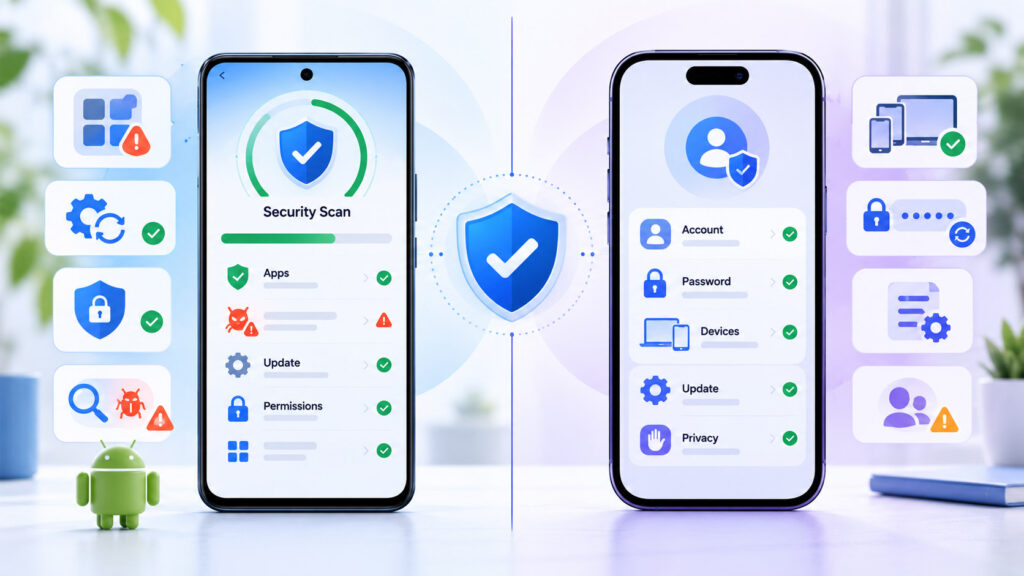
How to Check an Android Phone for Suspicious Activity
If you use Android, begin with the security tools built into the device rather than downloading an unknown “phone cleaner” or “hacker detector” advertised through a pop-up.
1. Run Google Play Protect
Google Play Protect checks installed applications for potentially harmful behaviour and can warn about, disable, or remove harmful apps.
Open the Google Play Store, select your profile, open Play Protect, and review the current security status. Make sure app scanning is enabled.
Google states that Play Protect checks apps when they are installed and periodically scans installed applications, including apps obtained outside Google Play. Reference: Google Play Protect documentation.
2. Install Android and Security Updates
Open your phone’s update settings and install available Android, security, and Google Play system updates.
Menu names vary between manufacturers, so use the Settings search function if the exact location is different on your device.
3. Review Recently Installed Apps
Sort or review your installed apps and focus on anything added shortly before the suspicious behaviour started.
Remove applications that you do not need or trust, particularly apps installed from unfamiliar websites or message attachments.
Google warns that applications installed from unknown sources can put device data and personal information at risk. Reference: Android Help – Download apps to your Android device.
4. Review Sensitive Permissions
Check which apps can access:
- Camera.
- Microphone.
- Location.
- Contacts.
- SMS messages.
- Notifications.
- Accessibility services.
A permission is not automatically suspicious simply because it is powerful. Ask whether the permission makes sense for what the application is supposed to do.
5. Review Your Google Account Security
Check recent sign-ins, connected devices, recovery information, and other security alerts for the Google Account used on the phone.
If you find an unfamiliar device or login, secure the account rather than assuming that removing an app from the phone will solve the entire problem.
How to Check an iPhone for Suspicious Activity
On an iPhone, focus on the Apple Account, installed applications, software updates, privacy access, and any unexpected management profiles.
1. Review Apple Account Activity
Check the devices associated with your Apple Account and look for sign-ins, purchases, trusted devices, or account-information changes you do not recognise.
Apple recommends changing the Apple Account password immediately when you believe another person may have unauthorised access. Reference: Apple Support – If you think your Apple Account has been compromised.
2. Install the Latest iOS Updates Available for Your Device
Keeping the operating system current is important because security updates can address known vulnerabilities and improve built-in protections.
3. Review Installed Apps and Permissions
Look through the installed apps and review access to location, camera, microphone, photos, contacts, Bluetooth, and other sensitive resources.
Remove an app if you installed it accidentally or no longer trust it.
4. Check for Unknown Configuration Profiles
On iPhone and iPad, configuration profiles may be used legitimately by schools, employers, VPN providers, and device-management systems.
If your personal device should not be managed, you can review profiles under Settings > General > VPN & Device Management. Apple states that if no profiles appear there, no device-management profiles are installed.
Do not delete a profile from a work- or school-managed device without checking with the administrator because removing it can also remove associated settings, apps, or access. Reference: Apple Personal Safety User Guide – Review and delete configuration profiles.
Check Your Important Accounts Separately
A clean phone does not guarantee that your online accounts are secure.
Review security activity for:
- Your primary email account.
- Google or Apple Account.
- Banking and payment services.
- Social-media accounts.
- Password manager.
- Cloud-storage accounts.
- Mobile-carrier account.
Look for unknown devices, sessions, password changes, recovery-address changes, new forwarding rules, unfamiliar purchases, or authentication requests you did not initiate.
Check Whether Your Phone Number Was Taken Over
If cellular service suddenly disappears, try calling your number from another phone and contact your carrier through a trusted number or official app.
If the carrier confirms that a SIM, eSIM, or number-port change occurred without your permission, treat the incident as a carrier-account takeover rather than ordinary phone malware.
SIM-swap attacks are particularly serious because an attacker controlling the number may receive SMS verification codes intended for you. The FTC recommends using an authenticator app or security key when those options are available for sensitive accounts because SMS codes can be intercepted after a SIM swap. Reference: FTC Consumer Advice – Use Two-Factor Authentication To Protect Your Accounts.
Do Not Trust “Secret Codes” That Claim to Detect Hackers
Online posts sometimes claim that entering a special dialling code can tell you whether your phone is hacked.
Carrier codes can display or configure legitimate network features such as call forwarding on some phones and networks, but they are not universal malware scanners and cannot prove that the phone is secure.
Use account activity, installed applications, security scans, permissions, carrier records, and operating-system security tools instead.
Avoid Random “Hacker Removal” Apps
If a pop-up claims that your phone is infected and immediately tells you to install a specific cleaner, antivirus app, VPN, or browser extension, do not treat the advertisement as a trusted diagnosis.
Use your operating system’s built-in security tools and software deliberately obtained from a trusted application store or security provider.
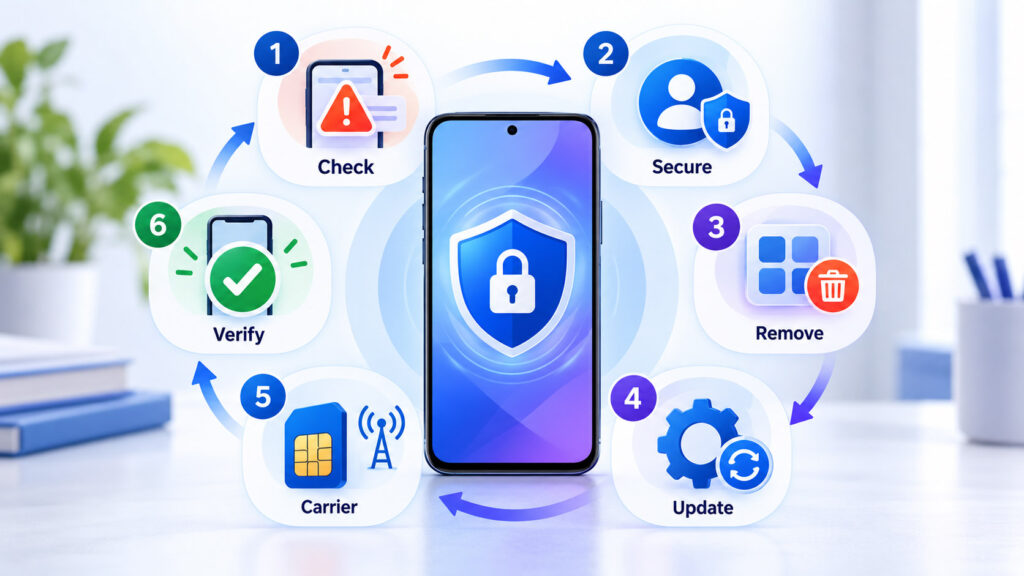
What to Do If You Think Your Phone Has Been Hacked
If you find credible evidence of compromise, respond methodically. The objective is to protect your accounts and data first, then clean or reset the device if necessary.
1. Protect Your Primary Email Account First
Your primary email account is often used to reset passwords for many other services. If someone controls it, securing individual accounts one at a time may not be enough.
From a device you trust:
- Change the email password to a strong, unique password.
- Sign out unfamiliar sessions or devices.
- Review recovery email addresses and phone numbers.
- Check for mail-forwarding rules you did not create.
- Enable strong multi-factor authentication.
The FTC recommends changing passwords, signing out other devices, enabling two-factor authentication, and checking recovery information after recovering a hacked account. Reference: FTC Consumer Advice – How To Recover Your Hacked Email or Social Media Account.
2. Change Other Important Passwords
Change passwords for accounts that show suspicious activity and any account that reused the same compromised password.
Prioritise:
- Email.
- Password manager.
- Google or Apple Account.
- Banking and payment accounts.
- Mobile-carrier account.
- Social-media and messaging services.
Use a different password for each important account. Where supported, consider stronger phishing-resistant options such as passkeys or security keys.
3. Sign Out Unknown Devices and Sessions
Changing a password may not always terminate every existing session immediately. Review the provider’s device or session list and remove anything you do not recognise.
4. Remove Suspicious Applications
On Android, uninstall applications that you do not need or trust and run Play Protect again. On iPhone, remove unfamiliar third-party apps and review unexpected configuration profiles if the device is not managed by an employer or school.
If an unfamiliar application cannot be removed normally, consult the phone manufacturer’s official support resources before attempting advanced recovery steps.
5. Update the Operating System and Apps
Install current security and operating-system updates available for the phone.
The FTC recommends keeping phone software updated because operating-system updates frequently contain security protections and fixes. Reference: FTC Consumer Advice – How To Protect Your Phone From Hackers.
6. Contact Your Mobile Carrier If the Number Is at Risk
If you suddenly lost service, received an unexpected SIM-change message, or discovered a fraudulent number transfer, contact your carrier immediately.
Ask the carrier to secure the account, restore control of your number, and review unauthorised SIM or port activity.
After regaining the number, review accounts that used SMS for password resets or authentication.
7. Contact Financial Providers If Money Is Involved
If you notice an unauthorised bank transaction, card charge, wallet payment, or financial-account change, contact the financial provider through a known legitimate channel immediately.
Do not wait until the phone investigation is complete before protecting financial accounts.
8. Back Up Important Personal Data Carefully
If you are considering a factory reset, preserve important photos, documents, contacts, and other personal data first.
Avoid intentionally backing up suspicious applications or unknown installation packages that you plan to reinstall afterward.
9. Consider a Factory Reset When You Cannot Trust the Device
A factory reset may be appropriate when:
- Malware symptoms remain after suspicious apps are removed.
- You cannot identify the cause of repeated security problems.
- A harmful app or configuration cannot be removed safely.
- The device manufacturer or security provider recommends a reset.
Before resetting, make sure you know the credentials required to reactivate the phone and have a reliable backup of important data.
After the reset, install applications again from trusted stores instead of automatically reinstalling every old or unknown app.
How to Reduce the Risk of Phone Hacking
The best security improvements are usually simple habits applied consistently.
| Protection | Why It Helps |
|---|---|
| Use a strong screen lock | Reduces access if the phone is lost or physically accessed |
| Keep the OS and apps updated | Installs current security fixes |
| Install apps from trusted sources | Reduces exposure to unknown or unreviewed software |
| Review app permissions | Limits unnecessary access to sensitive data and sensors |
| Use unique account passwords | Prevents one stolen password from opening multiple accounts |
| Enable multi-factor authentication | Adds another barrier when a password is stolen |
| Keep regular backups | Makes recovery easier if the device must be erased or replaced |
| Enable lost-device protection | Can help locate, lock, or erase a missing phone |
The FTC’s consumer phone-security guidance recommends locking the phone, keeping software updated, maintaining backups, and enabling the phone’s lost-device features. Reference: FTC Consumer Advice – How To Protect Your Phone From Hackers.
Be Careful With Phishing Links and Unexpected Downloads
Many phone-security incidents begin with social engineering rather than a technical exploit. A fake delivery notification, password-reset message, payment warning, QR code, or social-media message may try to convince you to enter credentials or install an app.
Do not provide passwords, PINs, OTPs, or verification codes after following an unexpected link. Open the official app or website yourself instead.
For practical examples of these attacks, see our guide to identifying phishing emails and QR code safety checklist.
Frequently Asked Questions
Can Someone Hack My Phone Just by Knowing My Phone Number?
Knowing a phone number by itself does not normally give someone control of the handset. However, the number may be used in phishing, account-recovery attempts, spam, social engineering, or attempts to take over the mobile account through SIM-swap or port-out fraud.
Can Clicking a Link Hack My Phone?
Simply opening a link does not mean your phone is automatically compromised. The risk depends on what the destination does, whether you enter credentials, install software, approve permissions, or encounter an exploitable vulnerability.
If you opened a suspicious link, close it, avoid entering information, review downloads and installed apps, and change credentials if you submitted them.
Can a Hacker See Through My Phone Camera?
An application with camera permission can potentially access the camera according to the permissions and protections provided by the operating system. Unexpected camera activity should be investigated, but it does not automatically prove remote spying.
Review camera permissions and recent privacy activity on the device.
Does Battery Drain Mean My Phone Is Hacked?
No. Battery drain has many common causes, including battery age, poor cellular signal, screen usage, navigation, gaming, background syncing, and updates.
Battery drain becomes more relevant when it appears alongside stronger signs such as an unknown application, suspicious account activity, unexplained permissions, or unusual background data use.
Can an iPhone Be Hacked?
No consumer device should be treated as impossible to compromise. On an iPhone, investigate unexpected Apple Account activity, unknown applications, suspicious profiles, unusual permissions, and available security updates rather than relying on generic “virus scanner” claims.
Can an Android Phone Be Hacked?
Android devices can be exposed to harmful applications, phishing, stolen account credentials, unsafe downloads, and other security risks. Google Play Protect, current security updates, trusted app sources, and careful permission management reduce that risk.
Will a Factory Reset Remove a Hacker?
A factory reset can remove many device-level software problems by erasing installed applications and local settings, but it does not automatically secure compromised online accounts, reverse a SIM swap, or recover stolen credentials.
Secure important accounts separately even when you reset the phone.
Is There a Code I Can Dial to See If My Phone Is Hacked?
No universal dialling code can reliably determine whether a phone is hacked. Some network codes display call-forwarding or carrier information, but they do not scan the operating system, applications, accounts, or malware.
Final Thoughts
If you think your phone has been hacked, focus on evidence rather than one generic symptom. A warm phone, short battery life, or occasional crash can have ordinary explanations.
Unknown logins, security-setting changes, messages you did not send, unfamiliar apps with powerful permissions, unauthorised transactions, or an unexpected SIM change are much stronger reasons to investigate.
Check the device, but also check the accounts connected to it. Run the built-in security tools, review installed apps and permissions, update the phone, secure your primary email and important accounts, and contact your carrier or financial provider quickly when the incident involves your phone number or money.
Most importantly, avoid making the problem worse by installing random “hacker removal” apps or following instructions from alarming pop-ups. Use official operating-system tools, trusted providers, and verified support channels while you work through the problem.

AboutTPJ Technical Team
The Project Jugaad Technical Team creates practical, easy-to-follow content on software development, web technologies, artificial intelligence, cybersecurity, cloud platforms, and digital tools. Our articles are informed by more than 13 years of hands-on experience with .NET, Angular, SQL Server, AWS, WordPress, Linux hosting, application deployment, and real-world troubleshooting. Each guide is researched, reviewed, and updated to provide accurate, useful, and actionable information for developers, businesses, and everyday technology users.