
Cyber Security
Browser extensions can make everyday work much easier. They can block distractions, save passwords, capture screenshots, manage tabs, translate pages, check grammar, automate repetitive tasks, or connect a browser to another service.
That usefulness comes from access. An extension often needs permission to read a webpage, modify content, monitor tabs, access browsing history, interact with downloads, or communicate with another service. Some permissions are necessary for the extension’s purpose, while others may be much broader than the feature appears to require.
For that reason, browser extension security is not about avoiding every add-on. It is about understanding what an extension can access, whether that access makes sense, and whether you still trust the developer to hold those permissions over time.
Browser Extension Security: Quick Answer
Before installing or keeping a browser extension, check these areas:
- Understand what the extension actually does.
- Review every requested permission.
- Pay special attention to access across all websites.
- Limit site access where the browser allows it.
- Check the developer, store listing, privacy information, and recent updates.
- Remove extensions you no longer use.
- Investigate unexpected browser changes after an installation or update.
- Do not sideload unknown extensions merely to bypass browser-store protections.
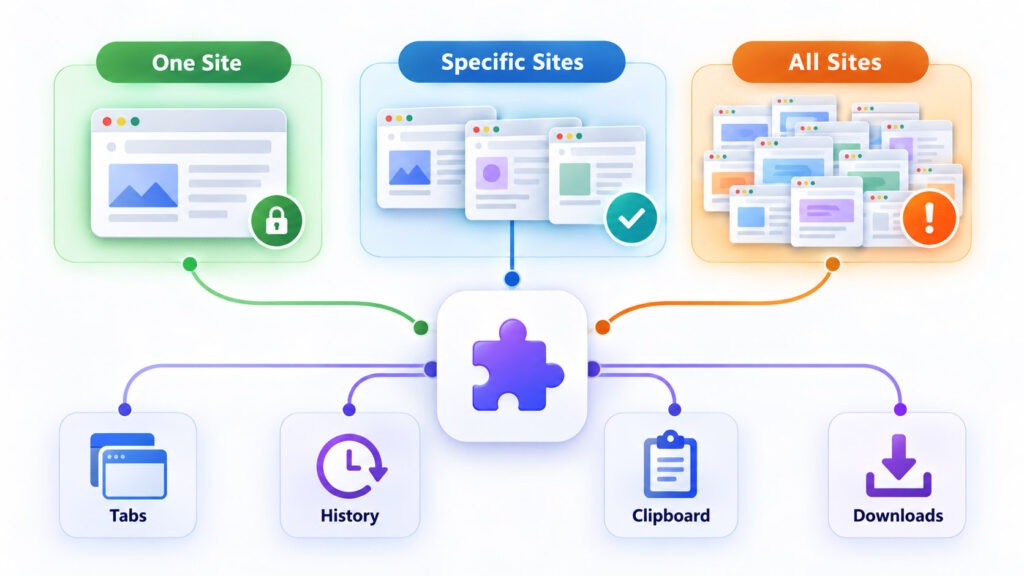
Google’s current extension-permission guidance explains that some extensions can request access to data on every website you visit, browser tabs, history, copied data, location, bookmarks, and other browser information. A permission warning does not automatically mean an extension is malicious, but it tells you what the extension could potentially access.
Reference: Chrome Web Store Help – Permissions requested by apps and extensions.
Why Browser Extensions Can Be Powerful
A normal website generally works inside the browser’s website-security boundaries. An extension can be granted additional browser capabilities that ordinary webpages do not receive automatically.
Depending on its purpose and permissions, an extension may be able to:
- Read content on webpages.
- Modify webpage content.
- View page URLs and tab titles.
- Open, close, or redirect tabs.
- Read browsing history.
- Access bookmarks.
- Interact with downloads.
- Access information copied to the clipboard.
- Use location information.
- Change selected browser settings.
The exact capability depends on the browser and the permissions the extension has requested and received.
Powerful Permission Does Not Automatically Mean Malicious
A password manager may need to interact with login forms. A grammar extension may need to inspect text entered on webpages. A screenshot extension may need access to the current tab. A developer tool may require broader access for legitimate reasons.
The more useful question is:
Does the requested permission make sense for this extension’s actual function?
For example, an extension designed only to change the colour of one website should raise more questions if it requests broad access to every website, browsing history, downloads, and clipboard data.
What Does “Read and Change Your Data on All Websites” Mean?
This is one of the most important browser-extension permission warnings.
Google explains that access to data on all websites can allow an extension to read, request, or modify information from webpages you visit. Depending on what appears on those pages, that may include sensitive account, communication, work, or financial information.
Reference: Chrome Web Store Help – Permissions requested by apps and extensions.
That does not mean an extension necessarily collects everything it can access. Permissions describe capability. Privacy policies, technical design, developer behaviour, and actual data handling determine how that access is used.
Permission Scope Matters
| Permission Type | Possible Access | Question to Ask |
|---|---|---|
| Current site | Content on one website | Does the feature need this site? |
| Specific websites | Pages matching selected sites | Are these sites relevant to the extension? |
| All websites | Potential access across normal browsing | Is broad access essential? |
| Tabs | Tab URLs, titles, navigation, or tab control depending on permission | Does the extension need to manage tabs? |
| History | Browser history information | Why does this feature require history? |
| Clipboard | Information copied or pasted depending on permission | Is clipboard access central to the feature? |
The Browser Store Is Helpful, but It Is Not a Perfect Guarantee
Official browser stores provide important protections, review processes, automated checks, developer policies, and mechanisms for removing unsafe extensions. They are still not a reason to stop evaluating permissions.
Mozilla explains that extensions submitted to its add-on store are scanned for common issues and may receive human review, but explicitly notes that this cannot guarantee every extension is completely safe.
Reference: Mozilla Support – Tips for assessing the safety of an extension.
Therefore, treat an official store as one layer of protection rather than the only security decision.
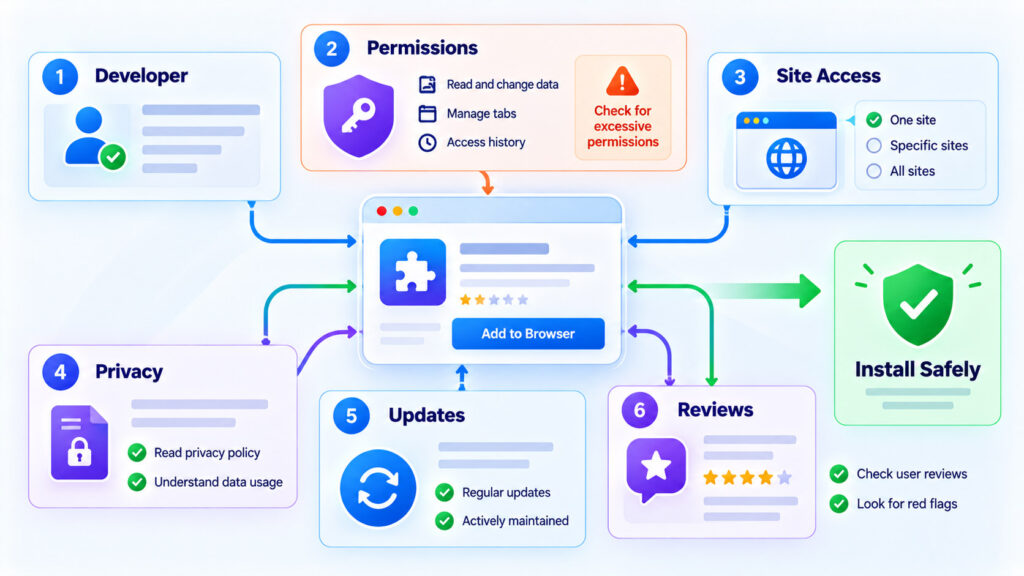
How to Evaluate an Extension Before Installing It
A five-minute review before installation is much easier than investigating a suspicious browser later.
1. Start With the Extension’s Purpose
Ask exactly what problem the extension is solving.
If the feature is something you will use once, consider whether you need permanent browser software at all. A temporary web tool, built-in browser feature, desktop application, or manual workflow may avoid granting another extension ongoing access.
2. Read the Permission Prompt Carefully
Do not automatically click Add extension simply because you recognise the extension name.
Compare each permission with the feature being promised.
For example:
| Extension Type | Permission That May Make Sense | Permission Worth Questioning |
|---|---|---|
| Tab manager | Tab access | Microphone access without a clear feature |
| Grammar checker | Page/text access | Downloads management without explanation |
| Screenshot tool | Current-tab access | Full browsing history if unnecessary |
| Shopping assistant | Access to supported shopping websites | Unrelated access to every site without justification |
The examples above are not universal rules. The developer may have a legitimate feature requiring additional capability, but that capability should be understandable.
3. Check the Developer
Look at who publishes the extension.
Useful checks include:
- Is the developer clearly identified?
- Does the developer maintain a legitimate website?
- Is there useful documentation?
- Is support information available?
- Does the privacy policy match what the extension does?
- Are other products from the developer consistent with the same business?
Do not treat a familiar-looking extension name or icon as proof that it comes from the organisation you expect.
4. Read the Privacy Information
If an extension can access website data, text, account information, or browsing activity, understand whether any of that information leaves your device.
Look for explanations of:
- What data is collected.
- Why it is collected.
- Whether it is stored.
- Whether it is shared with third parties.
- How long it is retained.
- Whether the data is used for advertising or analytics.
Mozilla’s current Firefox installation flow includes permission and data-collection information so users can make a more informed decision about what an extension can access.
Reference: Mozilla Support – Extension data collection.
5. Look at Reviews, but Do Not Rely on Rating Alone
User reviews can reveal repeated bugs, unexpected browser changes, recent permission increases, subscription complaints, or support problems.
However, a high rating alone is not proof of security. Reviews can be old, unrelated to the current version, or focused only on whether the feature works.
Give more weight to the permissions, current developer information, privacy behaviour, and whether you genuinely need the extension.
6. Check Whether the Extension Is Still Maintained
An extension that has not been updated recently is not automatically unsafe. Some simple extensions require few changes.
However, abandoned software can become more concerning when it depends on web services, processes sensitive data, requires broad permissions, or repeatedly breaks with current browser versions.
Review Extensions After You Install Them
Extension security is not a one-time installation decision.
Periodically ask:
- Do I still use this extension?
- Does it still need the permissions I granted?
- Has its behaviour changed?
- Has the developer or ownership changed?
- Has it started requesting new access?
Mozilla’s current guidance specifically recommends reviewing installed extensions and removing extensions that no longer serve a useful purpose.
Reference: Mozilla Support – Review installed extensions.
Pay Attention When an Extension Requests New Permissions
Extensions evolve over time. A feature update may legitimately require another permission, but that is a good time to reassess the software.
Ask:
- What new feature requires this access?
- Is the permission proportionate?
- Do I need the new feature?
- Would another extension accomplish the task with less access?
Google notes that permission warnings can appear when extensions are installed or updated. Treat a new permission request as an opportunity to review rather than a dialog to dismiss automatically.
Reference: Chrome Web Store Help – Permissions requested by apps and extensions.
How to Check Extension Permissions in Chrome
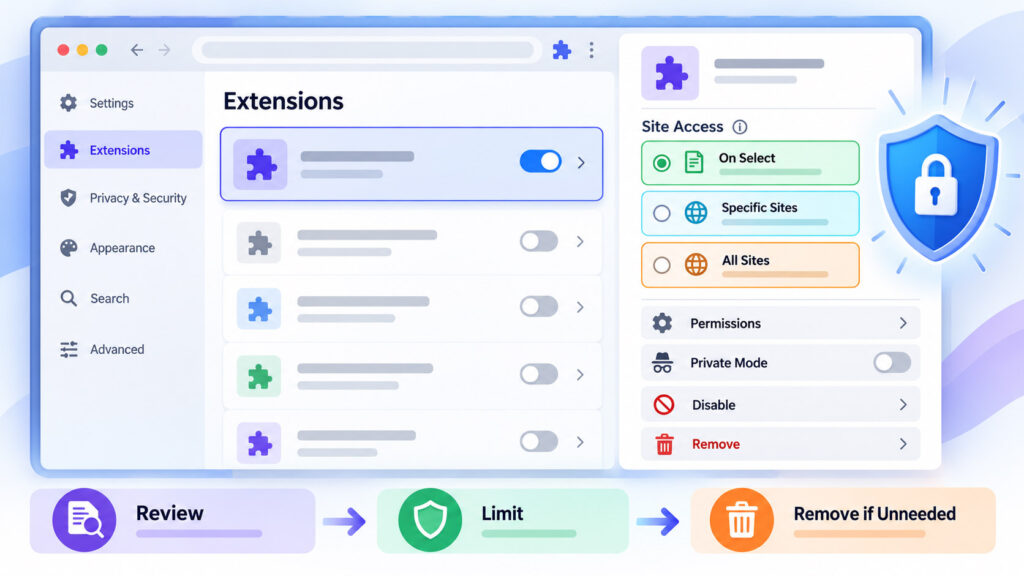
Chrome lets users review installed extensions and control website access for extensions that use host permissions.
Open:
Chrome > Extensions > Manage extensions
Select Details for the extension you want to inspect.
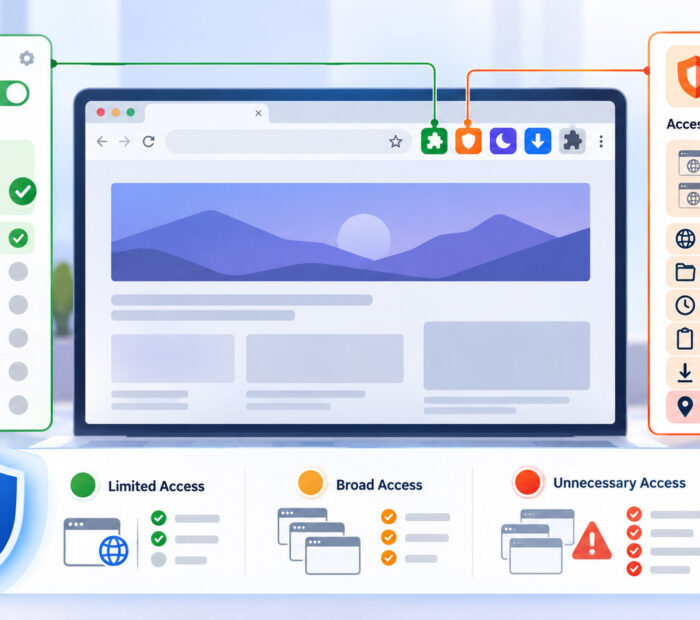
For supported extensions, Chrome currently allows site access to be restricted using options such as:
- When you select the extension – access is activated for the current site when you intentionally use the extension.
- On specific sites – the extension can work automatically only on websites you choose.
- On all sites – the extension can operate across matching websites without being activated individually.
Reference: Google Chrome Help – Install and manage extensions.
Use the Narrowest Site Access That Still Works
If an extension only needs to operate on one web application, granting automatic access to every website may be unnecessary.
For example, if a tool is only used on a project-management website, consider allowing only that site rather than every page you visit.
This is an application of least privilege: give software only the access needed for its purpose.
Chrome Site Access Does Not Control Every Type of Extension
Google notes that website-access controls apply to extensions whose host permissions match websites. Extensions that alter lower-level network behaviour through mechanisms such as VPN or proxy configuration are not necessarily controlled by the same site-access setting.
Reference: Google Chrome Help – Let extensions read and change site data.
Chrome Enhanced Protection and Extension Warnings
Chrome’s Enhanced Safe Browsing can warn when an extension being installed is not considered trusted under Google’s extension protection system.
A warning is useful evidence to consider, but users still need to evaluate why they need the extension and what it can access.
Reference: Google Chrome Help – Install and manage extensions with Enhanced protection.
How to Check Extension Permissions in Microsoft Edge
Edge provides similar controls for extensions that can read and change website data.
Open the Extensions menu and manage the extension’s site access.
Microsoft currently documents options including:
- Access when you select the extension.
- Automatic access on the current website.
- Automatic access on all sites.
Within Manage extensions > Details, Edge also provides site-access settings and options related to InPrivate use and local file URLs where applicable.
Reference: Microsoft Support – Change site access permissions for extensions in Microsoft Edge.
Be Careful With Edge Developer Mode Extensions
Developer mode exists so developers can test extensions before store publication. It is not intended as a convenient way for normal users to bypass extension verification.
Microsoft warns that extensions sideloaded through Developer mode may not be verified or certified through the normal store process and can create security and privacy risks.
Reference: Microsoft Support – Developer mode extension notification.
How to Check Extension Permissions in Firefox
Firefox exposes extension permissions through its Add-ons Manager.
Open:
Extensions and themes > Extensions
Select an extension and review its Permissions or permissions-and-data information.
Firefox also allows users to enable or disable supported optional permissions that an extension requests for additional functionality.
Reference: Mozilla Support – Manage optional permissions for Firefox extensions.
Firefox Permissions Can Include Access to Specific Websites or Browser Features
Mozilla’s WebExtensions model requires extensions to declare the browser capabilities and website origins they need.
Mozilla’s developer documentation also recommends avoiding unnecessary permissions because broad requests affect security and users’ willingness to install the extension.
Reference: MDN WebExtensions – Extension permissions.
Should You Allow Extensions in Private or Incognito Browsing?
Private or Incognito mode does not automatically make an extension safe.
If you allow an extension to run in a private-browsing session, consider whether its function genuinely requires access there.
A shopping assistant, screenshot tool, password manager, developer tool, or productivity extension may behave differently depending on your needs, but you should not enable private-window access automatically for every extension.
Use the narrowest access that still supports the feature you actually need.
Warning Signs That an Extension Deserves Investigation
One unusual browser behaviour does not prove that an extension is malicious. Browser updates, websites, search settings, legitimate software, and other causes can produce similar symptoms.
However, investigate extensions when you notice changes such as:
- Your default search engine changes unexpectedly.
- Your homepage or new-tab page changes without a clear reason.
- Websites redirect somewhere you did not request.
- Extra advertisements or overlays appear on unrelated websites.
- An extension appears that you do not remember installing.
- A familiar extension suddenly requests much broader permissions.
- The browser warns that an extension is unsafe or unsupported.
- Browser performance becomes unusually poor immediately after installing an extension.
- An extension repeatedly reappears after you remove it.
Chrome documents that extensions can modify settings such as the homepage, new-tab page, search engine, and start page when permission has been granted. Chrome also provides a notice when an extension controls certain browser settings.
Reference: Chrome Web Store Help – Manage extensions that change your settings.
What to Do If You Suspect a Malicious Extension
1. Disable the Extension First
If you are uncertain whether the extension is responsible, disable it temporarily and observe whether the suspicious behaviour stops.
This can help isolate the cause without immediately deleting configuration or other browser data.
2. Remove Extensions You Do Not Trust
If the extension is unknown, clearly unnecessary, or associated with suspicious behaviour, remove it through the browser’s extension manager.
Chrome, Edge, and Firefox all provide built-in controls to disable or uninstall extensions.
References: Google Chrome Help – Install and manage extensions; Microsoft Support – Add, turn off, or remove extensions in Microsoft Edge; Mozilla Support – Disable or remove Add-ons.
3. Restart the Browser
After removal, close and reopen the browser. Confirm that the suspicious extension remains removed and that unexpected settings have not returned.
4. Review Browser Settings
Check:
- Default search engine.
- Homepage.
- New-tab behaviour.
- Notification permissions.
- Proxy or VPN settings if they changed unexpectedly.
- Other installed extensions.
5. Scan the Computer When Behaviour Persists
If an extension appears corrupted or keeps returning, the cause may exist outside the browser.
Google recommends checking the computer with security or anti-malware software when suspicious software may be modifying Chrome’s extension files.
Reference: Google Chrome Help – Install and manage extensions.
6. Protect Important Accounts if the Extension Had Sensitive Access
If you have credible reason to believe a malicious extension accessed pages where you entered passwords, account information, financial data, or other sensitive information, treat the incident as more than a browser-cleanup problem.
From a trusted device where appropriate:
- Change passwords for accounts that may have been exposed.
- Use unique passwords for important accounts.
- Enable strong multi-factor authentication.
- Review recent account sessions and devices.
- Check account recovery information.
- Review financial activity when payment information may have been exposed.
For common techniques attackers use to steal login credentials through fake websites and messages, see our Phishing Email Examples – How to Identify Fake Emails guide.
What If Chrome Automatically Disables an Extension?
Do not immediately search for instructions to bypass the block.
Chrome may disable extensions that are not available through the Chrome Web Store or that have been determined unsafe. Google explains that this behaviour is intended to protect browsing data.
Reference: Chrome Web Store Help – Manage extensions disabled by Chrome.
If an extension has been disabled for security reasons, verify the developer’s official guidance and consider whether you genuinely still need the extension before looking for alternatives.
Why Sideloading Extensions Carries More Risk
Developers legitimately sideload extensions while building and testing them. Enterprises may also deploy private extensions through managed policies.
For ordinary users, installing code from an unknown file or following instructions to enable Developer mode removes part of the normal store-distribution safety process.
Mozilla advises users to verify the authenticity of self-hosted extension sources, while Microsoft explicitly warns about security and privacy risks from unverified Developer mode extensions.
References: Mozilla Support – Understanding the risks of installing self-hosted extensions; Microsoft Support – Developer mode extension notification.
Do You Really Need That Extension?
One of the easiest ways to reduce browser-extension risk is simply to have fewer extensions.
Every extension adds:
- Code running in or alongside the browser.
- Another developer or organisation you need to trust.
- Another update channel.
- Additional permissions.
- Potential privacy exposure.
- Another component that could become abandoned or compromised.
This does not mean a minimalist browser with zero extensions is necessary. It means each installed extension should continue earning its place.
A Monthly Browser Extension Security Check
A simple review takes only a few minutes:
- Open the browser’s extension manager.
- Remove extensions you no longer recognise or use.
- Review permissions for the extensions you keep.
- Reduce site access where possible.
- Check whether private-browsing access is really needed.
- Review any recent permission or behaviour changes.
- Confirm important extensions still come from the developer you expect.
Common Browser Extension Security Mistakes
| Common Mistake | Safer Approach |
|---|---|
| Installing an extension just because it has many users | Review permissions, developer, privacy information, and actual need |
| Granting all-site access automatically | Use narrower site access where the feature still works |
| Keeping unused extensions indefinitely | Remove extensions that no longer provide value |
| Ignoring new permission requests | Review why the new permission is required |
| Assuming store approval means zero risk | Treat store review as one security layer, not a guarantee |
| Enabling Developer mode to install unknown code | Use trusted distribution sources unless you intentionally develop or test extensions |
| Allowing every extension in private browsing | Enable private-window access only when necessary |
| Ignoring unexpected browser-setting changes | Review recently installed or updated extensions |
Frequently Asked Questions
Are Browser Extensions Safe?
Many browser extensions are legitimate and useful, but extensions can receive powerful browser permissions. Safety depends on the extension’s code, developer, permissions, data handling, update process, and how much access you grant.
Can a Browser Extension Read My Password?
An extension with access to webpage content may be able to interact with information displayed or entered on matching pages, depending on its permissions and implementation.
That is why broad website access should be granted only when it makes sense for the extension’s function.
Can an Extension See Every Website I Visit?
Some extensions can request broad host or browsing permissions that give them visibility or interaction across many websites. Others are restricted to specific sites or work only when the user activates them.
Check the extension’s actual permissions instead of assuming every extension has the same access.
Is “Read and Change All Your Data on Websites” Dangerous?
It is a powerful permission, not automatic proof of malicious intent. Some legitimate extensions genuinely need broad website access.
The permission should still receive careful scrutiny because of the amount of browsing content it may allow the extension to access or modify.
Can I Limit a Chrome Extension to One Website?
For extensions that support Chrome’s host-permission controls, Chrome lets users restrict access to specific sites or activate access only when the extension is selected.
Can Browser Extensions Track Browsing History?
An extension can access browsing history when it has been granted the relevant browser permission. Review the permissions shown by the browser and the extension’s privacy information.
Should I Remove Extensions I Do Not Use?
Yes. If an extension no longer serves a purpose, removing it reduces unnecessary code and permissions in the browser.
Are Chrome Web Store Extensions Automatically Safe?
The Chrome Web Store applies developer policies and security controls, but users should still review permissions and warnings. An official store should be treated as an important security layer rather than a guarantee that no future problem is possible.
Why Did My Browser Disable an Extension?
A browser may disable an extension because it no longer meets store, compatibility, or security requirements. Review the browser’s warning before attempting to re-enable or replace it.
Can an Extension Change My Search Engine?
Yes, some extensions can change browser settings such as the search engine or new-tab page when they have the relevant permission. Chrome notifies users when certain settings are controlled by an extension.
Should I Allow Extensions in Incognito or Private Mode?
Only when their function is genuinely useful there. Do not enable private-window access automatically for every installed extension.
Keeping Browser Extensions Useful Without Giving Away Too Much Access
Browser extensions are not inherently unsafe. They become useful precisely because browsers can grant them capabilities that ordinary webpages do not have.
The goal is therefore not to eliminate extensions, but to make those privileges intentional.
Before installing an extension, understand what it does and compare its requested permissions with that purpose. After installation, use site-specific access where practical, remove software you no longer use, and take new permission prompts seriously.
If an extension suddenly changes your browser, starts requesting access that seems unrelated to its purpose, or triggers a security warning, investigate before continuing to use it.
A good extension-security habit is simple: install less, review permissions, grant the minimum access necessary, and remove what you no longer trust or need.

AboutTPJ Technical Team
The Project Jugaad Technical Team creates practical, easy-to-follow content on software development, web technologies, artificial intelligence, cybersecurity, cloud platforms, and digital tools. Our articles are informed by more than 13 years of hands-on experience with .NET, Angular, SQL Server, AWS, WordPress, Linux hosting, application deployment, and real-world troubleshooting. Each guide is researched, reviewed, and updated to provide accurate, useful, and actionable information for developers, businesses, and everyday technology users.