
Software Development
Git gives developers more than one way to combine work from different branches. Two of the most important are merge and rebase.
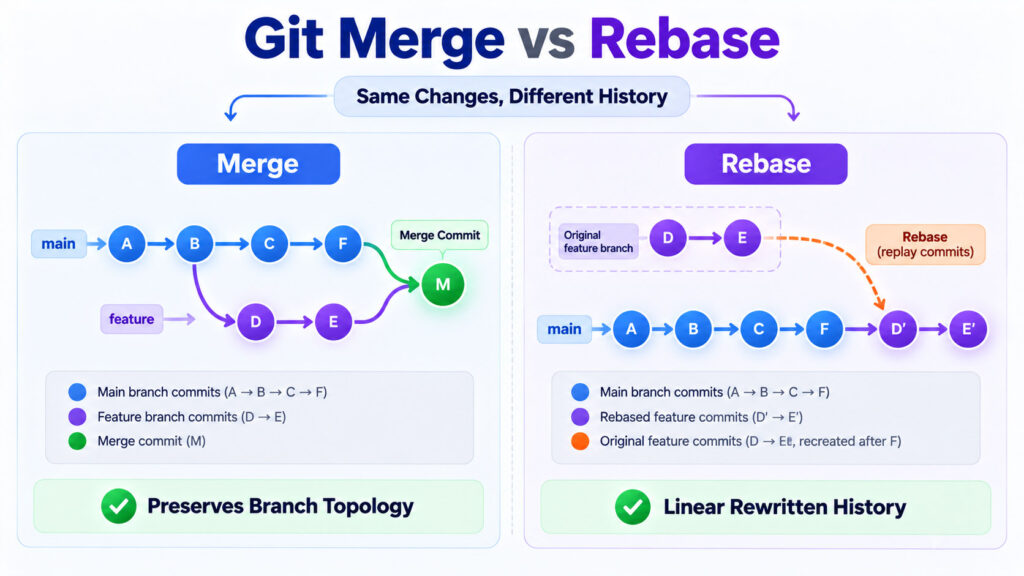
Both can ultimately produce a project containing the same code changes, but they reach that result differently. A merge combines development histories and can preserve the point where branches came together. A rebase moves or replays commits onto a different starting point, creating new commits and often producing a more linear history.
That difference matters when you are maintaining feature branches, reviewing pull requests, resolving conflicts, preparing commits for a shared repository, or trying to understand why a branch suddenly requires a force push.
This guide explains Git merge and rebase with practical commit graphs, commands, conflict examples, team workflows, and the most important safety rule: be cautious about rebasing history that other developers may already be using.
Git Merge vs Rebase: Quick Answer
| Area | Git Merge | Git Rebase |
|---|---|---|
| Main purpose | Combine development histories | Replay commits onto a different base |
| Original commits preserved | Yes | Rebased commits are recreated with new identities |
| Merge commit | May be created | Normally no merge commit for the rebased sequence |
| History shape | Can preserve branch structure | Often creates a linear history |
| Rewrites existing branch commits | No | Yes, for commits being rebased |
| Suitable for shared history | Generally safer | Use care when commits are already shared |
| Conflict handling | Conflicts occur while combining branch endpoints | Can stop while replaying individual commits |
| Common use | Integrating completed branches | Updating or cleaning private feature-branch history |
Neither command is universally better. The right choice depends on whether preserving the historical branch structure or maintaining a more linear commit sequence is more useful for your project.
Start With a Simple Git Branch Example
Assume the main branch contains these commits:
A---B---C mainYou created a feature branch after commit B and made two commits:
      D---E  feature
     /
A---B---C    main
Both branches now contain legitimate work. The question is how to combine them.
What Does Git Merge Do?
The git merge command joins development histories.
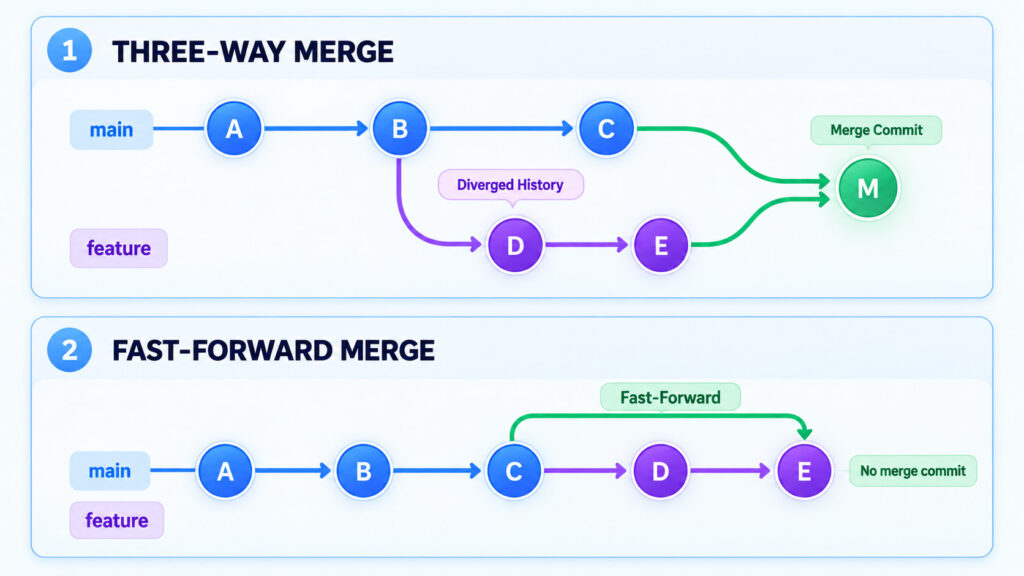
If both branches have progressed since they diverged, Git can perform a three-way merge using the two branch tips and their common ancestor.
For example, if you want to integrate the feature branch into main:
git switch main
git merge feature
The resulting history can look like:
      D---E
     /     \
A---B---C---M  main
M is the merge commit. It has more than one parent and records the point where the histories were joined.
Reference: Official Git documentation – git merge, which defines merge as incorporating changes from other development histories into the current branch.
Merge Does Not Replace the Existing Feature Commits
Commits D and E remain the same commits. Git does not recreate them merely because the branch was merged.
This is one of the biggest differences from rebase.
What Is a Fast-Forward Merge?
A merge does not always create a merge commit.
Consider this history:
A---B---C  main
         \
          D---E  feature
If main has not changed since the feature branch started, Git can simply move the main branch pointer forward to E.
The result becomes:
A---B---C---D---E mainNo additional merge commit is required.
This is called a fast-forward merge.
The official Git documentation explains that when the current branch is already an ancestor of the branch being merged, Git can update the branch pointer directly instead of creating an additional commit.
Reference: Official Git documentation – Fast-forward merge behaviour.
Force a Merge Commit With –no-ff
If a team wants an explicit merge point even when fast-forwarding is possible, it can use:
git merge --no-ff featureThis deliberately creates a merge commit and can make the boundaries of a completed feature easier to identify later.
Whether that is useful depends on the repository’s history policy.
What Does Git Rebase Do?
Rebase approaches the same branch history differently.
Starting with:
      D---E  feature
     /
A---B---C    main
switch to the feature branch and run:
git switch feature
git rebase main
Git identifies the commits that belong to the feature branch and reapplies their changes on top of the current main branch.
The resulting history becomes conceptually:
A---B---C---D'---E' featureD' and E' contain changes corresponding to D and E, but they are new commits because their parent history has changed.
Reference: Official Git documentation – git rebase, described as reapplying commits on top of another base tip.
Why Do Rebased Commits Get New Commit IDs?
A Git commit identifies more than the changed lines. Its identity also depends on metadata that includes its parent commit.
When a commit is replayed on a different parent, the resulting commit has a different identity.
That is why rebase is described as history rewriting.
What Happens After a Feature Branch Is Rebased?
After rebasing the feature branch onto main, you might have:
A---B---C---D'---E'  feature
        ^
        main
You can then switch to main and merge:
git switch main
git merge feature
Because the feature branch now sits directly ahead of main, Git can normally fast-forward:
A---B---C---D'---E' mainThe final history looks linear and contains no additional merge commit for that integration.
Merge and Rebase Can Produce the Same Project Files
One reason developers get confused about this topic is that the final checked-out code can be identical after either approach.
The difference is the history used to reach that state.
With merge:
      D---E
     /     \
A---B---C---M
With rebase:
A---B---C---D'---E'The official Git book points out that the final project snapshot can be equivalent while the recorded history is different.
Reference: Pro Git – Git Branching: Rebasing.
Why Developers Use Rebase
Rebase is often used to keep a private feature branch up to date with the latest main branch without repeatedly creating merge commits.
Suppose your branch looks like this:
      D---E  feature
     /
A---B---C---F---G  main
You could merge main into feature:
git switch feature
git merge main
or rebase:
git switch feature
git rebase main
The rebase approach moves the feature work on top of G:
A---B---C---F---G---D'---E'This can make the eventual integration simpler to read because the feature appears after the main-branch changes it was tested against.
Git Merge vs Rebase: Commit History
| Question | Merge | Rebase |
|---|---|---|
| Preserves original commits? | Yes | Rebased commits are recreated |
| Shows branches coming together? | Yes, when a merge commit exists | Usually no |
| Can create linear history? | Yes with fast-forward cases | Commonly |
| Rewrites feature history? | No | Yes |
| Safe for already shared commits? | Generally | Requires coordination |
How Merge Conflicts Work
A merge conflict occurs when Git cannot automatically determine how competing changes should be combined.
For example, two branches may modify the same section of the same file in incompatible ways.
Git can mark the conflicting content:
<<<<<<< HEAD
const timeout = 30;
=======
const timeout = 60;
>>>>>>> feature
You must decide what the final code should contain, edit the file, and mark it as resolved.
During a merge you can generally continue after resolving conflicts and staging the corrected files.
If you decide the merge should not continue, Git provides:
git merge --abortThe official Git merge documentation also recommends beginning significant merges with a clean working state because unrelated uncommitted changes can make recovery from conflicts more difficult.
Reference: Official Git documentation – Merge conflicts and git merge --abort.
How Rebase Conflicts Differ
During rebase, Git replays commits one by one. A conflict can therefore occur while one of those individual commits is being applied.
When the rebase stops:
- Resolve the conflicting files.
- Stage the resolved files.
- Continue the rebase.
git add <resolved-file>
git rebase --continue
If you want to abandon the rebase and return to the original branch state:
git rebase --abortGit also supports:
git rebase --skipbut skipping a commit intentionally omits that commit’s patch from the rebased sequence, so use it only when you understand why the commit is no longer needed.
Reference: Official Git documentation – Rebase conflict handling, --continue, --abort, and --skip.
The Most Important Rebase Rule: Be Careful With Shared History
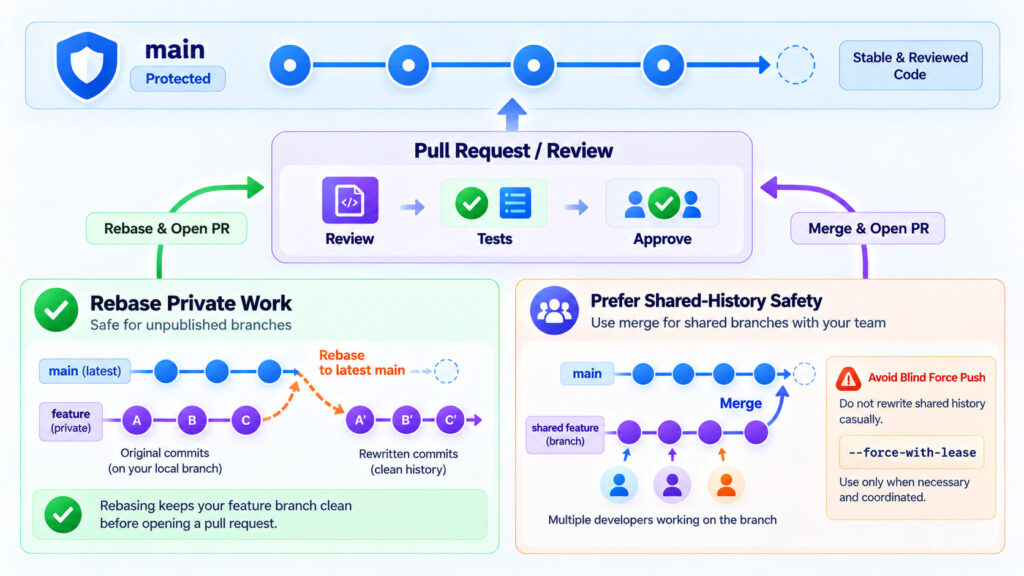
The biggest practical risk with rebase comes from rewriting commits that other developers have already fetched and used as the basis for their own work.
Imagine that you push:
A---B---C---D---E featureAnother developer fetches D and E and creates work based on them.
You then rebase your feature branch and produce:
A---B---C---F---D'---E'The old commits D and E are no longer the history you want on the remote branch, but your teammate still has work based on them.
Reconciling those two histories can become confusing and may create duplicate-looking commits or additional conflict resolution.
The official Pro Git book summarises the rule clearly: avoid rebasing commits that are already public when other developers may have based work on them.
Reference: Pro Git – The Perils of Rebasing.
Rebasing a Private Feature Branch Is Different
A branch that only you are working on is much safer to rewrite.
A common workflow is:
- Create a feature branch.
- Make several local commits.
- Fetch the newest main branch.
- Rebase your private feature work onto it.
- Run tests.
- Push or open the pull request.
This gives you the benefit of a linear history without disrupting other developers.
What Is Interactive Rebase?
Interactive rebase lets you edit a sequence of commits before publishing or integrating them.
For example:
git rebase -i HEAD~4Git opens a list of recent commits.
Depending on the required cleanup, you can use actions such as:
- pick – keep the commit.
- reword – change the commit message.
- edit – stop and modify the commit.
- squash – combine a commit with the previous one.
- fixup – combine changes while discarding the fixup commit message.
- drop – remove the commit from the rewritten sequence.
Interactive rebase is particularly useful when a feature branch contains development-only commits such as:
Implement checkout validation
Fix typo
Oops fix validation
Debug logging
Remove debug logging
Before review, those commits could potentially be organised into a smaller number of meaningful logical changes.
The official Git rebase documentation describes interactive mode as a way to reorder, edit, combine, and remove commits before the resulting history is created.
Reference: Official Git documentation – Interactive rebase.
What Is Squashing?
Squashing combines several commits into a smaller number of commits.
For example:
A---B---C---Dwhere:
B = Add login form
C = Fix login typo
D = Fix login validation
could be cleaned into:
A---B'where B' contains the complete logical login change.
Squashing can make code review and long-term history easier when intermediate commits provide little independent value.
However, do not squash meaningful commits merely to minimise the number of commits. A well-structured commit history can be useful for debugging, review, and later reverts.
What Does git pull –rebase Do?
A normal git pull first fetches remote changes and then integrates them according to the configured pull behaviour.
When you use:
git pull --rebaseyour local commits can be replayed on top of the newly fetched upstream history instead of creating a merge commit solely to reconcile local and remote branch progress.
This is useful for developers who prefer to keep their local unpublished work linear.
Git also supports configuring pull rebasing as a default workflow, but teams should agree on such conventions rather than having every developer use different assumptions.
Reference: Pro Git – Rebasing; official Git pull documentation.
Why Does Rebase Sometimes Require a Force Push?
If you rebase commits that were already pushed, your local branch now contains new commit identities while the remote branch still contains the original commits.
A normal push may be rejected because the update is no longer a fast-forward.
You may see developers use:
git push --forceBlind force pushing is dangerous because it can overwrite remote work that you did not intend to replace.
Prefer –force-with-lease When History Rewrite Is Intentional
When a history rewrite is expected and your team permits it, a safer option is often:
git push --force-with-lease--force-with-lease adds a check before replacing the remote reference. Git refuses the update when the remote branch no longer matches the state you expected, which can protect against accidentally overwriting another developer’s newer work.
This is safer than a blind --force, but it does not make unnecessary rewriting of shared history a good workflow.
Reference: Official Git documentation – git push --force-with-lease.
Protected Branches Can Prevent Force Pushes
Repository-hosting platforms can also enforce branch policies.
For example, GitHub protected branches block force pushes by default. Administrators can change that policy, but allowing force pushes means collaborators must understand the possibility that existing remote commits can be replaced.
Reference: GitHub Docs – Protected branches and force pushes.
Merge Commit, Squash Merge, and Rebase Merge in Pull Requests
Pull-request platforms commonly provide several integration strategies.
| Strategy | Typical Result |
|---|---|
| Merge commit | Preserves individual feature commits and creates an explicit merge point |
| Squash merge | Combines the pull request into one commit on the target branch |
| Rebase merge | Adds feature commits sequentially onto the target branch without a merge commit |
GitHub currently supports all three strategies when repository settings permit them. It also notes that rebase-and-merge creates new commit identities and maintains a linear history.
Reference: GitHub Docs – Pull request merge strategies.
Repository Policy Matters More Than Personal Preference
A developer may personally prefer rebase, while the project explicitly requires merge commits. Another project may require linear history and allow only squash or rebase integration.
Before changing history, check:
- The project’s contribution guide.
- Protected-branch rules.
- Pull-request merge settings.
- Whether other people work directly on your branch.
- Whether CI/CD or release tooling depends on commit history.
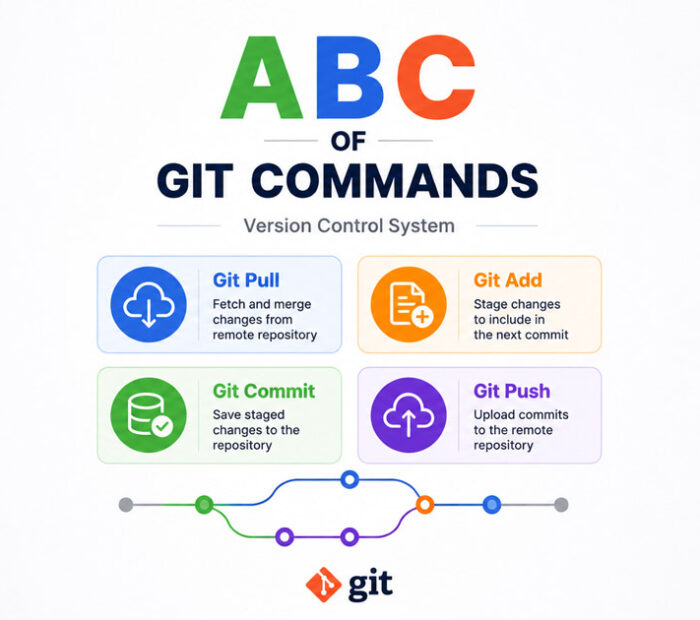
If you are still learning Git fundamentals such as branches, commits, status, stash, push, and pull, the related Project Jugaad article ABC of Git Commands – Version Control System provides a useful foundation before applying advanced history-rewriting workflows.
When Should You Use Git Merge?
Merge is a strong choice when preserving the relationship between branches matters or when the history has already been shared with several developers.
Consider merge when:
- Several developers collaborate on the same branch.
- The branch history is already public and widely used.
- You want an explicit record of when a feature was integrated.
- The individual feature commits are meaningful.
- You want to avoid rewriting existing commit identities.
- Your repository workflow explicitly uses merge commits.
When Should You Use Git Rebase?
Rebase is especially useful for cleaning or updating local feature work before other developers depend on that history.
Consider rebase when:
- The branch is private or clearly owned by one developer.
- You want to update your feature branch with the latest main branch.
- You want to remove unnecessary local merge commits.
- You want a cleaner linear history before review.
- You need interactive rebase to reorder, squash, or reword unpublished commits.
- Your repository explicitly requires a linear history.
A Practical Team Workflow
Many teams do not need to choose one technique exclusively.
A practical workflow can combine them:
- Create a feature branch from the latest main branch.
- Commit normally while developing.
- Fetch recent upstream changes.
- Rebase the private feature branch when appropriate.
- Resolve conflicts and run tests.
- Push the branch.
- Open a pull request.
- Review and run CI checks.
- Integrate according to the repository’s merge policy.
This approach uses rebase as a local history-management tool while leaving the final repository integration policy under team control.
Run Tests After Rebasing
Do not assume that a successful rebase means the code is correct.
Git verifies whether patches can be applied, not whether the resulting application behaves properly.
After resolving conflicts or rewriting commits, run the project’s relevant:
- Unit tests.
- Integration tests.
- Static analysis.
- Build process.
- Application smoke tests.
The official interactive-rebase documentation even supports running commands through --exec while rewriting history, allowing teams to test intermediate commits when that level of validation is useful.
Reference: Official Git documentation – Interactive rebase and --exec.
For teams automating tests and builds after Git pushes and pull requests, the Project Jugaad article GitHub Actions vs Jenkins – Which CI/CD Tool Should You Use? explains two common approaches to continuous integration.
Common Git Merge and Rebase Mistakes
| Common Mistake | Better Approach |
|---|---|
| Rebasing a shared branch without coordination | Preserve shared history or coordinate the rewrite explicitly |
| Using force push casually | Avoid rewriting shared history; use safer controls when rewriting is truly required |
| Assuming rebase automatically improves code | Treat it as history management and still test the result |
| Using merge solely because rebase feels difficult | Learn both tools and follow the repository workflow |
| Using rebase solely because linear history looks cleaner | Consider collaboration and audit value before rewriting history |
| Beginning complex integration with unrelated local changes | Commit or safely stash work before merge or rebase |
| Resolving conflicts without testing | Run appropriate build and test checks after integration |
| Squashing every commit automatically | Preserve commits that have useful independent meaning |
Frequently Asked Questions
Is Git Rebase Better Than Merge?
Not universally. Rebase can create a cleaner linear history, while merge can preserve the historical structure of parallel development. The better choice depends on team workflow, branch ownership, repository policy, and whether the history has already been shared.
Does Git Rebase Delete Commits?
Rebase recreates the selected changes as new commits on a different base. The branch is updated to point to the new sequence rather than the old commits.
Git’s reflog can often help recover a previous branch state shortly after an accidental rewrite, but that should be treated as a recovery mechanism rather than a reason to rewrite shared history carelessly.
Does Rebase Change Commit Hashes?
Yes, when commits are actually replayed onto a new base. Their parent relationships change, so the resulting commits receive new identities.
Does Git Merge Always Create a Merge Commit?
No. When the current branch can move directly forward to the other branch, Git can perform a fast-forward without creating a separate merge commit.
The --no-ff option can be used when a project deliberately wants a merge commit even in a fast-forwardable situation.
Should I Rebase Before Opening a Pull Request?
It can be useful when the branch is yours to rewrite and the repository prefers an up-to-date or linear history.
Do not assume it is mandatory. Some teams intentionally preserve feature-branch history or expect the platform to handle the final integration strategy.
Should I Rebase main Onto My Feature Branch?
Usually, the more common feature workflow is the opposite: while on the feature branch, rebase that feature work onto the latest main.
git switch feature
git rebase main
Always verify the current branch and intended base before running a history-rewriting command.
Can I Undo a Rebase?
Often, yes, particularly when the operation is recent. During an active rebase you can use:
git rebase --abortAfter completion, Git’s reflog may provide the previous branch position so that an experienced user can recover it.
Do not perform additional destructive operations until you understand which commit you need to restore.
Can I Undo a Merge?
If a merge is still in progress and has not been completed, you can often use:
git merge --abortAfter a merge commit has been published, the correct recovery technique depends on the repository workflow. Shared repositories often prefer a new revert rather than rewriting already published history.
Why Does Rebase Cause the Same Conflict More Than Once?
Because rebase applies commits individually, related conflicts can potentially appear while more than one commit is replayed.
A merge normally combines the branch states in one integration operation, so the conflict experience can differ even when the underlying code changes are similar.
Should Beginners Avoid Rebase?
No. Developers should understand rebase, but they should start with a clear mental model of branches, commits, merge, remote tracking, and shared history.
Practise rebase on disposable or private branches before using it on important collaborative work.
Does Rebase Make Git History Fake?
Rebase produces a cleaned representation of how changes should apply on top of another base rather than preserving every chronological branching event.
Whether that is desirable depends on how the team views project history. Some teams value a record of integration events; others prefer history organised as a clean sequence of logical changes.
A Practical Rule for Merge and Rebase
The easiest way to remember the difference is this:
Merge combines histories. Rebase rewrites your commits onto another history.
If the commits are private and you want to clean them up or update them before sharing, rebase can be extremely useful. If several developers already depend on the existing commit history, merging is usually less disruptive because it does not replace the commits they already know.
Do not choose based only on which Git graph looks prettier. Consider who owns the branch, whether the commits have already been published, what your code-review process expects, how the repository handles pull requests, and whether the team requires linear history.
In many mature workflows, merge and rebase are complementary rather than competing tools. Developers may rebase private feature work locally, test it carefully, and then use the repository’s approved merge strategy when the pull request is accepted.
Once that distinction becomes clear, the question changes from “Should we always merge or always rebase?” to the more useful question: “Which history operation is safest and clearest at this stage of the workflow?”

AboutTPJ Technical Team
The Project Jugaad Technical Team creates practical, easy-to-follow content on software development, web technologies, artificial intelligence, cybersecurity, cloud platforms, and digital tools. Our articles are informed by more than 13 years of hands-on experience with .NET, Angular, SQL Server, AWS, WordPress, Linux hosting, application deployment, and real-world troubleshooting. Each guide is researched, reviewed, and updated to provide accurate, useful, and actionable information for developers, businesses, and everyday technology users.