
Software Development
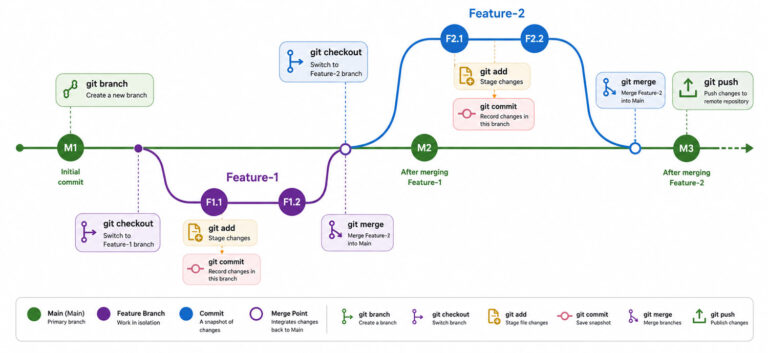
ABC of Git Commands is a beginner-friendly way to understand the most common Git commands used in version control. Git helps developers track changes, manage branches, save updates, and work with code more confidently.
Git is a free and open-source distributed version control system. It works well for small projects, large applications, and team-based development.
Quick Overview
| Letter | Git Command | Purpose |
|---|---|---|
| A | Add | Add file changes to the staging area |
| B | Branch | Create or manage separate code branches |
| C | Commit and Checkout | Save changes and switch between branches |
Before learning these commands, let’s first understand what version control means.
What Is a Version Control System?
A version control system helps track changes made to files over time. It shows what changed, when it changed, and who made the update.
This is very useful when more than one person works on the same project. Without version control, code changes can become difficult to manage. Also, it becomes harder to find mistakes or restore older versions.
Git solves this problem by keeping a complete history of file changes. As a result, developers can work safely, test new ideas, and manage project updates with better control.
How to Download Git
You can install Git based on your operating system.
| Operating System | Installation Method |
|---|---|
| Windows | Download the Windows installer from the official Git website. |
| macOS | Download the Mac installer or install Git using a package manager. |
| Linux | Install Git using your system package manager based on your Linux distribution. |
After installation, you can use Git from the command line, terminal, or code editors like Visual Studio Code.
A – Git Add Command
The git add command moves file changes to the staging area.
The staging area works like a preparation area before saving changes permanently in Git history. First, you select the files. Then, you commit them with a message.
To add all changed files, use:
git add .To add a specific file, use:
git add {file_name}Example:
git add index.htmlThis command tells Git that the selected file is ready for commit.
B – Git Branch Command
A branch helps you work on a separate version of your code.
For example, you may create a new branch for a login feature, bug fix, or design update. Meanwhile, your main branch stays safe and unchanged.
To view all local branches, use:
git branchTo create a new branch, use:
git branch {branch_name}Example:
git branch feature-loginTo delete a local branch, use:
git branch -d {branch_name}Example:
git branch -d feature-loginTo delete a remote branch, use:
git push origin --delete branch-nameBranches make Git powerful because they help developers work in a clean and organized way.
C – Git Commit and Checkout Commands
In this blog, C includes two important Git commands:
git commitgit checkout
Both commands are common in day-to-day Git usage.
Git Commit Command
The git commit command saves staged changes in Git history.
A commit should always include a clear message. This message explains what change you made.
To commit changes with a message, use:
git commit -m "Your commit message"Example:
git commit -m "Added login page design"A good commit message helps you and other developers understand the purpose of the update later.
Git Checkout Command
The git checkout command helps you switch between branches.
To switch to an existing branch, use:
git checkout {branch_name}Example:
git checkout mainTo create a new branch and switch to it, use:
git checkout -b {branch_name}Example:
git checkout -b feature-dashboardThis command saves time because it creates the branch and moves you to it immediately.
Other Important Git Commands
Apart from add, branch, commit, and checkout, beginners should also know a few more Git commands.
| Command | Purpose |
|---|---|
git status |
Check changed, staged, and unstaged files |
git push |
Send committed changes to the remote server |
git pull |
Get the latest changes from the remote branch |
git stash |
Temporarily save uncommitted changes |
git stash pop |
Bring back stashed changes |
git reset --hard |
Discard local changes |
Git Status
The git status command shows the current state of your working directory.
git statusIt helps you check which files changed and which files are ready for commit.
In many terminals, red files usually show changes that are not staged yet. Green files usually show changes that are staged but not committed yet.
Git Push
The git push command sends committed changes to the remote Git server.
git push origin {branch_name}Example:
git push origin mainAfter pushing the changes, other team members can access them from the remote repository.
Git Pull
The git pull command gets the latest changes from the remote branch.
git pullIt is a good practice to pull the latest code before starting new work. This helps reduce conflicts and keeps your local code updated.
Git Stash
The git stash command temporarily saves your uncommitted changes.
git stashThis is helpful when you want to switch branches but do not want to commit incomplete work.
To bring back stashed changes, use:
git stash popGit Reset Hard
The git reset --hard command discards local changes.
git reset --hardUse this command carefully. It can remove your local changes permanently.
What Happens When Two Developers Change the Same File?
Sometimes, two developers update the same file and change the same lines of code. In that situation, Git may show a merge conflict.
A merge conflict means Git needs your help to decide which changes should stay. You need to review the conflicting lines and choose the correct version.
We will cover Git conflicts and conflict resolution in the next blog.
Conclusion
Git is an essential tool for managing code changes. It helps developers track updates, create branches, save work, and collaborate more safely.
For beginners, the best starting point is to understand git add, git branch, git commit, and git checkout. After that, commands like git status, git push, git pull, git stash, and git reset --hard become easier to use in real projects.

AboutTPJ Technical Team
The Project Jugaad Technical Team creates practical, easy-to-follow content on software development, web technologies, artificial intelligence, cybersecurity, cloud platforms, and digital tools. Our articles are informed by more than 13 years of hands-on experience with .NET, Angular, SQL Server, AWS, WordPress, Linux hosting, application deployment, and real-world troubleshooting. Each guide is researched, reviewed, and updated to provide accurate, useful, and actionable information for developers, businesses, and everyday technology users.