
Technology Guide
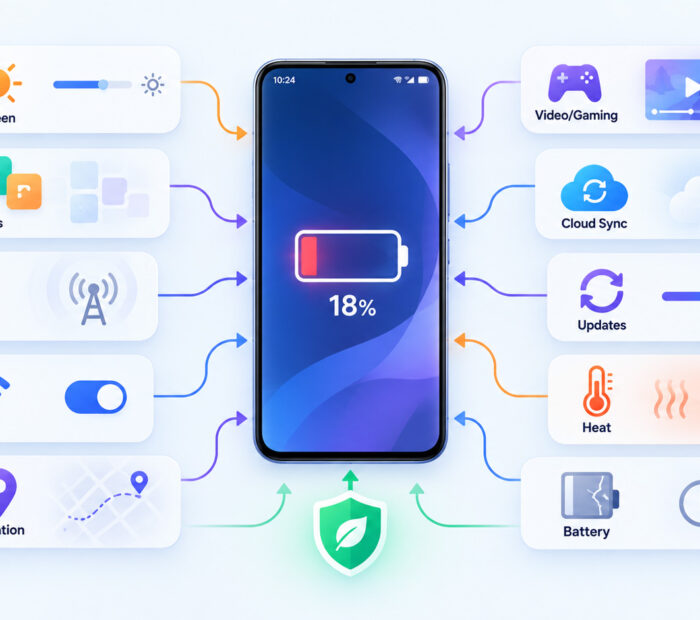
If your Android phone suddenly needs charging much earlier than usual, the battery itself is not always the problem. A new application, brighter screen, weak mobile signal, background synchronization, software update, hotspot use, or another workload can increase power consumption even when the battery is still healthy.
Battery drain is easier to fix when you first identify what is using the power. Changing ten settings at once may improve runtime, but it makes it difficult to know what actually caused the problem.
This guide explains how to check Android battery usage, identify common causes of excessive drain, reduce unnecessary background activity, and decide when the problem may be related to battery ageing rather than software.
Android Battery Draining Fast? Quick Answer
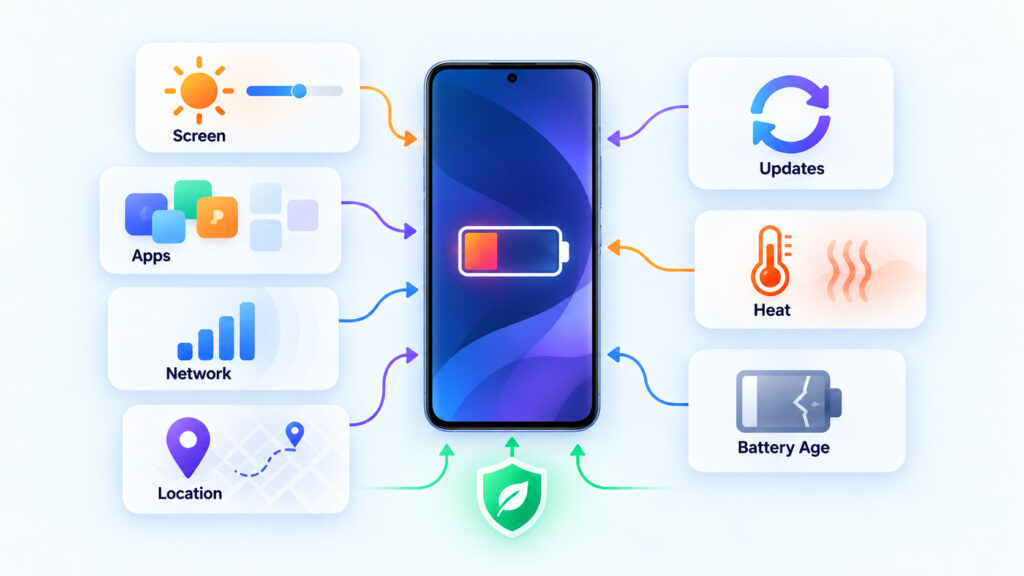
Fast battery drain on Android commonly comes from one or more of these causes:
- An app is using too much battery in the background.
- The screen is unusually bright or stays on for too long.
- Poor cellular signal is making the phone work harder to stay connected.
- GPS, navigation, hotspot, Bluetooth, or other radios are being used heavily.
- A software update is still completing background optimisation.
- Cloud backups, photos, or files are synchronising.
- Gaming, video recording, streaming, or another demanding workload is consuming power.
- Battery optimisation has been disabled for one or more apps.
- The phone is becoming excessively warm.
- The charger or cable is not supplying power efficiently.
- The battery has lost capacity through normal ageing.
- A software fault or unusual background process is preventing normal idle behaviour.
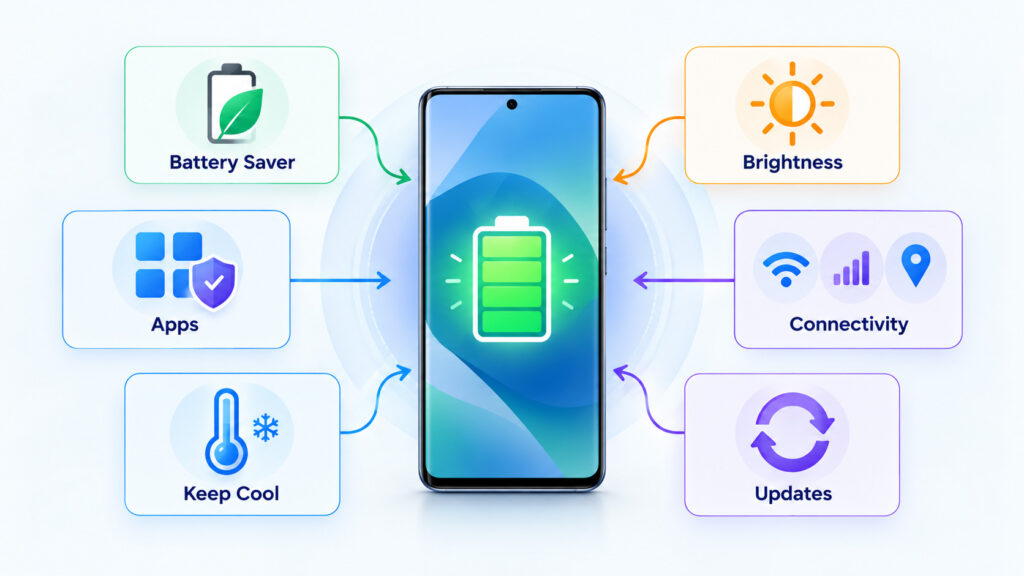
Google’s current Android battery-life guidance recommends reducing screen usage, restricting high-battery apps, using Adaptive Battery where available, limiting connectivity and location when unnecessary, and keeping the device cool.
First, Check Whether the Battery Drain Is Actually Abnormal
Battery percentage by itself does not tell the full story. Losing 15% while recording video, gaming, navigating with GPS, or using a mobile hotspot is very different from losing the same amount while the phone sits untouched on a desk.
| What You Notice | What to Investigate First |
|---|---|
| Battery drains mainly while using one app | That app’s battery usage and workload |
| Battery drains quickly with the screen on | Brightness, refresh rate, video, gaming, and screen timeout |
| Battery drains while the phone is mostly idle | Background apps, sync, mobile signal, location, updates, or software problems |
| Battery became worse immediately after an update | Post-update background optimisation and app updates |
| Battery life has gradually declined over years | Normal battery ageing and reduced capacity |
| Phone gets unusually hot while idle | Background activity, network problems, apps, or hardware condition |
Compare Battery Drain During Active Use and Idle Time
Charge the phone normally and pay attention to when the percentage drops most quickly. If the drain happens primarily during heavy use, the behaviour may be expected. If the phone loses a large amount of charge while sitting unused, background activity deserves more attention.
Do Not Judge the Battery From One Short Test
Battery usage can vary significantly from one day to another. Navigation, poor signal, camera use, video calls, app updates, and cloud backups can make one day look much worse than another.
Look for a repeatable pattern before changing major settings or replacing the battery.
Check Which Apps Are Using the Most Battery
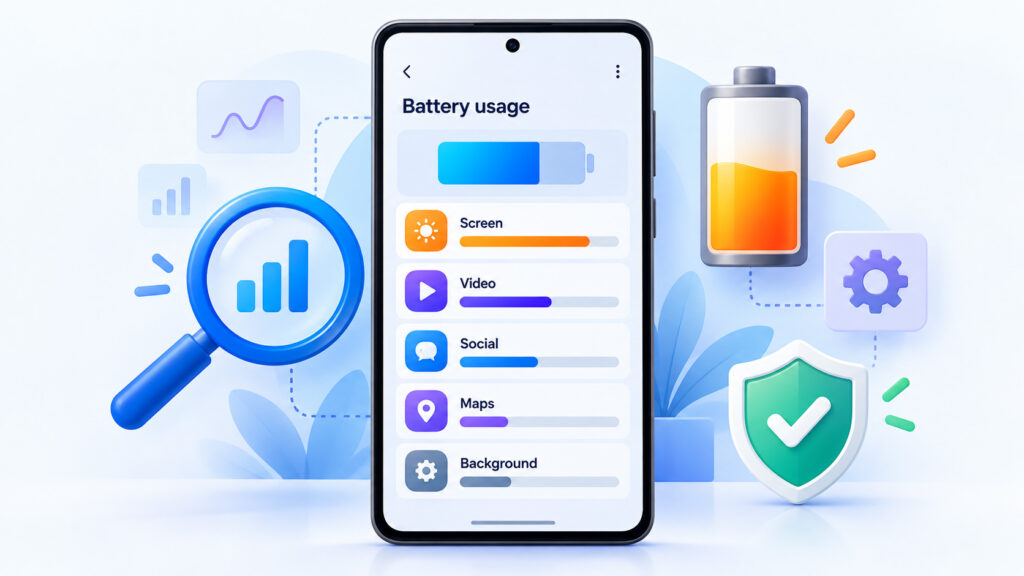
On many Android phones, battery usage can be reviewed from Settings > Battery > Battery usage, although the exact menu names vary by manufacturer and Android version.
Review both app usage and, where available, system usage.
Pay particular attention to:
- An app using much more battery than expected.
- An app running extensively in the background.
- An unfamiliar app near the top of the battery-usage list.
- An application consuming power during hours when you were not actively using it.
High battery usage is not automatically bad. A navigation app, game, video editor, camera, or video-call app can legitimately appear near the top while you are actively using it.
1. A Background App Is Using Too Much Battery
A downloaded app can continue doing work after you leave it. Messaging, social media, fitness tracking, navigation, cloud storage, VPNs, and other apps may legitimately perform background tasks, but a poorly behaving app can consume much more power than expected.
What to Do
Open the app’s battery settings and review the background options provided by your phone.
On Pixel phones running recent Android versions, Google documents app optimisation through the app’s App battery usage settings and recommends keeping battery optimisation enabled for most apps. See Google’s Adaptive Battery and battery optimisation guidance.
Do not aggressively restrict every application. Messaging, alarms, health apps, work apps, and other services may need background access to function correctly.
2. Screen Brightness and Screen-On Time Are Too High
The display can consume a substantial amount of power, especially at high brightness.
Battery life can decrease quickly when you:
- Use maximum or near-maximum brightness for long periods.
- Watch videos continuously.
- Play graphics-heavy games.
- Use navigation with the screen always on.
- Keep the screen timeout unusually long.
- Use a high refresh rate continuously on a supported phone.
How to Reduce Screen Power Use
- Reduce brightness to a comfortable level.
- Use adaptive brightness if it works well for your environment.
- Shorten the screen timeout.
- Use Dark theme where you prefer it.
- Consider a lower refresh-rate setting when maximum smoothness is unnecessary.
Google includes shorter screen timeout, lower brightness, automatic brightness, and Dark theme among its current Android battery-saving recommendations.
3. Poor Mobile Signal Is Increasing Power Use
A phone must communicate with nearby cellular infrastructure. In a location with weak or unstable coverage, the cellular radio may work harder to maintain or repeatedly establish a connection.
If battery life becomes noticeably worse in a particular building, basement, rural area, train route, or other low-signal environment, cellular connectivity may be contributing.
How to Check
Compare battery behaviour somewhere with strong signal coverage. If the drain mainly occurs in poor-signal locations, an application may not be the primary cause.
If you do not need cellular service for a period and can work offline, Airplane mode can reduce unnecessary radio activity. Do not use it when you need calls, messages, mobile data, or emergency connectivity.
4. Location and Navigation Are Running for Long Periods
Navigation uses several power-consuming components at the same time, potentially including GPS, mobile data, the display, processor activity, and map rendering.
That makes extended navigation a legitimate high-power workload.
Review which apps have location access and whether they need it all the time. For many applications, access only while the app is in use is sufficient.
5. Hotspot and Tethering Are Draining the Battery
Using your phone as a Wi-Fi hotspot can consume considerable power because the phone is simultaneously maintaining its mobile-data connection and sharing that connection with other devices.
Turn hotspot or tethering off when you are finished using it.
Google specifically lists tethering/hotspot use among activities that can reduce Android battery life in its official battery guidance.
6. Cloud Backups and Synchronisation Are Active
Photo backups, file synchronization, email, messaging, contacts, and other cloud services may perform significant background work.
This can become especially noticeable after:
- Setting up a new phone.
- Restoring a backup.
- Taking or importing many photos and videos.
- Adding a new cloud-storage account.
- Reinstalling an application.
Before disabling synchronization permanently, identify which service is transferring data. Backups are valuable for recovery, so the better solution may be to allow an initial sync to finish while the phone is charging and connected to Wi-Fi.
7. Gaming, Camera Use, Video, and Other Heavy Workloads
Games, video recording, augmented reality, AI features, video editing, and other demanding applications can use the processor, graphics hardware, display, storage, network, and camera simultaneously.
Fast battery drain during these workloads is not necessarily a fault.
Google’s Android guidance specifically notes navigation, video, gaming, camera use, streaming, and other processor-intensive activity as common high-drain tasks.
8. Battery Drain Increased After an Android Update
A phone may use more power temporarily after a major software update. Applications can update, files may be indexed, system components can be optimised, and background tasks may run while the phone settles into the new software.
Google currently notes that Pixel devices may drain somewhat faster after a software update because the phone is downloading and optimising new software. It recommends allowing a few days before treating the behaviour as an ongoing fault. See Google’s Pixel battery drain troubleshooting guidance.
What to Do After an Update
- Restart the phone once the update process is complete.
- Update installed applications.
- Allow background optimisation and synchronization to finish.
- Monitor battery usage over the next few days.
- Investigate further if the excessive drain remains consistent.
Do not repeatedly factory-reset the phone just because battery life is worse on the first day after an update.
9. Adaptive Battery or App Optimisation Is Disabled
Android devices may include Adaptive Battery and per-app optimisation features designed to reduce unnecessary background power use.
Google recommends keeping Adaptive Battery and battery optimisation enabled on supported Pixel devices. The system learns usage patterns and can reduce background operation for applications that are used less frequently.
Because Android interfaces vary by manufacturer, search your phone’s Settings for terms such as Adaptive Battery, Battery optimisation, or App battery usage if the menu path differs.
10. The Phone Is Too Hot
Temperature affects both immediate battery life and long-term battery condition.
A phone can become warm during:
- Fast charging.
- Gaming.
- Video recording.
- Navigation.
- Hotspot use.
- Large software updates.
- Use in direct sunlight.
Google warns that a hot battery can drain much faster even while the device is not actively being used and that excessive heat can damage the battery. See the official Android battery-care guidance.
How to Reduce Heat
- Move the phone out of direct sunlight.
- Pause demanding games or camera workloads.
- Stop charging temporarily if the phone is unusually hot.
- Remove an insulating case temporarily if appropriate and safe.
- Allow the device to cool naturally in a normal indoor environment.
Do not try to cool a hot phone rapidly in a refrigerator or freezer. Extreme temperature changes and moisture can create additional problems.
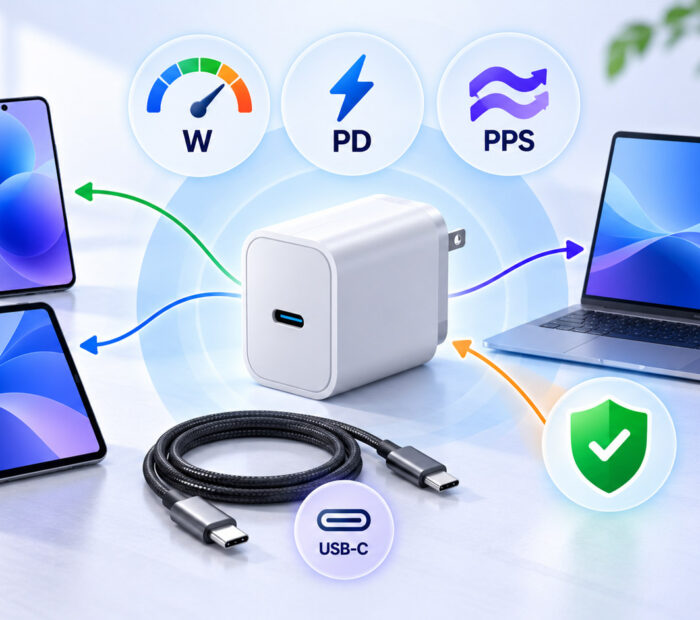
11. The Charger or Cable Is Not Suitable
A weak or incompatible charger may cause the battery percentage to rise slowly, particularly while the phone is actively being used.
If the device consumes power almost as quickly as the charger supplies it, charging may appear unusually slow.
Use a charger and cable that meet the phone manufacturer’s specifications. Google’s Android guidance recommends using the power adapter intended or recommended for the device because unsuitable chargers may charge slowly or not at all.
If you frequently charge away from a wall outlet, our power bank buying guide explains capacity, charging wattage, USB-C Power Delivery, ports, and cable considerations.
12. The Battery Has Aged
Lithium-ion batteries do not retain their original capacity forever. Over time and repeated charging cycles, the amount of energy the battery can store gradually decreases.
Ageing is more likely when:
- The phone is several years old.
- Battery life has declined gradually rather than suddenly.
- The same apps and settings now provide much less runtime than before.
- The phone requires charging several times per day under light use.
Some Android manufacturers provide a battery-health screen or diagnostic tool, while others do not expose a simple health percentage.
For Pixel 6 and later, Google currently provides Battery Diagnostics under the Battery settings on supported devices. This is Pixel-specific and should not be expected on every Android phone. Google’s Pixel battery diagnostic documentation explains the feature and troubleshooting process.
Turn On Battery Saver When You Need More Runtime
Battery Saver reduces power use by limiting selected background activity and system behaviour.
On many Android phones, you can find it under Settings > Battery > Battery Saver, although manufacturers may use different names.
Google notes that Battery Saver can limit background activity, visual effects, some network behaviour, and application activity. That may also delay certain notifications or background tasks.
Battery Saver is useful when:
- You are travelling.
- You cannot charge for several hours.
- The battery is already low.
- You need standby time more than maximum performance.
Restart the Phone if the Drain Appears Suddenly
If battery life changes dramatically without an obvious reason, restart the phone before making more disruptive changes.
A process or application may occasionally remain active longer than expected. A restart clears many temporary conditions and provides a clean baseline for further testing.
A 15-Minute Android Battery Drain Troubleshooting Plan
If you want to diagnose the problem without changing everything at once, use this order:
- Check Battery usage. Identify the apps and system components using the most power.
- Restart the phone. This clears temporary processes and provides a cleaner test.
- Update Android and installed apps. Apply current fixes before deeper troubleshooting.
- Reduce screen brightness. Use the phone normally and compare the result.
- Check mobile signal. Notice whether the problem is worse in low-signal locations.
- Turn off hotspot when unused. Also stop unnecessary navigation or location-heavy workloads.
- Review background app activity. Optimise apps that are using power when you are not actively using them.
- Keep Adaptive Battery enabled where supported.
- Check phone temperature. Investigate unusual heat during idle periods.
- Monitor the phone overnight. Compare idle drain without changing additional settings.
Change one major factor at a time. If you simultaneously disable location, Bluetooth, sync, background apps, 5G, brightness, notifications, and several other features, you may improve battery life but never discover what caused the original problem.
How to Test Overnight Battery Drain
An overnight idle test can help separate active-use drain from background drain.
- Charge the phone before bed.
- Close unusually demanding applications.
- Disconnect the charger.
- Leave the phone mostly unused overnight under your normal connectivity conditions.
- Check the remaining battery percentage and Battery usage in the morning.
Pixel-specific guidance currently uses an overnight battery test as part of Google’s diagnostic process on supported devices. Google’s documentation treats a loss above 10% in that particular Pixel diagnostic test as a reason to inspect apps and system usage further. This threshold should not be treated as a universal specification for every Android phone because devices, batteries, networks, and standby behaviour differ. See Google’s Pixel battery troubleshooting instructions for the exact Pixel procedure.
Battery Draining After an Update: How Long Should You Wait?
If the problem started immediately after a system update, give the phone some time to finish app updates, indexing, synchronisation, and optimisation.
Google’s current Pixel guidance says somewhat increased battery drain after an update can be normal and suggests investigating further when unusual drain remains after a few days.
If the problem continues:
- Check Battery usage again.
- Install pending app updates.
- Restart the phone.
- Check whether one app is behaving abnormally.
- Consult your phone manufacturer’s support page for model-specific issues.
Why Does My Battery Drain Even When I Am Not Using the Phone?
Idle does not necessarily mean inactive.
While the screen is off, a phone may still:
- Receive messages and notifications.
- Maintain cellular and Wi-Fi connections.
- Synchronise email and cloud files.
- Upload photos.
- Update applications.
- Track location for approved services.
- Perform operating-system maintenance.
The goal is not to force background battery use to zero. Instead, look for applications or services using substantially more power than expected for your normal usage.
Does Dark Mode Save Battery on Android?
Dark theme can reduce display power on phones using suitable OLED-type displays because dark pixels can require less power than bright pixels.
The real-world improvement depends on the display technology, brightness, content, and how long the screen is active. It should be treated as one small optimisation rather than a cure for severe battery drain.
Google includes Dark theme among its general Android battery-saving recommendations.
Does Turning Off 5G Save Battery?
Mobile-network battery use depends on the modem, signal quality, carrier network, device design, and how much data you are transferring.
In some situations, switching network modes may change power consumption, but disabling 5G should not be the first universal recommendation for every Android phone.
Start by checking actual Battery usage and signal quality. If the device consistently drains heavily in a particular network environment, consult your phone manufacturer or carrier before changing network settings permanently.
Could Fast Battery Drain Mean the Phone Is Hacked?
Battery drain alone is weak evidence of a security compromise. Many ordinary causes—including screen use, poor signal, updates, gaming, cloud synchronization, and an ageing battery—are much more common.
If fast drain appears together with unknown apps, suspicious account logins, unexplained permissions, messages you did not send, or other security indicators, investigate those symptoms separately.
For a complete security checklist, read our How to Know If Your Phone Has Been Hacked – 12 Warning Signs and What to Do guide.
Should You Factory Reset an Android Phone for Battery Drain?
A factory reset should generally be a later troubleshooting step, not the first response to poor battery life.
Before resetting the phone:
- Check Battery usage.
- Remove or update problematic applications.
- Install current system updates.
- Restart the device.
- Check manufacturer diagnostics.
- Back up important data.
If the battery problem remains severe after normal troubleshooting, consult your phone manufacturer’s support resources. A reset can help when persistent software problems are responsible, but it cannot restore capacity lost through battery ageing.
When Should You Consider Battery Replacement?
Battery replacement becomes more reasonable when:
- Battery life has gradually become unacceptable despite normal usage.
- The phone shuts down unexpectedly while charge remains.
- The manufacturer reports poor battery health.
- The device is several years old and runtime has dropped substantially.
- Charging behaviour has become unreliable.
Use an authorised or appropriately qualified repair provider where possible, particularly on phones with sealed batteries.
What If the Battery Is Swollen?
A swollen battery should not be treated as ordinary battery drain.
If the display or rear cover is lifting, the enclosure is separating, or the battery is visibly expanding, do not attempt to press the device back together, puncture the battery, or open the phone yourself.
Google’s current Pixel battery guidance tells users not to press a swollen device back together, pry it open, or attempt to repair a swollen battery themselves. Follow your own phone manufacturer’s safety instructions and local battery-recycling requirements. See Google’s Pixel battery health and swollen-battery guidance for its device-specific recommendations.
Common Android Battery Drain Mistakes
| Common Mistake | Better Approach |
|---|---|
| Closing every app constantly | Identify apps with genuinely abnormal battery usage first |
| Installing random battery-cleaner apps | Use Android’s built-in battery tools and trusted manufacturer guidance |
| Disabling every background app | Restrict only apps that do not need background access |
| Factory-resetting immediately | Check usage, updates, apps, connectivity, and temperature first |
| Assuming battery drain means hacking | Look for additional security evidence before reaching that conclusion |
| Ignoring excessive heat | Reduce workload and keep the phone in a normal temperature environment |
| Using an unsuitable charger | Use charging equipment that meets the manufacturer’s specifications |
Frequently Asked Questions
Why Is My Android Battery Draining So Fast All of a Sudden?
A sudden change can result from a recently installed app, software update, background synchronization, poor mobile signal, location activity, hotspot use, unusually high screen time, or a software process that is not behaving normally.
Start with Battery usage to identify what changed rather than immediately assuming the battery needs replacement.
How Do I Find Which App Is Draining My Android Battery?
Open the battery-usage section in Settings and review consumption by app. Menu names vary by manufacturer, but many Android phones provide this information under the Battery settings.
Compare high usage with how much you actually used the app. Heavy battery consumption from a game you played for two hours is different from an unfamiliar app consuming power throughout the night.
Should Adaptive Battery Be On or Off?
On supported devices, Adaptive Battery is generally intended to reduce unnecessary background battery use. Google recommends leaving Adaptive Battery and battery optimisation enabled on supported Pixel phones.
Why Is My Phone Battery Draining Overnight?
Overnight drain can come from mobile signal, Wi-Fi, notifications, cloud synchronization, app updates, location activity, background applications, or operating-system processes.
Run an overnight test and review Battery usage the next morning to see which apps or system components were active.
Does Battery Saver Damage the Phone?
No. Battery Saver is an operating-system feature designed to reduce power use. It may limit background activity, visual effects, or some performance, but using it does not inherently damage the battery.
Should I Drain My Android Battery to 0% Before Charging?
No routine full discharge is required to “teach” a modern lithium-ion battery its capacity. Google’s Android guidance says you do not need to repeatedly go from full to zero or zero to full for normal battery use.
Why Is My Phone Hot and Losing Battery Quickly?
Heavy apps, gaming, navigation, video recording, hotspot use, poor connectivity, charging, software updates, or unusual background activity can increase both heat and battery consumption.
If the phone becomes excessively hot during light or idle use, stop demanding workloads, allow it to cool, and investigate battery usage.
Will a Factory Reset Fix Battery Drain?
It can help when persistent software or configuration problems are responsible, but it will not restore capacity lost through normal battery ageing. Use a factory reset only after backing up important data and completing less disruptive troubleshooting.
Final Thoughts
Fast Android battery drain is easiest to solve when you diagnose it rather than randomly disabling features.
Start with Battery usage and determine whether the power is going to the display, a particular application, network activity, navigation, hotspot use, updates, or another workload. Then change one major factor at a time and compare the result.
Keep the operating system and apps current, use Battery Saver when additional runtime matters, keep Adaptive Battery and app optimisation enabled where supported, reduce unnecessary background activity, and avoid excessive heat.
If battery life has declined gradually over several years, software tweaks may improve runtime but cannot reverse normal battery ageing. At that point, battery replacement may provide a larger improvement than increasingly aggressive power-saving settings.

AboutTPJ Technical Team
The Project Jugaad Technical Team creates practical, easy-to-follow content on software development, web technologies, artificial intelligence, cybersecurity, cloud platforms, and digital tools. Our articles are informed by more than 13 years of hands-on experience with .NET, Angular, SQL Server, AWS, WordPress, Linux hosting, application deployment, and real-world troubleshooting. Each guide is researched, reviewed, and updated to provide accurate, useful, and actionable information for developers, businesses, and everyday technology users.