
Technology Guide
A laptop that once lasted most of the working day may eventually need a charger after only a few hours. That does not always mean Windows is malfunctioning. Rechargeable batteries gradually lose capacity as they age, while display brightness, background applications, performance settings, wireless connections, and demanding workloads can reduce how long each charge lasts.
Windows 11 includes a useful built-in tool for separating these two issues. The battery report can show the battery’s original design capacity, its current full-charge capacity, usage history, and estimated battery life without requiring a third-party battery-health application.
This guide explains how to generate that report, understand the important numbers, estimate battery wear, identify fast battery drain, and improve both everyday battery runtime and long-term battery health.
How to Check Laptop Battery Health in Windows 11: Quick Answer
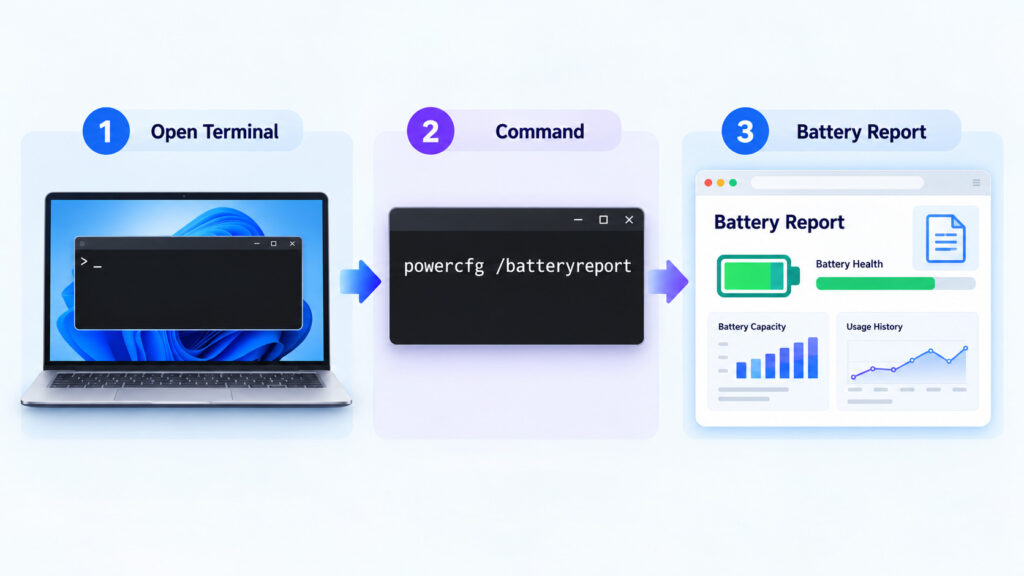
The quickest method is to generate the built-in Windows battery report using the following command:
powercfg /batteryreport
Windows creates an HTML report containing information about the installed battery. The most useful values for a basic health check are usually Design Capacity and Full Charge Capacity.
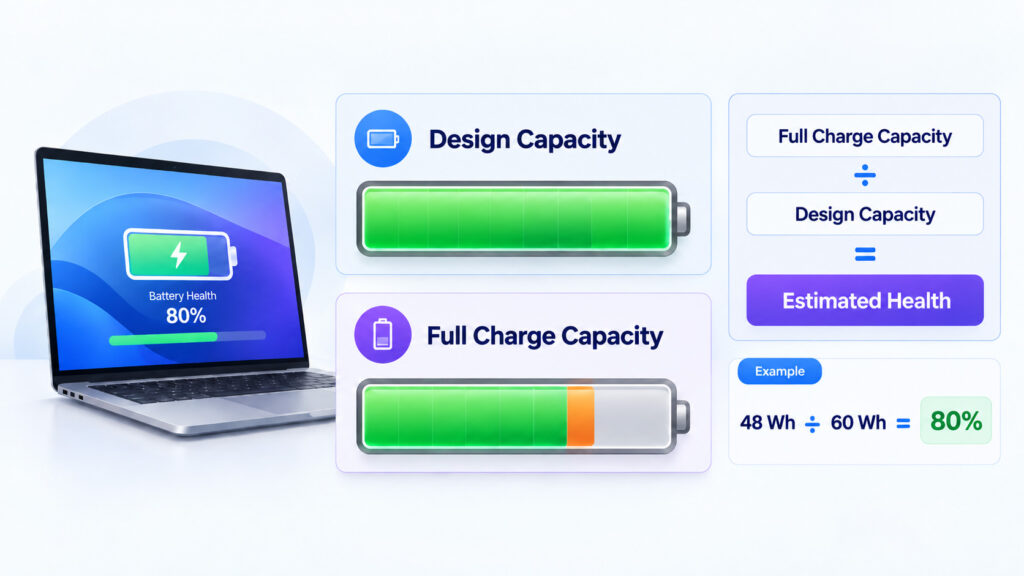
You can estimate the amount of original capacity still available with this calculation:
Estimated battery health (%) = Full Charge Capacity ÷ Design Capacity × 100
For example, if the battery was designed to hold 60,000 mWh and now reaches approximately 48,000 mWh at full charge:
48,000 ÷ 60,000 × 100 = 80%
That means the battery currently holds roughly 80% of its reported original design capacity. This is an estimate rather than a universal pass-or-fail score because battery reporting, calibration, manufacturing tolerances, and replacement guidance can vary between laptop models.
Battery Health Is Different From Battery Percentage
The percentage shown beside the battery icon tells you how much of the battery’s current usable capacity remains right now. It does not tell you how much capacity the battery has lost since it was new.
For example, an older battery can show 100% charged while holding substantially less energy than it did when the laptop was new.
| Measurement | What It Tells You |
|---|---|
| Current charge | How much of the battery’s present usable capacity remains |
| Design capacity | How much energy the battery was designed to hold when new |
| Full charge capacity | How much energy the battery can currently hold when fully charged |
| Cycle count | How much cumulative charging and discharging the battery has experienced, when reported by the hardware |
Microsoft explains that lithium-ion batteries gradually lose capacity through charging, discharging, age, and environmental conditions. Its current Windows battery-care guidance also explains how to generate the Windows battery report.
How to Generate a Battery Report in Windows 11
Step 1: Open Command Prompt as Administrator
Open the Start menu and type Command Prompt.
Right-click Command Prompt, choose Run as administrator, and approve the User Account Control prompt if Windows asks for permission.
Step 2: Run the Battery Report Command
Enter:
powercfg /batteryreport
Press Enter.
Windows should display a message showing where the battery-report HTML file was saved.
Step 3: Open the HTML Report
Open File Explorer, browse to the file location shown in Command Prompt, and open the generated battery report in your web browser.
Microsoft documents powercfg /batteryreport as a built-in Windows command that generates a report of battery-usage characteristics. The official Powercfg documentation also supports specifying a custom output filename if required.
Optional: Save the Report With a Specific Filename
If you prefer to control the output filename, you can use:
powercfg /batteryreport /output "battery-report.html"
The basic command is sufficient for most users, so there is no need to install a separate battery-health utility simply to view these values.
How to Read the Windows 11 Battery Report
The report contains more information than most users need for a quick battery-health check. Start with the battery-capacity sections before analysing individual usage sessions.
Installed Batteries
The Installed batteries section contains the key hardware information Windows receives from the battery and firmware.
Depending on the laptop, it may display:
- Battery name.
- Manufacturer.
- Serial number.
- Battery chemistry.
- Design capacity.
- Full charge capacity.
- Cycle count.
Not every laptop reports every field. For example, Cycle Count may be blank or unavailable even when the battery is working normally.
Design Capacity vs Full Charge Capacity
Design Capacity is the amount of energy the battery was designed to hold when new.
Full Charge Capacity is the approximate amount of energy Windows currently reports that the battery can hold at a full charge.
As lithium-ion batteries age, Full Charge Capacity normally decreases relative to Design Capacity.
| Example Value | Meaning |
|---|---|
| Design Capacity: 60,000 mWh | Approximate original rated capacity |
| Full Charge Capacity: 54,000 mWh | Battery currently holds about 90% of the original reported capacity |
| Full Charge Capacity: 48,000 mWh | Battery currently holds about 80% of the original reported capacity |
| Full Charge Capacity: 36,000 mWh | Battery currently holds about 60% of the original reported capacity |
How to Calculate Estimated Battery Health
Use:
Full Charge Capacity ÷ Design Capacity × 100
Example:
48,000 ÷ 60,000 × 100 = 80%
In this example, the battery can currently hold approximately 80% of its original reported design capacity.
Windows does not present this calculation as a universal replacement threshold. Use the number as one diagnostic indicator and combine it with real runtime, charging behaviour, unexpected shutdowns, manufacturer diagnostics, and physical battery condition.
What Does Cycle Count Mean?
A battery cycle represents cumulative use equivalent to roughly one full battery capacity, not necessarily one single charge from 0% to 100%.
For example, using about half of the battery one day and another half later contributes approximately one cumulative cycle.
Cycle limits and expected capacity retention vary by battery design and manufacturer, so do not judge battery condition from cycle count alone.
Check Recent Usage
The Recent usage section shows recent power-state activity, including periods when the laptop was active, suspended, or connected to power.
This can help answer questions such as:
- Was the laptop actually asleep when you expected it to be?
- Was it running on battery for a long period?
- Was it connected to AC power during an unexpected drain?
Check Battery Usage
The Battery usage section shows battery-level changes during recorded periods of activity.
A steep drop can be normal during gaming, video rendering, software compilation, high-brightness use, or other demanding workloads. The pattern becomes more interesting when the battery drops rapidly during light use.
Review Battery Capacity History
The capacity-history section is especially useful when you want to understand degradation over time rather than relying on one reading.
If Full Charge Capacity gradually trends downward across months or years, that normally reflects battery ageing. A single unusual reading can sometimes be less meaningful than the longer-term pattern.
Battery Life Estimates
The report may also contain battery-life estimates based on observed usage and capacity.
These should be treated as estimates, not guarantees. Laptop runtime can change substantially depending on display brightness, processor load, graphics activity, wireless connectivity, video playback, external devices, background applications, and power mode.
Do Not Judge a Battery From One Number
A healthy battery can still provide disappointing runtime if the laptop is using a large amount of power. Likewise, an older battery can remain perfectly usable when your typical workload is light and you normally work near a charger.
Consider replacing or servicing a battery based on the combination of:
- Remaining full-charge capacity.
- Actual runtime.
- Charging reliability.
- Unexpected shutdowns.
- Physical condition.
- Your practical mobility needs.
How to Improve Battery Life in Windows 11
Battery health describes how much capacity the battery has retained over time. Battery life describes how long the laptop lasts on a particular charge.
You cannot restore chemically lost battery capacity with a Windows setting, but you can often make the available capacity last longer by reducing unnecessary power use.
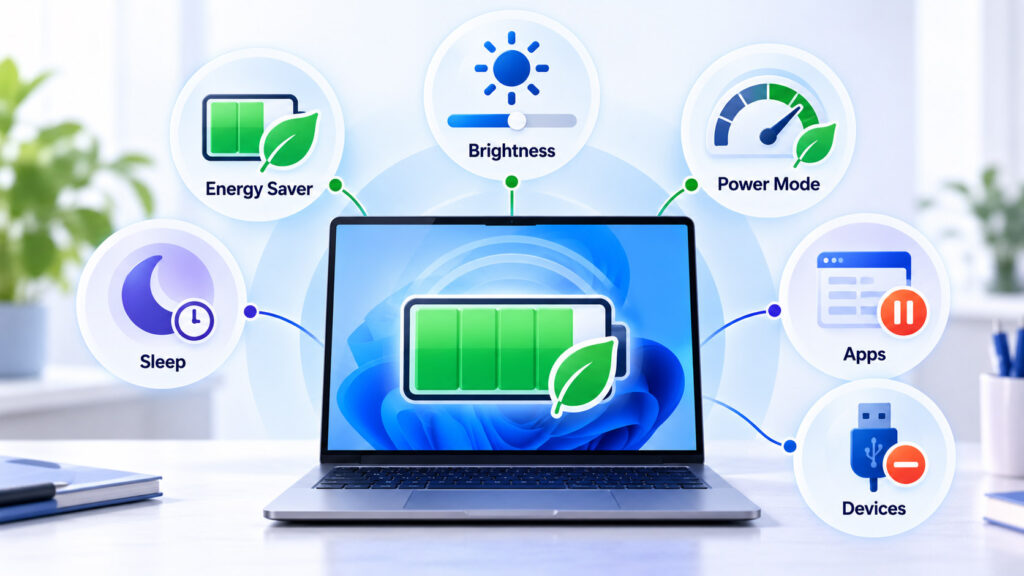
1. Check Windows Energy Recommendations
Open Settings > System > Power & battery > Energy recommendations.
Windows may suggest adjustments involving brightness, screen timeout, sleep behaviour, USB devices, and other settings that affect energy consumption. The exact recommendations vary according to the laptop’s hardware.
Microsoft documents these options in its current Windows 11 Energy recommendations guide.
2. Use Energy Saver When You Need Longer Runtime
Energy Saver can reduce power consumption by limiting selected background activity and adjusting system behaviour.
Open Settings > System > Power & battery and review the Energy Saver options available on your version of Windows 11.
You can also configure it to activate automatically when the battery reaches a selected level.
Feature names and options can differ between Windows 11 releases, so use the controls shown on your own device rather than relying on an older screenshot.
3. Choose an Efficient Power Mode
Under Settings > System > Power & battery, select a more energy-efficient power mode when maximum performance is unnecessary.
A high-performance mode can be useful for demanding work, but it may allow the processor and other components to consume more energy.
4. Reduce Display Power Use
The display can be one of the largest power users in a laptop.
Try:
- Reducing brightness to a comfortable level.
- Using a shorter screen-off timeout.
- Allowing the laptop to sleep sooner when idle.
- Using automatic brightness where supported and useful.
- Reducing refresh rate when very high refresh rates are unnecessary.
Microsoft includes brightness, screen timeout, sleep behaviour, and display settings among its current battery-saving recommendations for Windows.
5. Find Apps Using the Most Battery
Open Settings > System > Power & battery > Battery usage.
Review the applications consuming the most power. High battery usage is not automatically a problem if the application is doing demanding work, but an app using significant power in the background when you do not need it deserves attention.
For apps that support background-activity controls, Windows may allow you to reduce unnecessary background operation.
6. Close Workloads You Are Not Using
Browser tabs, video meetings, virtual machines, development environments, games, cloud synchronisation, video editors, AI workloads, and file indexing can all increase power consumption.
Closing unused applications can be more effective than applying several small battery tweaks while a demanding process continues running in the background.
7. Disconnect Unnecessary External Devices
USB storage, external interfaces, lighting accessories, phones, and other connected devices may draw power from the laptop.
Disconnect equipment you do not need when you are trying to maximise runtime away from a charger.
8. Turn Off Wireless Features You Are Not Using
If you do not need Wi-Fi, Bluetooth, or another wireless connection for an extended period, disabling it can reduce unnecessary radio activity.
Airplane mode can be useful when you need neither Wi-Fi nor Bluetooth, such as while working offline during travel.
9. Restart a Laptop With Unexplained Battery Drain
A background process, driver, update, or application can occasionally remain active and consume excessive power.
A normal restart is a reasonable early troubleshooting step when battery life suddenly becomes worse without a clear change in usage.
Why Is My Laptop Charging Slowly?
Slow charging does not necessarily mean the battery is damaged.
A USB-C laptop may charge slowly or even continue losing battery while plugged in if the charger, cable, or charging port cannot provide enough power for the current workload.
Microsoft recommends using a charger and cable that meet the laptop’s power requirements. Its slow-charging guidance notes that an underpowered or incompatible charger can cause slow charging or battery discharge while connected.
If you want portable backup power for a compatible USB-C laptop, our power bank buying guide explains how capacity, USB-C Power Delivery, port wattage, cable ratings, and laptop charging requirements work together.
How to Improve Long-Term Laptop Battery Health
Reducing power consumption helps a charge last longer today. Battery-health habits are slightly different because they focus on slowing capacity loss over months and years.
Avoid Excessive Heat
Heat is one of the most important conditions to control around a lithium-ion battery.
Avoid leaving the laptop in a hot parked vehicle, direct sunlight, or another high-temperature environment. Make sure cooling vents are not blocked when the laptop is performing demanding work or charging.
Microsoft notes that high temperatures can cause lithium-ion batteries to deteriorate faster and permanently reduce capacity. See Microsoft’s battery-care guidance for Windows.
Avoid Frequent Deep Discharges When Practical
You do not need to wait until the laptop reaches 0% before charging it.
Microsoft recommends avoiding frequent deep discharges and suggests keeping the battery within a moderate range of roughly 20% to 80% several times a week when practical.
This does not mean charging to 100% is forbidden. A full charge can be useful before travel or a long day away from power. The goal is to avoid unnecessarily keeping the battery at stressful extremes all the time.
Use Smart Charging or a Manufacturer Charge Limit
Some laptops offer Smart Charging, adaptive charging, conservation modes, or configurable charge limits through firmware or a manufacturer utility.
These features may temporarily limit the maximum charge when the laptop spends long periods connected to AC power.
Microsoft specifically recommends using Smart Charging when a compatible device supports it. Availability and control methods differ by laptop manufacturer and model.
Is It Bad to Leave a Laptop Plugged In All Day?
Modern laptops normally include charging-management circuitry, so remaining connected to power does not mean the battery continuously receives uncontrolled charging.
However, prolonged high charge levels combined with elevated temperature can contribute to faster battery ageing. If your laptop spends most of its life on a desk, check whether the manufacturer provides an adaptive or limited charging mode.
How Should You Store a Laptop for a Long Time?
If the laptop will not be used for an extended period, Microsoft recommends storing it in a cool, dry environment with the battery around 40% to 60% rather than completely full or completely empty.
Check the device periodically during very long storage so the battery does not remain deeply discharged.
Do You Need to Calibrate a Laptop Battery?
Repeatedly draining a lithium-ion laptop battery to 0% simply to “train” it is not a good routine for preserving battery health.
Occasional manufacturer-directed calibration may help correct an inaccurate charge gauge on certain devices, but that is different from deliberately performing deep discharge cycles on a regular basis.
If the displayed percentage behaves abnormally, follow instructions from your laptop manufacturer rather than generic battery-calibration advice.
When Should You Replace a Laptop Battery?
There is no single Windows percentage that automatically means every laptop battery must be replaced.
Replacement becomes worth considering when one or more of these problems materially affect normal use:
- Runtime has become too short for your needs.
- Full Charge Capacity has fallen substantially compared with Design Capacity.
- The laptop shuts down unexpectedly even when charge remains.
- The battery will not charge reliably.
- The laptop reports a battery-service warning.
- The battery becomes unusually hot during ordinary use.
- The battery or laptop enclosure begins to swell or deform.
What to Do If the Laptop Battery Is Swollen
A swollen battery is a safety issue rather than simply a battery-life problem.
If the battery expands enough to distort the case, lift the trackpad, separate the chassis, or otherwise change the laptop’s shape, stop using the device.
Microsoft advises stopping use immediately when a battery expands beyond the mechanical enclosure and warns against applying pressure to or puncturing the battery. Do not attempt to flatten, puncture, bend, or squeeze a swollen lithium-ion battery.
Contact the laptop manufacturer or an appropriate qualified repair provider and follow local battery-disposal requirements.
Battery Health vs Battery Life: What Should You Fix?
| Problem | Most Useful First Check |
|---|---|
| Laptop is old and runtime has gradually decreased | Compare Full Charge Capacity with Design Capacity |
| Battery suddenly started draining quickly | Check Battery usage, updates, background apps, and recent software changes |
| Battery drains quickly only during demanding work | Review workload, power mode, brightness, CPU/GPU activity, and peripherals |
| Laptop charges very slowly | Check charger wattage, cable, port, temperature, and system load |
| Battery percentage is inaccurate | Check manufacturer diagnostics and calibration guidance |
| Laptop case is swelling | Stop using the device and arrange professional battery service |
Frequently Asked Questions
How Do I Check Battery Health on Windows 11 Without Installing Software?
Open Command Prompt as administrator, run powercfg /batteryreport, and open the generated HTML report. Compare Full Charge Capacity with Design Capacity to estimate how much of the original capacity remains.
Does Windows 11 Show a Battery Health Percentage?
Windows 11 does not provide one universal battery-health percentage for every laptop in the main Settings interface. The battery report provides capacity information that can be used to estimate retained capacity.
What Is a Good Laptop Battery Health Percentage?
There is no single percentage that determines whether every laptop battery is good or bad. A battery close to its original Design Capacity has experienced relatively little reported capacity loss, while a much lower Full Charge Capacity indicates greater wear.
The practical decision should also consider runtime, reliability, device age, manufacturer guidance, replacement cost, and how you use the laptop.
Why Does My Laptop Say 100% When the Battery Is Worn?
The displayed charge percentage refers to the battery’s current usable capacity. A worn battery can therefore show 100% even though that full charge contains less energy than when the battery was new.
Why Is My Windows 11 Laptop Battery Draining So Fast?
Fast drain can result from high display brightness, demanding applications, background processes, high refresh rate, wireless activity, external devices, inefficient power settings, poor signal conditions, software problems, or reduced battery capacity.
Check Settings > System > Power & battery > Battery usage before assuming the battery itself needs replacement.
Should I Keep My Laptop Battery Between 20% and 80%?
Microsoft recommends avoiding frequent deep discharges and keeping lithium-ion batteries within a moderate range of roughly 20% to 80% several times a week when practical.
You do not need to obsessively disconnect the charger at exactly 80%. Smart Charging or a manufacturer charge-limit feature is more convenient when supported.
Is Charging a Laptop to 100% Bad?
Charging to 100% occasionally is normal and useful when you need maximum runtime. The larger long-term concern is repeatedly keeping lithium-ion batteries at high charge and high temperature for extended periods when it is unnecessary.
Can Software Restore Lost Battery Capacity?
No Windows utility can reverse normal chemical ageing inside a lithium-ion battery. Power-management software can reduce energy use and improve runtime, but permanently lost cell capacity generally requires battery replacement to restore.
How Often Should I Check My Laptop Battery Health?
You do not need to generate a battery report every day. Check it when runtime changes noticeably, before buying a used laptop, when troubleshooting charging problems, or periodically if battery condition is important to your work.
Final Thoughts
Windows 11 already provides enough information for a useful laptop battery-health check without requiring an unknown third-party utility.
Start with powercfg /batteryreport, then compare Design Capacity with Full Charge Capacity. Use the capacity trend, actual runtime, charging behaviour, and physical condition together rather than relying on a single percentage.
If the battery itself is still healthy but runtime is poor, focus on Windows Energy recommendations, Energy Saver, display settings, background applications, power mode, wireless activity, and unnecessary peripherals.
For long-term battery health, avoid excessive heat and unnecessary deep discharges, use Smart Charging or a manufacturer charge limit when available, and follow the manufacturer’s service guidance when battery capacity or reliability becomes unacceptable.
Most importantly, treat swelling differently from ordinary battery wear. A visibly expanding lithium-ion battery should no longer be used and should be handled according to the manufacturer’s safety and service instructions.

AboutTPJ Technical Team
The Project Jugaad Technical Team creates practical, easy-to-follow content on software development, web technologies, artificial intelligence, cybersecurity, cloud platforms, and digital tools. Our articles are informed by more than 13 years of hands-on experience with .NET, Angular, SQL Server, AWS, WordPress, Linux hosting, application deployment, and real-world troubleshooting. Each guide is researched, reviewed, and updated to provide accurate, useful, and actionable information for developers, businesses, and everyday technology users.