
Technology Guide
Learning how to free up storage on Android can help when your phone cannot install apps, download files, record videos, or complete software updates.
However, deleting random folders can remove important photos, documents, messages, or application data. Therefore, you should first identify what uses the storage and then clean each category carefully.
This guide focuses on safe methods such as clearing temporary files, reviewing downloads, archiving unused apps, backing up media, and removing duplicate or unnecessary content.
Why Does Android Storage Become Full?
Android storage can fill gradually because apps and files continue growing over time.
For example, messaging apps may download photos and videos automatically. Meanwhile, browsers, social apps, streaming services, maps, and games may store temporary or offline data.
In addition, camera files become larger as phone cameras improve. Consequently, a few high-resolution videos can consume several gigabytes.
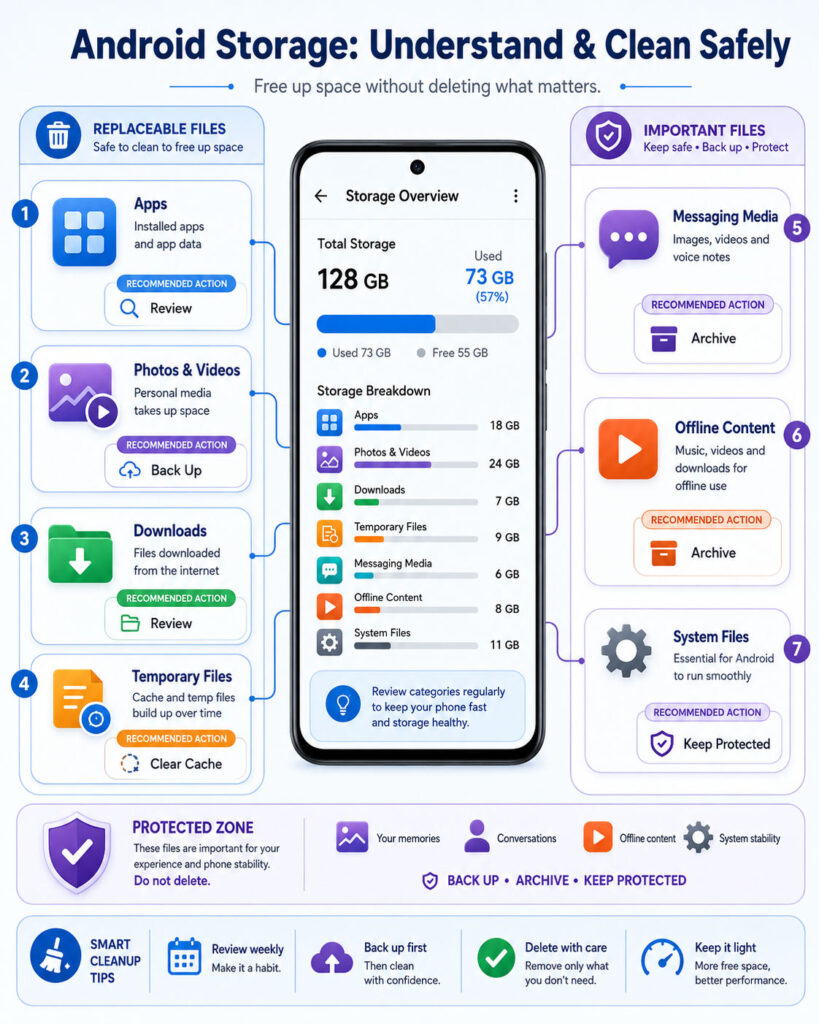
| Storage Category | What It May Contain |
|---|---|
| Photos and Videos | Camera files, screenshots, edited copies, received media, and screen recordings |
| Apps | Installed applications, games, updates, and downloaded resources |
| App Data | Accounts, settings, offline files, databases, and saved content |
| Downloads | Documents, installation files, images, videos, and email attachments |
| Temporary Files | Cached images, thumbnails, browsing data, and other replaceable files |
| System Files | Android, security updates, manufacturer software, and essential services |
Before cleaning the phone, open its storage settings and check which category uses the most space.
How to Check Android Storage
Most Android phones provide a storage summary inside the Settings app.
Open Settings and look for Storage, Device Care, Device Maintenance, or a similar option. The exact menu name may differ by manufacturer.
Afterwards, review the available categories instead of focusing only on the remaining storage number.
- Check whether apps or media use most of the space.
- Look for unusually large files.
- Review the Downloads folder.
- Check whether offline videos or music remain saved.
- Identify apps that have grown much larger than expected.
Files by Google can also show used and available storage. If the phone supports an SD card, the app may display internal and card storage separately.
Back Up Important Files Before Cleaning
Create a backup before removing large groups of files or changing application storage.
First, identify content that you cannot easily replace. This content may include family photos, work documents, identity files, certificates, voice recordings, project files, and exported chat backups.
Next, copy important items to at least one trusted location.
- A computer or laptop.
- An external storage device.
- A supported SD card.
- A reputable cloud-storage service.
- A second phone or trusted local device.
After copying the files, open a few items from the backup location. This check confirms that the files transferred correctly.
Most importantly, do not assume that a cloud icon always means the file has finished uploading. Confirm the backup status before removing the device copy.
Storage vs Memory on Android
Storage and memory are different parts of the phone.
| Term | Purpose |
|---|---|
| Storage | Keeps apps, photos, videos, documents, and system files |
| Memory or RAM | Temporarily holds active apps and processes while the phone runs |
Freeing storage creates space for files and applications. However, it does not increase the phone’s physical RAM.
Still, extremely low storage can affect updates and normal app behaviour. Therefore, keeping some free space is useful for daily operation.
Start with the Safest Storage Cleanup
Begin with files that the phone or an official file manager identifies as temporary, duplicate, or unnecessary.
Files by Google includes a Clean section that may suggest junk files, unused apps, large files, screenshots, or other removable items. However, review every selection before confirming deletion.
A safe starting order is:
- Review temporary or junk files.
- Empty unnecessary downloads.
- Remove failed or old installation files.
- Delete duplicate screenshots and recordings.
- Review large videos.
- Manage unused applications.
- Back up and remove selected media copies.
This order helps you recover space without immediately touching important application data.
Clear Junk and Temporary Files
Temporary files help apps load content more quickly. Over time, however, they can consume noticeable storage.
Open a trusted storage-cleaning tool, such as the built-in phone storage manager or Files by Google. Next, review the junk-file suggestion and confirm what the tool plans to remove.
Clearing recognised junk files should not remove your personal photos or documents. Nevertheless, avoid unknown cleaner apps that promise unrealistic speed or storage improvements.
Some third-party cleaners display aggressive advertising, request broad permissions, or remove useful files. Therefore, prefer tools provided by Android, the phone manufacturer, or another trusted source.
Clear App Cache Carefully
An app cache contains temporary files that help the application load content faster.
For example, a browser may cache website images, while a social app may cache thumbnails and previously viewed media.
To review an app, open its information page through Settings and select the storage option. Depending on the phone, you may see actions such as Clear cache and Clear storage.
Choose Clear cache when you only want to remove temporary data. Afterwards, the app may load more slowly the first time because it must download or recreate those files.
Clear Cache vs Clear Storage
| Option | What It Usually Does | Risk Level |
|---|---|---|
| Clear Cache | Removes temporary and replaceable app files | Usually low |
| Clear Storage or Clear Data | Removes the app’s local settings, accounts, databases, and other stored information | High without a backup |
Do not select Clear storage only because an app uses a large amount of space.
Instead, open the app and remove unnecessary downloads or media from within its settings. This approach gives you more control and reduces the risk of losing saved information.
Review the Downloads Folder
The Downloads folder often contains files that users needed only once.
Open the file manager and sort the folder by size or date. Then, look for old documents, repeated images, email attachments, installation packages, and downloaded videos.
Before deleting a file, open it and confirm its purpose. File names may not clearly identify invoices, certificates, travel documents, or work attachments.
- Keep current financial and identity documents.
- Back up important PDFs before deleting local copies.
- Remove duplicate attachments.
- Delete obsolete installation packages.
- Review old exported files and ZIP archives.
Afterwards, empty the file manager’s bin or trash when you no longer need the removed items. Otherwise, those files may continue using storage temporarily.
Find and Review Large Files
Large files offer the fastest opportunity to recover significant space.
Use the phone’s storage manager or file app to sort videos, documents, and downloads by size. However, do not delete a file only because it is large.
First, check whether the item is:
- An important family video.
- An offline movie or television episode.
- A screen recording you no longer need.
- A duplicated video received through messaging apps.
- A work archive or exported project.
- An old phone-backup package.
Next, back up valuable files and remove only the unnecessary device copies.
Manage Photos and Videos Safely
Photos and videos often consume more storage than any other personal content.
Start with low-value media such as blurry photos, accidental recordings, repeated screenshots, memes, and duplicate exports.
Then, review large videos separately. A few recordings may free more space than deleting hundreds of small images.
You can also move selected media to a computer, external storage, or cloud service. However, verify the copied files before removing anything from the phone.
Use Google Photos Free Up Space Carefully
Google Photos provides a Free up space option that can remove device copies of photos and videos after Google Photos identifies them as backed up.
Before using it, confirm that backup has completed for the correct Google Account. In addition, open several photos through the cloud service to ensure they are accessible.
After the cleanup, the media may disappear from the phone’s normal local folders or manufacturer gallery. However, backed-up items should remain available in Google Photos through the connected account.
Do not use this feature when you require offline access to every original file or when the backup status remains uncertain.
Understand Device Storage and Google Account Storage
Phone storage and Google Account storage are separate.
| Storage Type | What It Contains |
|---|---|
| Device Storage | Files and apps physically stored on the phone |
| Google Account Storage | Cloud content shared across supported Google services |
Removing a backed-up device copy can free phone storage. However, it does not reduce the cloud storage used by that file.
Similarly, deleting cloud content may affect synchronised services and devices. Therefore, check whether you are removing a local copy, a cloud copy, or both.
Clean Messaging-App Media
Messaging applications can store received images, videos, voice notes, documents, stickers, and duplicated forwarded content.
Use the application’s own storage-management feature when available. It may group files by chat, size, type, or forwarding frequency.
This method is safer than deleting unknown folders because the app can show which conversation owns each file.
- Review large videos first.
- Keep important family and work attachments.
- Export documents that you need later.
- Remove repeated forwarded media.
- Adjust automatic-download settings when appropriate.
Before deleting media, remember that another participant may not be able to resend an old file.
Remove Offline Downloads
Streaming, map, podcast, browser, and education apps may save content for offline use.
Because these files belong to the application, they may not appear clearly inside the normal Downloads folder.
Open each relevant app and review its offline section. Then, remove movies, songs, maps, courses, or podcast episodes that you have already used.
In addition, adjust automatic-download settings so the same problem does not return quickly.
Uninstall Apps You No Longer Use
Unused games and applications can consume storage even when you rarely open them.
Review the installed-app list and sort it by size or last use when the phone provides that option.
Before uninstalling an app, check whether it contains local-only files, game progress, recordings, drafts, or downloaded projects.
After confirming that you no longer need the app or that its data is safely synchronised, uninstall it through the phone settings or app store.
Archive Apps Instead of Uninstalling Them
Supported Android devices can archive selected apps.
Archiving removes much of the application software while keeping its icon and personal app data. Therefore, it can recover space without completely removing the app’s saved state.
When you need the app again, you can restore it as long as the application remains available from a supported app store.
However, archived apps cannot work normally until the phone downloads the application again. As a result, you should keep frequently used or emergency apps fully installed.
Review Apps That Use Unusually Large Storage
An application may grow because it stores offline files, temporary media, databases, or repeated updates.
Open the app’s storage details and compare its application size with its user-data and cache size.
If the cache is large, clear only the cache first. Afterwards, reopen the app and confirm that it works correctly.
When user data remains unusually large, manage the content from inside the app. For example, remove offline downloads, old projects, drafts, or completed media.
Manage Browser Storage
Browsers can store cached website files, cookies, downloads, saved pages, and site data.
Clearing cached images and files may recover space. However, removing cookies or complete site data can sign you out and reset website preferences.
Therefore, start with cached files and the Downloads folder. Remove broader browsing data only when you understand the effect.
Also, review installed browser extensions or add-ons when the browser supports them. Unnecessary extensions may affect privacy and performance even when they use little storage.
Move Files to an SD Card
Some Android phones support removable SD cards.
If your device includes this feature, you may move photos, videos, music, and documents to the card. Nevertheless, support varies by phone and application.
Before moving files, use a reliable card from a trusted seller. Low-quality or counterfeit cards may fail and cause data loss.
In addition, keep a separate backup of important content. An SD card should not become the only copy of valuable files.
Copy Files to a Computer
Moving media and documents to a computer can free phone storage without deleting the only copy.
Connect the phone through a suitable cable or use a trusted wireless transfer method. Next, copy the required folders and verify the files on the computer.
After confirming the transfer, remove only the phone copies that you no longer need.
For long-term safety, keep another backup because a computer drive can also fail.
Use Cloud Storage Selectively
Cloud storage can keep selected files available without leaving every local copy on the phone.
However, cloud access depends on the account, service availability, internet connection, and available cloud capacity.
Therefore, upload important files through a trusted connection and confirm that synchronisation has completed.
For sensitive documents, review the provider’s security settings and enable strong account protection.
Do Not Delete Unknown Android Folders
Android storage can contain folders created by the operating system, applications, media tools, and updates.
An unfamiliar folder is not necessarily unnecessary. Deleting it may remove offline content, application databases, game resources, or required files.
Instead, identify the associated app or search the manufacturer’s official guidance. When the folder belongs to an application, manage it through that app or its information page.
Avoid Random Storage Cleaner Apps
Many cleaner apps promise to remove large amounts of hidden data or make the phone dramatically faster.
However, some tools request extensive permissions, show intrusive advertising, or repeatedly remove files that applications recreate.
Use Android’s built-in storage tools, the phone manufacturer’s official utility, or another trusted file manager instead.
Most importantly, never grant an unknown cleaner access to passwords, accessibility controls, messages, contacts, or sensitive files.
Should You Clear Data for Google Play Services?
Do not routinely clear system-service data to recover storage.
System services support account connections, notifications, security features, app updates, and other phone functions. Removing their data may create temporary errors or require the device to rebuild information.
Therefore, use manufacturer or official Android troubleshooting guidance before changing system-service storage.
Can Deleting Cache Damage an App?
Clearing an app’s cache normally removes temporary files rather than personal content.
However, the app may reopen slowly while it recreates the cache. In addition, some downloaded previews or temporary offline content may need to load again.
If a specific app behaves incorrectly after cleanup, restart it and allow it to rebuild the required files.
Why Does Storage Fill Up Again?
Storage may return to its previous level because applications recreate cache files and users continue receiving media.
For example, social feeds, browser pages, map data, and streaming thumbnails can quickly rebuild temporary storage.
To prevent repeated problems:
- Reduce automatic media downloads.
- Remove offline content after using it.
- Review large videos monthly.
- Archive or uninstall unused apps.
- Move completed projects off the phone.
- Keep cloud and device storage clearly separated.
Regular small cleanups are safer than an emergency deletion when the phone becomes completely full.
How Much Free Storage Should You Keep?
Android does not require one universal free-space percentage for every device.
Still, the phone needs enough available storage for application updates, system updates, temporary files, camera recording, and daily operations.
Instead of targeting an exact number, act before the phone reaches a critically low level. For example, clean storage when updates fail or the device repeatedly displays low-storage warnings.
What Not to Delete
- Photos and videos that have no verified backup.
- Identity documents, certificates, invoices, or work files.
- Application data that stores local-only projects or drafts.
- System folders that you do not recognise.
- Messaging backups before confirming a replacement copy.
- Two-factor authentication exports or recovery information.
- Files required for an active legal, insurance, or financial process.
When you remain unsure, move the file to a backup location instead of deleting it.
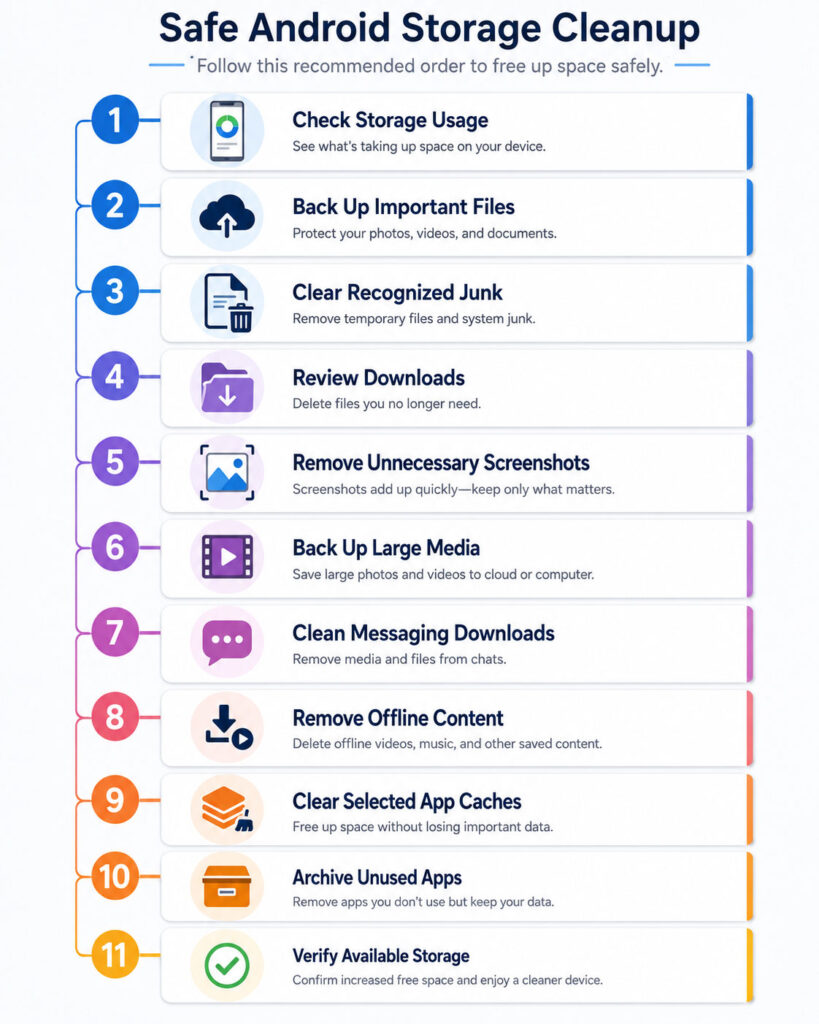
Safe Android Storage Cleanup Order
- Check which storage category is largest.
- Back up irreplaceable files.
- Remove verified junk and temporary files.
- Review the Downloads folder.
- Delete unnecessary screenshots and screen recordings.
- Back up and remove selected large videos.
- Clean messaging-app media from inside the app.
- Remove offline streaming and map downloads.
- Clear large app caches selectively.
- Archive or uninstall unused applications.
- Move suitable files to a computer, SD card, or cloud service.
- Restart the phone and check storage again.
This sequence starts with low-risk actions and leaves more sensitive changes until later.
Android Storage Cleanup Checklist
| Action | Safe Without Review? | Recommended Check |
|---|---|---|
| Clear recognised junk files | Usually | Review the cleanup list first |
| Clear an app cache | Usually | Confirm that you selected cache rather than storage |
| Delete downloads | No | Open files and back up important documents |
| Remove device photos | No | Confirm the backup and account |
| Clear app storage | No | Understand which local data will disappear |
| Uninstall an app | No | Check local files, drafts, and progress |
| Archive an app | Usually | Confirm that you can download it again |
| Delete unknown folders | No | Identify the associated system or application |
When Should You Consider a Factory Reset?
A factory reset should not be the first storage-cleanup step.
The process removes accounts, applications, settings, and personal data from the device. Therefore, use it only when normal cleanup does not solve a serious system problem or when trusted technical guidance recommends it.
Before resetting, verify backups, account passwords, authenticator access, contacts, photos, documents, and application recovery methods.
Final Verdict
The safest way to free up storage on Android is to identify large categories before deleting anything.
Start with temporary files, old downloads, repeated screenshots, and unused offline content. Next, back up large photos and videos, manage messaging media, and archive applications that you rarely use.
Avoid clearing complete app storage, deleting unknown folders, or trusting aggressive cleaner apps without understanding the result.
Conclusion
You can free up storage on Android without deleting important files when you follow a careful order.
First, check storage usage and create a verified backup. Then, remove replaceable files, review large media, manage app downloads, and archive unused software.
Finally, maintain the phone with smaller regular cleanups. This habit reduces emergency storage warnings and lowers the risk of accidental data loss.

AboutTPJ Technical Team
The Project Jugaad Technical Team creates practical, easy-to-follow content on software development, web technologies, artificial intelligence, cybersecurity, cloud platforms, and digital tools. Our articles are informed by more than 13 years of hands-on experience with .NET, Angular, SQL Server, AWS, WordPress, Linux hosting, application deployment, and real-world troubleshooting. Each guide is researched, reviewed, and updated to provide accurate, useful, and actionable information for developers, businesses, and everyday technology users.