
Technology Guide
Learning how to speed up a slow laptop can save time and improve daily work. A laptop may become slow while starting, opening apps, browsing websites, copying files, or switching between tasks.
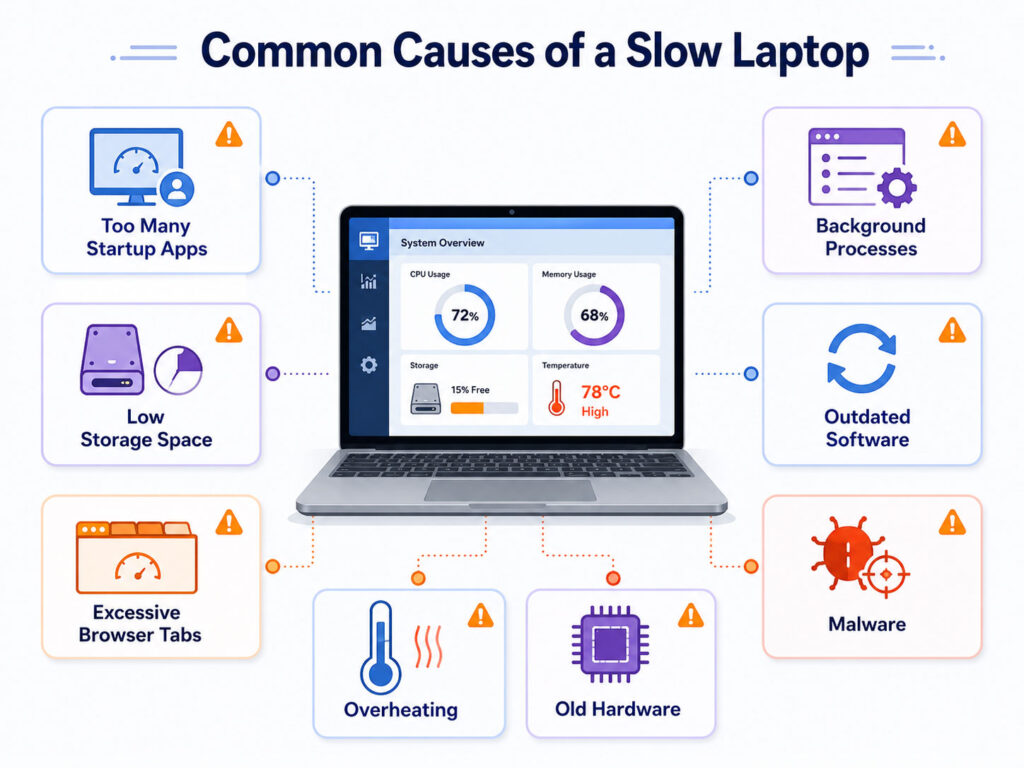
Several problems can reduce performance. For example, too many startup apps, low storage, outdated software, browser overload, overheating, malware, or old hardware may slow the system.
Fortunately, you can solve many common performance issues without buying a new laptop. Start with simple checks, measure the improvement, and then consider hardware upgrades only when necessary.
Why Does a Laptop Become Slow?
A laptop can slow down for more than one reason. Therefore, identifying the likely cause helps you choose the right solution.
| Possible Cause | Common Sign |
|---|---|
| Too Many Startup Apps | The laptop takes a long time to become usable after startup |
| Low Storage Space | Apps respond slowly, and file operations take longer |
| Too Many Browser Tabs | The browser freezes or consumes excessive memory |
| Background Processes | The laptop remains busy even when few apps are open |
| Overheating | Performance drops after the laptop runs for some time |
| Old Hardware | Basic tasks remain slow after software cleanup |
In many cases, two or more issues occur together. As a result, you may need to apply several improvements.
Restart the Laptop
Start with a proper restart, especially if the laptop has remained on or in sleep mode for several days.
A restart closes temporary processes, clears some memory usage, and allows pending updates to finish. Although this step sounds simple, it can solve short-term performance problems.
After restarting, open only the apps you need. Then, check whether the laptop responds more quickly.
Check Startup Apps
Many applications start automatically when you turn on the laptop. Consequently, they consume memory and processing power before you begin working.
Review the startup-app list in your operating system settings. Disable applications that do not need to run immediately, such as unused chat tools, game launchers, update helpers, or optional utilities.
However, avoid disabling security software, device drivers, or system services unless you understand their purpose.
Free Up Storage Space
A nearly full system drive can affect normal performance. Therefore, remove files and applications that you no longer need.
- Empty the recycle bin or trash.
- Delete old downloads and temporary files.
- Uninstall unused applications.
- Move large photos and videos to another storage location.
- Remove duplicate files carefully.
- Review offline cloud files that consume local storage.
Before deleting important data, create a backup. This step prevents accidental loss while you clean the laptop.
Find Large Files and Applications
Instead of deleting random files, first identify what uses the most storage.
Operating systems usually provide a storage view that groups apps, documents, images, videos, and temporary files. Use this information to focus on the largest items.
For example, an old game, unused editing tool, or large video collection may consume more space than hundreds of small documents.
Remove Applications You No Longer Use
Unused applications consume storage and may also run background services.
Open the installed-app list and remove software you no longer need. However, review unfamiliar applications before uninstalling them because some may support hardware or system features.
After removing several apps, restart the laptop and check the result.
Reduce Browser Load
A browser can use significant memory when many tabs, extensions, or web apps remain open.
First, close tabs you no longer need. Next, remove unnecessary extensions and review which websites continue running in the background.
- Keep only active tabs open.
- Bookmark pages that you want to revisit later.
- Remove extensions that you no longer use.
- Update the browser regularly.
- Clear problematic site data when one website behaves incorrectly.
In addition, avoid installing multiple extensions that perform the same task. Too many extensions can reduce speed and increase privacy or security risk.
Check Which Apps Use the Most Resources
Your operating system includes a tool that shows processor, memory, disk, and network usage.
Use it to identify applications that consume unusually high resources. For example, one frozen app may use most of the processor, while another may consume too much memory.
Close an unresponsive application normally when possible. If it does not respond, use the system task-management tool carefully.
Do not stop unknown system processes because doing so may cause errors or restart important services.
Update the Operating System and Applications
Updates can fix performance problems, security gaps, and software errors.
Therefore, check for operating-system, browser, driver, and application updates. Install updates from official sources only.
After the updates finish, restart the laptop. Then, test the same apps or tasks that previously felt slow.
Scan for Malware
Malware and unwanted software can consume resources, display popups, change browser settings, or run hidden processes.
Run a complete scan with trusted security software. Also, remove suspicious browser extensions and applications that you do not remember installing.
If the laptop shows repeated security warnings, unknown account activity, or persistent redirects, seek qualified technical support.
Keep the Laptop Cool
Heat can reduce laptop performance. When internal components become too hot, the system may lower its speed to protect the hardware.
Use the laptop on a hard, flat surface so air can move through the ventilation areas. In contrast, beds, pillows, and soft surfaces may block airflow.
- Keep ventilation openings clear.
- Avoid direct sunlight and very hot rooms.
- Do not place the laptop on soft fabric while using it.
- Shut down unnecessary heavy applications.
- Ask a professional to inspect persistent overheating.
Do not open the laptop for cleaning unless you have the required knowledge and tools. Incorrect handling can damage internal parts or affect the warranty.
Check the Power Mode
Power-saving modes may reduce performance to extend battery life.
If the laptop feels slow during demanding work, check the power settings. A balanced or performance-focused mode may help while the charger is connected.
However, higher performance can increase battery usage, heat, and fan activity. Therefore, choose the mode based on the task.
Should You Upgrade the RAM?
RAM helps the laptop keep several applications active at the same time.
If the system slows down while you use many browser tabs, office apps, development tools, or editing software, additional RAM may help. However, not every laptop supports a memory upgrade.
Before buying RAM, check the laptop model, supported capacity, available slots, memory type, and warranty conditions. If you are unsure, ask an experienced technician.
Should You Replace an HDD with an SSD?
An SSD can provide a noticeable improvement when an older laptop still uses a traditional hard disk as its main drive.
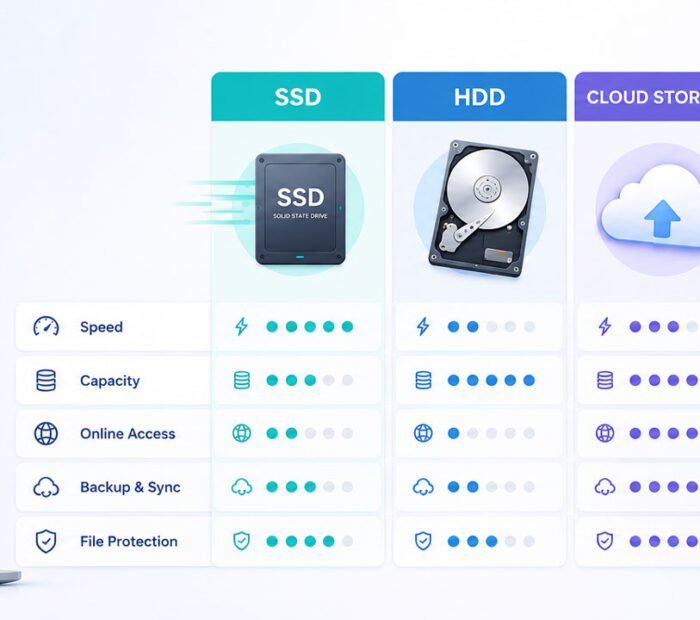
Compared with an HDD, an SSD usually starts the operating system and opens applications more quickly. It also has no moving parts.
Still, compatibility, storage capacity, installation, and data migration require careful planning. Therefore, create a complete backup before replacing the drive.
RAM Upgrade vs SSD Upgrade
| Problem | Upgrade That May Help |
|---|---|
| Slow startup and app loading | SSD upgrade |
| System slows with many apps or tabs | RAM upgrade |
| Very low storage capacity | Larger SSD or external storage |
| Both startup and multitasking feel slow | SSD and RAM, if the laptop supports both |
Hardware upgrades cannot solve every issue. An old processor, limited cooling system, damaged drive, or unsupported operating system may still restrict performance.
Back Up Important Files
Performance troubleshooting can involve deleting files, uninstalling apps, changing settings, or replacing storage.
Therefore, create a backup before making major changes. Keep important documents, photos, certificates, and project files in more than one location.
For example, you can keep one copy on an external drive and another in secure cloud storage.
Consider a System Reset Only as a Later Step
A system reset or clean installation may help when software problems continue after normal cleanup.
However, this process can remove applications, settings, and files. As a result, you should treat it as a later troubleshooting step rather than the first solution.
Back up everything important, confirm that you have login details and software licences, and follow the official instructions for your operating system.
Common Mistakes to Avoid
- Do not install random “speed booster” or registry-cleaning tools.
- Do not delete unknown system files.
- Do not disable security software to improve speed.
- Do not stop unfamiliar system processes without research.
- Do not download drivers from untrusted websites.
- Do not reset the laptop before creating a backup.
- Do not buy upgrades before checking compatibility.
These mistakes may create security problems, system errors, or data loss.
When Should You Replace the Laptop?
A replacement may make more sense when the laptop cannot support current software, requires several expensive repairs, or remains slow after suitable upgrades.
Also, consider replacement when the battery, storage, keyboard, display, cooling system, and other parts all need attention. In that situation, the total repair cost may approach the cost of a more reliable device.
Before deciding, compare the repair cost, upgrade options, remaining warranty, software support, and your performance needs.
Quick Laptop Performance Checklist
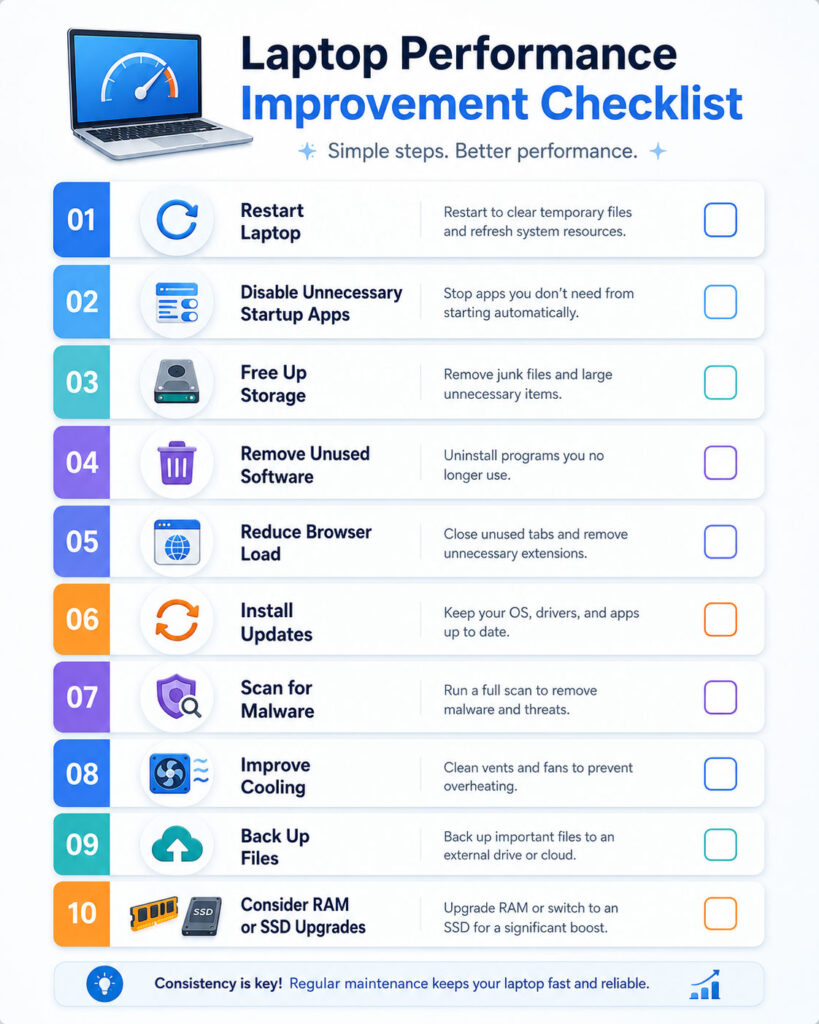
- Restart the laptop.
- Disable unnecessary startup apps.
- Free up storage space.
- Remove unused software and browser extensions.
- Check high resource usage.
- Install official updates.
- Run a malware scan.
- Improve airflow and reduce heat.
- Back up important files.
- Consider RAM or SSD upgrades when compatible.
Conclusion
Learning how to speed up a slow laptop starts with simple checks rather than expensive changes.
First, restart the system, reduce startup apps, free storage, manage browser load, and install updates. Next, scan for malware, check resource usage, and keep the laptop cool.
If software improvements do not solve the problem, evaluate an SSD or RAM upgrade. Finally, replace the laptop only when repairs and upgrades no longer provide good value.

AboutTPJ Technical Team
The Project Jugaad Technical Team creates practical, easy-to-follow content on software development, web technologies, artificial intelligence, cybersecurity, cloud platforms, and digital tools. Our articles are informed by more than 13 years of hands-on experience with .NET, Angular, SQL Server, AWS, WordPress, Linux hosting, application deployment, and real-world troubleshooting. Each guide is researched, reviewed, and updated to provide accurate, useful, and actionable information for developers, businesses, and everyday technology users.