
Technology Guide
SSD vs HDD vs Cloud Storage is a common comparison when people want to store files, improve computer speed, or choose the right backup option.
Each storage type has a different purpose. SSDs are fast, HDDs offer large storage at a lower cost, and cloud storage gives online access from multiple devices.
Therefore, the best option depends on what you need. You may need speed, large capacity, easy access, backup safety, or a mix of all three.
What Is an SSD?
SSD stands for Solid State Drive. It stores data using flash memory and does not use moving parts.
Because of this, SSDs are much faster than traditional hard drives. They can help your computer start faster, open apps quickly, and load files with less delay.
SSDs are commonly used in laptops, desktops, gaming systems, and work computers where speed matters.
What Is an HDD?
HDD stands for Hard Disk Drive. It stores data on spinning disks inside the drive.
HDDs are older than SSDs, but they are still useful because they offer large storage capacity at a lower cost. Many people use HDDs for photos, videos, movies, documents, backups, and archive storage.
However, HDDs have moving parts. So, they are usually slower than SSDs and can be more sensitive to physical damage.
What Is Cloud Storage?
Cloud storage means storing your files online using a cloud service provider.
Instead of keeping files only on your computer or external drive, you upload them to online storage. After that, you can access those files from your phone, laptop, tablet, or browser with an internet connection.
Cloud storage is useful for file sharing, automatic sync, remote access, and backup from different devices.
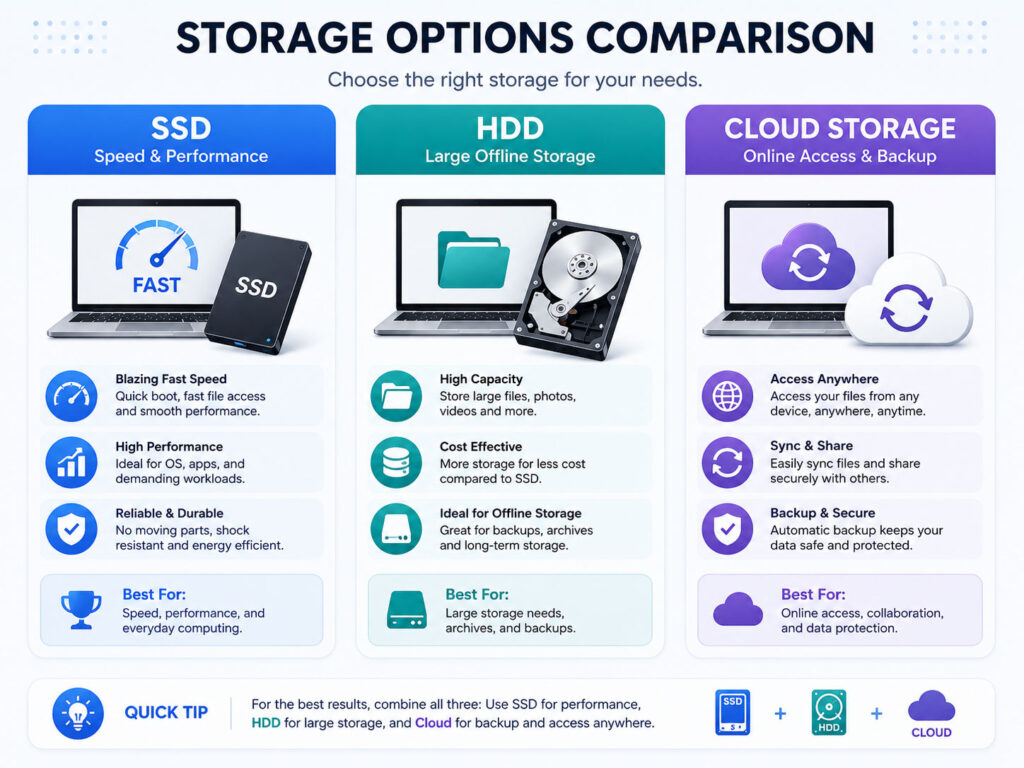
Quick Difference Between SSD, HDD, and Cloud Storage
The easiest way to understand the difference is this: SSD is best for speed, HDD is best for large offline storage, and cloud storage is best for online access and backup.
| Point | SSD | HDD | Cloud Storage |
|---|---|---|---|
| Main Benefit | Fast performance | Large storage capacity | Access from anywhere |
| Speed | Very fast | Slower than SSD | Depends on internet speed |
| Internet Needed | No | No | Yes |
| Best For | Operating system, apps, active work files | Photos, videos, archive files, local backups | File sync, sharing, remote backup |
| Risk | Can fail or get damaged | Can fail, get damaged, or slow down | Needs account security and internet access |
SSD Advantages
SSD storage is useful when you want better speed and smoother performance.
- It helps the computer start faster.
- It opens apps and files quickly.
- It has no moving parts, so it handles normal movement better than HDD.
- It works well for operating systems and active projects.
- It can improve overall system responsiveness.
As a result, SSD is a strong choice for laptops, desktops, students, office users, developers, designers, and gamers.
SSD Limitations
SSD storage also has some limitations.
- It can cost more than HDD for the same storage capacity.
- Very large SSDs may be expensive.
- It still needs backup because any storage device can fail.
- Recovering data from a failed SSD can be difficult.
So, even if you use an SSD, you should keep important files backed up somewhere else.
HDD Advantages
HDD storage is useful when you need more space at a lower cost.
- It is good for storing large files.
- It works well for photos, videos, movies, and archives.
- It can be useful for external backup drives.
- It usually offers more storage for less money.
Therefore, HDD is still practical for users who need large storage but do not need maximum speed for every file.
HDD Limitations
HDDs are slower than SSDs because they use moving parts.
- They can take more time to open files and apps.
- They may make noise or vibration during use.
- They can get damaged if dropped or handled roughly.
- They may slow down older computers if used as the main system drive.
Because of this, many users prefer SSD for daily performance and HDD for extra storage.
Cloud Storage Advantages
Cloud storage is helpful when you want access to files from different devices.
- You can access files from phone, laptop, tablet, or browser.
- You can share folders and files easily.
- You can sync files across devices.
- You can recover files even if your device is damaged.
- You can use it for automatic photo or document backup.
Because of these benefits, cloud storage works well for daily documents, mobile photos, shared work files, and remote access.
Cloud Storage Limitations
Cloud storage depends on internet access and account security.
- Large uploads and downloads may take time.
- Free storage can fill up quickly.
- Paid plans may add monthly or yearly cost.
- Your account needs a strong password and two-factor authentication.
- You may not access files easily without internet.
So, cloud storage is useful, but it should not be your only backup for very important files.
Which Storage Is Best for You?
The best choice depends on your main need.
| Your Need | Best Option |
|---|---|
| Fast computer startup and app loading | SSD |
| Large photo and video storage | HDD |
| Access files from anywhere | Cloud Storage |
| Daily office or study work | SSD plus cloud storage |
| Long-term local backup | External HDD |
| Best protection for important files | Use SSD, HDD, and cloud storage together |
Best Storage Strategy
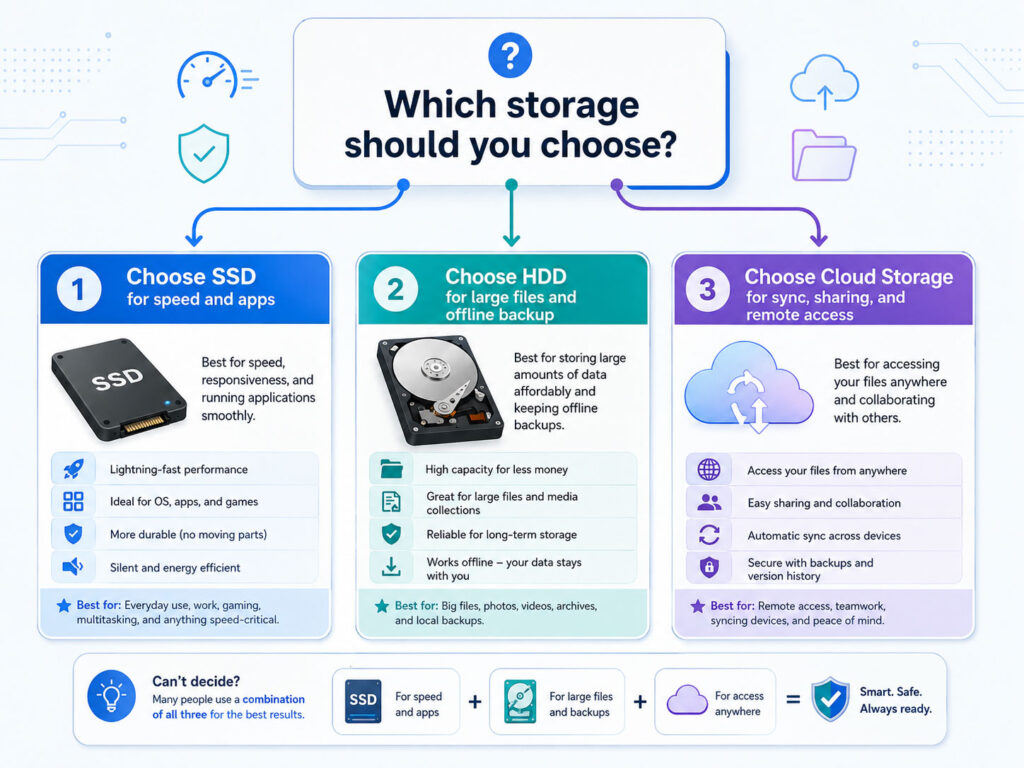
For most users, the best strategy is to combine storage options.
Use an SSD for your operating system, apps, and active files. Use an HDD or external hard drive for large files and offline backup. Then, use cloud storage for important files that you want to access or recover from anywhere.
This approach gives you speed, capacity, and backup safety together.
Common Mistakes to Avoid
Many users lose data because they keep everything in one place.
- Do not keep important files only on one laptop or phone.
- Do not use cloud storage without strong account security.
- Do not depend only on an old hard drive for backup.
- Do not ignore warning signs like slow drive performance or strange noises.
- Do not forget to test your backups sometimes.
Also, remember that storage is not the same as backup. If you have only one copy of a file, it is not a safe backup.
Conclusion
SSD vs HDD vs Cloud Storage is not about choosing one perfect option for everyone. Each option solves a different problem.
SSD is best for speed and daily performance. HDD is best for large offline storage at a lower cost. Cloud storage is best for online access, sharing, sync, and remote backup.
For better safety, use more than one option. A smart mix of SSD, HDD, and cloud storage can help you keep files fast, organized, and protected.

AboutTPJ Technical Team
The Project Jugaad Technical Team creates practical, easy-to-follow content on software development, web technologies, artificial intelligence, cybersecurity, cloud platforms, and digital tools. Our articles are informed by more than 13 years of hands-on experience with .NET, Angular, SQL Server, AWS, WordPress, Linux hosting, application deployment, and real-world troubleshooting. Each guide is researched, reviewed, and updated to provide accurate, useful, and actionable information for developers, businesses, and everyday technology users.