
Technology
Mesh Wi-Fi vs Wi-Fi extender is a common comparison for homes with weak signals, disconnected rooms, slow upstairs connections, or unreliable Wi-Fi near the edge of the property.
Both technologies can expand wireless coverage. However, they work differently and suit different types of homes.
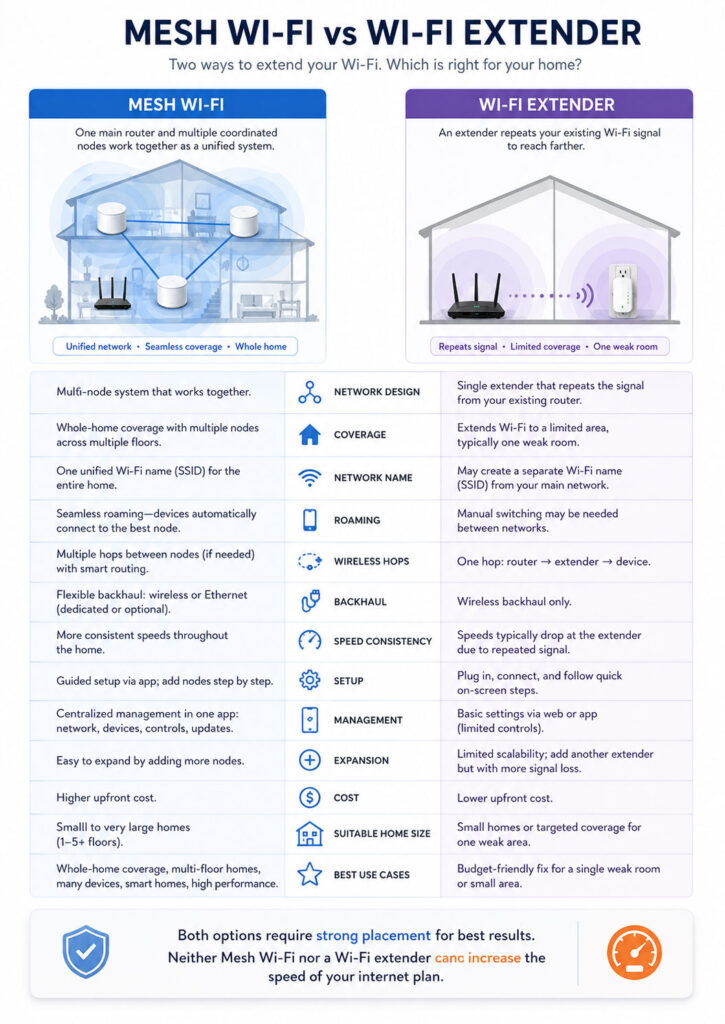
A Wi-Fi extender usually connects to an existing router and rebroadcasts its wireless signal into another area. By contrast, a mesh Wi-Fi system uses several coordinated units to create one wider home network.
Therefore, a Wi-Fi extender can provide an affordable fix for one small dead zone. Meanwhile, mesh Wi-Fi usually provides a more complete solution for larger homes, multiple floors, many connected devices, and users who move between rooms.
Why Do Homes Have Wi-Fi Dead Zones?
A wireless router sends radio signals through the home. As those signals travel, distance and physical obstacles reduce their strength.
Common causes of weak Wi-Fi include:
- Thick concrete or brick walls.
- Multiple floors.
- Metal doors and structures.
- Large mirrors.
- Water tanks and aquariums.
- Kitchen appliances.
- Furniture blocking the router.
- Neighbouring Wi-Fi networks.
- Bluetooth devices and other wireless equipment.
- A router placed inside a cabinet or corner.
- An old router with limited coverage.
- Long distance between the router and device.
In addition, higher-frequency Wi-Fi bands generally provide greater potential speed but may have more difficulty travelling through walls and over long distances.
As a result, a device can receive a fast connection near the router but perform poorly in a bedroom, office, balcony, or another floor.
What Is Mesh Wi-Fi?
Mesh Wi-Fi is a home networking system that uses a main router and one or more additional mesh points or nodes.
The main unit connects to the modem or internet gateway. Afterwards, the additional units extend coverage throughout the property.
Internet connection
        ↓
Main mesh router
        ↓
├── Mesh point in living room
├── Mesh point upstairs
└── Mesh point near home office
Unlike independent wireless extenders, the mesh units are designed to operate as one coordinated system.
Typically, users manage the network through one application or control interface. The system can also share settings, security updates, device information, guest access, and parental controls across the network.
How Does Mesh Wi-Fi Work?
Each mesh unit provides Wi-Fi coverage to nearby devices.
At the same time, the units communicate with one another through a connection known as backhaul.
Backhaul can use:
- A wireless Wi-Fi connection.
- An Ethernet cable.
- A dedicated wireless band on some systems.
- A shared wireless band on other systems.
When a phone, laptop, or smart device moves through the home, the mesh system can help guide it toward a more suitable access point.
However, the client device still participates in roaming decisions. Therefore, no system can guarantee that every old or poorly designed device will switch between nodes at the perfect moment.
What Is a Mesh Node?
A mesh node is an additional Wi-Fi unit that expands the system’s coverage.
Depending on the product, a node may also provide:
- Ethernet ports.
- Wireless backhaul.
- Wired Ethernet backhaul.
- Smart-home connectivity.
- Guest-network support.
- Device-management controls.
- Automatic firmware updates.
Some mesh systems use identical units, which means any unit can become the main router. Others use a dedicated router and separate satellite units.
What Is a Wi-Fi Extender?
A Wi-Fi extender, also called a range extender or repeater, connects to an existing wireless router and rebroadcasts the signal into another area.
Main Wi-Fi router
        ↓
Wireless connection
        ↓
Wi-Fi extender
        ↓
Devices in the extended area
The extender does not normally replace the existing router. Instead, it adds another wireless coverage point.
This approach can work well when one room receives a weak but usable router signal.
How Does a Wi-Fi Extender Work?
The extender first receives data from the main router. Next, it retransmits that data to devices connected through the extended network.
The same process works in the opposite direction:
Phone or laptop
        ↓
Wi-Fi extender
        ↓
Main router
        ↓
Internet
Because the extender must communicate with both the router and connected devices, performance depends heavily on its wireless connection to the main router.
Consequently, placing an extender directly inside a dead zone usually produces poor results. It can only repeat the signal it receives.
Wi-Fi Extender vs Wi-Fi Repeater vs Booster
Manufacturers and users often use the terms extender, repeater, and booster interchangeably.
In general:
- Wi-Fi extender: Extends an existing wireless network into another area.
- Wi-Fi repeater: Receives and retransmits a wireless signal.
- Wi-Fi booster: A broad marketing term for equipment that improves coverage.
However, modern devices may include Ethernet ports, access-point modes, mesh compatibility, or dedicated radios. Therefore, buyers should review the actual specifications rather than relying only on the product name.
Mesh Wi-Fi vs Wi-Fi Extender: Quick Comparison
| Point | Mesh Wi-Fi | Wi-Fi Extender |
|---|---|---|
| Main Purpose | Create coordinated whole-home Wi-Fi coverage | Improve coverage in one or a few weak areas |
| Network Management | Managed as one integrated system | Usually managed as an addition to the existing router |
| Network Name | Normally uses one network name | May use the same name or a separate extended name |
| Roaming | Designed to assist movement between nodes | Can depend more heavily on the connected device |
| Coverage | Suitable for several rooms, floors, or wider homes | Best for a limited problem area |
| Performance | Usually more consistent across multiple coverage points | Can lose speed when repeating a weak wireless signal |
| Setup | Requires replacing or integrating with the main router | Usually connects to the existing router |
| Expansion | Add compatible nodes to the same system | Additional extenders may create more complexity |
| Cost | Higher initial cost | Lower cost for a basic unit |
| Best Fit | Large homes, several floors, many devices, and seamless coverage needs | Small homes or one isolated dead zone |
Does Mesh Wi-Fi Use One Network Name?
Most mesh systems use one Wi-Fi network name and password across the entire home.
As a result, users do not normally need to select a different network manually when moving between rooms.
The mesh controller can share network information across all nodes and help direct clients toward a suitable connection.
However, devices ultimately decide when to disconnect from one access point and join another. An older phone or smart device may remain connected to a distant node longer than expected.
Does a Wi-Fi Extender Create a Separate Network?
Many traditional extenders create an additional network name, often with a suffix such as:
HomeWiFi
HomeWiFi_EXT
In that setup, users may need to change networks manually when moving around the home.
Nevertheless, some modern extenders can reuse the router’s network name or join a compatible mesh system.
Using the same name does not automatically turn a traditional extender into a fully coordinated mesh network. Therefore, check whether the router and extender support a shared mesh technology rather than judging the setup only by its displayed network name.
What Is Wi-Fi Roaming?
Roaming occurs when a wireless device moves from one access point to another while remaining on the same network.
A good roaming experience can help maintain:
- Video calls.
- Voice calls.
- Streaming.
- Online gaming.
- Cloud applications.
- Smart-home connections.
Mesh systems commonly use network-management features to encourage better roaming decisions.
Still, successful roaming depends on the access points, client device, signal quality, firmware, and supported Wi-Fi features.
What Is Wi-Fi Backhaul?
Backhaul is the connection that carries data between the main router and additional mesh points.
Its quality directly affects the speed available to devices connected through those points.
For example:
Internet
   ↓
Main router
   ↓ Backhaul connection
Mesh point
   ↓
Laptop
If the backhaul connection is weak, every device using that mesh point can experience reduced speed or reliability.
Wireless Backhaul
Wireless backhaul connects mesh units through Wi-Fi.
Its main advantage is convenience because users do not need to install Ethernet cables through the home.
However, walls, distance, interference, and competing wireless traffic can reduce backhaul performance.
Therefore, mesh nodes still require thoughtful placement. They cannot provide fast service when they barely receive a usable connection from the rest of the system.
Ethernet Backhaul
Ethernet backhaul connects mesh nodes through network cables.
This arrangement can provide:
- More consistent inter-node performance.
- Lower wireless interference.
- Better use of Wi-Fi capacity for client devices.
- Improved reliability between floors or distant rooms.
- Stronger performance for fast internet plans.
Consequently, Ethernet backhaul is often the strongest option when the home already has suitable network cabling.
Nevertheless, not every mesh node includes Ethernet ports. Buyers should confirm this feature before choosing a system.
Dedicated vs Shared Wireless Backhaul
Some tri-band mesh systems reserve or prioritise one radio connection for communication between nodes.
Other systems use the same wireless bands for both client devices and backhaul traffic.
A dedicated backhaul can improve consistency in busy wireless environments. However, actual results still depend on radio design, channel availability, placement, Wi-Fi generation, interference, and client capability.
Therefore, the number of bands alone does not guarantee better whole-home performance.
Mesh Wi-Fi vs Access Point
A wireless access point connects to the router through Ethernet and creates Wi-Fi coverage in another location.
Main router
      ↓ Ethernet cable
Wireless access point
      ↓
Nearby wireless devices
Because the access point receives a wired connection, it does not need to repeat a weak wireless signal.
As a result, a wired access point can provide better performance than a basic extender.
However, traditional access points may require more manual setup. By contrast, a mesh system with Ethernet backhaul combines coordinated management with a wired connection between units.
Mesh Wi-Fi vs Additional Router
Adding another router without configuring it correctly can create:
- Separate networks.
- Conflicting IP address services.
- Double Network Address Translation.
- Device-discovery problems.
- Complicated port forwarding.
- Unpredictable roaming.
Therefore, a second router should normally operate in access-point, bridge, satellite, or compatible mesh mode when it is being used only to expand the same home network.
Mesh Wi-Fi vs Powerline Adapter
A powerline adapter sends network data through a home’s electrical wiring.
One adapter connects to the router, while another provides Ethernet or Wi-Fi in a different room.
This option can help when wireless signals struggle through thick walls and Ethernet cabling is unavailable.
However, performance depends heavily on the home’s electrical wiring, circuits, interference, and adapter placement.
Therefore, powerline networking can work well in one building and poorly in another.
Wi-Fi Coverage vs Internet Speed
Improving Wi-Fi coverage does not increase the speed supplied by the internet provider.
For example, a mesh system cannot turn a 100 Mbps internet plan into a 500 Mbps connection.
Instead, better Wi-Fi equipment can help devices receive more of the available internet speed throughout the home.
Internet plan speed
        ↓
Modem or internet gateway
        ↓
Router and Wi-Fi system
        ↓
Actual device speed
The final result depends on every part of this path.
Mesh Wi-Fi vs Wi-Fi Extender Speed
Mesh Wi-Fi normally provides more consistent performance across several rooms because the nodes are designed to operate together.
A Wi-Fi extender can still provide good results when it receives a strong router signal and serves only a limited area.
However, neither option guarantees the maximum speed printed on the box.
Actual performance depends on:
- Internet-plan speed.
- Router and extender capabilities.
- Mesh backhaul quality.
- Wi-Fi generation.
- Distance and walls.
- Wireless interference.
- Number of connected devices.
- Client-device capability.
- Ethernet-port speed.
- Firmware and configuration.
Why Can a Wi-Fi Extender Reduce Speed?
A basic wireless extender may use the same radio channel to receive data from the router and retransmit it to a connected device.
As a result, the data travels across more than one wireless link before reaching its destination.
Router
   ↓ Wireless hop
Extender
   ↓ Wireless hop
Device
Each hop consumes airtime. In addition, interference or a weak router-to-extender connection can reduce performance further.
Modern dual-band and tri-band extenders may manage this process more efficiently. Nevertheless, the slowest connection in the path still limits the final result.
Does Mesh Wi-Fi Lose Speed?
Wireless mesh systems can also lose throughput across wireless hops.
For instance, a distant node may relay traffic through another node before reaching the main router.
Main router
      ↓
Mesh node 1
      ↓
Mesh node 2
      ↓
Device
Consequently, a poorly placed multi-hop mesh can perform more slowly than expected.
Ethernet backhaul, stronger node placement, and a suitable tri-band system can reduce this limitation.
Does Adding More Mesh Nodes Improve Speed?
Adding a node can improve coverage when a genuine gap exists.
However, too many nodes may create excessive wireless overlap, interference, unnecessary roaming choices, or inefficient backhaul paths.
Therefore, more nodes are not automatically better.
Start with the number recommended for the property’s size and layout. Afterwards, add another unit only when testing confirms a remaining weak area.
Does Adding Multiple Extenders Work?
Multiple extenders can expand coverage, but the network may become harder to manage.
Potential problems include:
- Several network names.
- Devices connecting to the wrong extender.
- Extenders repeating other extenders.
- Reduced speed across several wireless hops.
- Overlapping channels.
- Difficult troubleshooting.
- Separate firmware and settings.
Therefore, a coordinated mesh system usually becomes more practical when several coverage points are required.
Mesh Wi-Fi vs Wi-Fi Extender Latency
Latency measures the delay before data travels through the network and receives a response.
Every additional wireless hop can add some delay. Moreover, interference, retransmissions, congestion, and poor signal quality can increase it further.
For basic browsing, a small difference may not be noticeable. However, latency becomes more important for:
- Online gaming.
- Video conferencing.
- Cloud desktops.
- Voice calls.
- Remote-control applications.
- Real-time collaboration.
A mesh system with strong backhaul usually offers more predictable latency across a larger home. Still, a wired Ethernet connection remains preferable for devices that require the most stable real-time performance.
Which Is Better for Online Gaming?
A mesh system is generally better when the gaming device is located far from the main router and the home needs several coverage points.
However, the strongest setup is usually:
- Connect the gaming device directly to the main router through Ethernet.
- Alternatively, connect it to a wired mesh node.
- Use wireless mesh only when cabling is impractical.
- Use a basic extender only when the extended connection remains strong and stable.
Although a fast download speed helps game installation, stable latency and low packet loss matter more during active gameplay.
Which Is Better for Video Streaming?
Both options can support video streaming when they provide adequate speed and a stable signal.
A Wi-Fi extender may be sufficient for one television in a nearby weak room.
By contrast, mesh Wi-Fi is usually better when several televisions, phones, tablets, and streaming devices operate across multiple floors.
For reliable streaming, also review:
- Internet-plan capacity.
- Video resolution.
- Number of simultaneous streams.
- Backhaul quality.
- Device signal strength.
- Network congestion.
Which Is Better for Video Calls?
Video calls need reliable upload and download performance.
An extender can work for a fixed home office when it receives a strong signal from the router.
However, mesh Wi-Fi often provides a more stable experience when users move between rooms during calls.
Most importantly, test the upload speed and latency at the actual work location rather than relying only on a speed test beside the router.
Which Is Better for Working from Home?
Mesh Wi-Fi usually offers the stronger whole-home solution for remote work.
It can support:
- Video meetings.
- VPN connections.
- Cloud applications.
- File transfers.
- Voice calls.
- Several family members working or studying together.
- Movement between office and living areas.
Nevertheless, one well-positioned extender may solve the problem when the home office is the only weak location.
Which Is Better for Smart Homes?
A mesh network can provide broad coverage for smart cameras, speakers, televisions, plugs, appliances, sensors, and other connected devices.
However, compatibility requires attention.
Some older smart-home products support only the 2.4 GHz band or have difficulty during setup when the router combines several bands under one network name.
Therefore, check whether the selected mesh system provides suitable onboarding options, device isolation, guest or Internet of Things controls, and support for legacy Wi-Fi equipment.
Which Is Better for Security Cameras?
Security cameras require consistent coverage because they may upload video continuously or whenever motion occurs.
A mesh node placed near outdoor or distant cameras can improve signal quality.
However, cameras connected through a weak wireless backhaul may still experience delays or missing footage.
For important installations, consider Ethernet or Power over Ethernet when the camera supports it.
Which Is Better for a Multi-Floor Home?
Mesh Wi-Fi is normally the better choice for a home with several floors.
Nodes can be positioned on different levels to build a coordinated coverage path.
Nevertheless, concrete floors, metal structures, heating systems, and stair placement can affect communication between units.
Therefore, avoid placing nodes directly above or below severe obstructions when another open path is available.
Which Is Better for a Small Apartment?
A modern standalone router may be enough for many apartments.
Before purchasing additional equipment:
- Move the router to a central and open location.
- Update its firmware.
- Test less congested Wi-Fi channels.
- Separate it from large appliances and metal objects.
- Check whether an old router is the main limitation.
If one room remains weak, an extender can offer an affordable fix.
However, adding several mesh nodes inside a compact apartment may create unnecessary overlap.
Which Is Better for a Large House?
Mesh Wi-Fi is usually more suitable for a large house because the system can expand through coordinated nodes.
It becomes especially useful when the property includes:
- Several floors.
- Long corridors.
- Detached offices.
- Many bedrooms.
- Outdoor seating areas.
- A large number of wireless devices.
Still, the correct number and placement of nodes matter more than buying the largest package automatically.
Which Is Better for Thick Walls?
Neither mesh Wi-Fi nor an extender can eliminate the physical effect of a thick concrete or stone wall.
A wireless mesh node still needs a strong path to another node.
Therefore, the best options may include:
- Ethernet backhaul.
- A wired access point.
- Placing the node near a doorway or stairwell.
- Using a powerline connection where suitable.
- Moving the main router to a better location.
Simply placing a more expensive wireless unit behind the same obstruction may not solve the problem.
Which Is Better for a Detached Room or Garden Office?
A detached workspace may be too far from the main house for reliable wireless backhaul.
Depending on distance and obstacles, better options may include:
- Outdoor-rated Ethernet.
- Fibre networking between buildings.
- A point-to-point wireless bridge.
- An outdoor mesh unit designed for the environment.
- Powerline networking when both locations share suitable electrical wiring.
For safety and reliability, outdoor cabling and lightning protection should be planned by a qualified installer.
Wi-Fi 5 vs Wi-Fi 6 vs Wi-Fi 6E vs Wi-Fi 7 Mesh
Mesh systems are available across several Wi-Fi generations.
| Generation | Common Bands | General Consideration |
|---|---|---|
| Wi-Fi 5 | 2.4 GHz and 5 GHz | Suitable for moderate plans and older devices |
| Wi-Fi 6 | 2.4 GHz and 5 GHz | Improves efficiency for many connected devices |
| Wi-Fi 6E | 2.4 GHz, 5 GHz, and 6 GHz | Adds 6 GHz capability for supported devices and backhaul designs |
| Wi-Fi 7 | 2.4 GHz, 5 GHz, and 6 GHz | Targets higher throughput, lower latency, and advanced multi-band operation |
Newer mesh hardware can improve capacity and future compatibility. However, connected devices need compatible Wi-Fi hardware to use the newest client features.
In addition, 6 GHz signals may provide high performance but generally require closer placement and clearer paths than lower-frequency connections.
Should All Mesh Units Use the Same Generation?
Using matching units usually provides the most predictable capabilities and performance.
Some product families allow older and newer nodes to operate together. However, mixed generations may reduce available features or create slower network segments.
Other systems do not support mixing particular product generations at all.
Therefore, verify compatibility before adding a new node to an existing mesh system.
Can Mesh Products from Different Brands Work Together?
Many proprietary mesh systems support only units from the same product family or manufacturer.
Wi-Fi EasyMesh provides an industry framework intended to improve interoperability between compatible access points.
However, both the router and satellite must explicitly support the relevant EasyMesh features and firmware.
Consequently, buyers should not assume that any two products labelled as mesh can join the same network.
Can an Extender Join a Mesh Network?
Some extenders support EasyMesh or a manufacturer-specific mesh platform.
When paired with a compatible router, they may participate in unified network management and roaming assistance.
However, an ordinary extender without compatible mesh support continues operating as a traditional extension device.
Therefore, check the exact model rather than assuming every extender from the same brand supports the same system.
Mesh Wi-Fi and an ISP Router
A mesh system normally connects to the modem or internet gateway.
If the internet provider supplies a combined modem and router, users may need to:
- Enable bridge or modem-only mode.
- Use the mesh system in access-point or bridge mode.
- Disable the old Wi-Fi network.
- Keep routing on the provider gateway when required.
The correct setup depends on the provider and mesh product.
Incorrectly operating two routers can create double Network Address Translation, which may affect gaming, remote access, port forwarding, and some business applications.
Mesh Wi-Fi Security
A managed mesh system can simplify security because all nodes receive coordinated settings and firmware updates.
Useful security features may include:
- WPA2 or WPA3 protection.
- Automatic firmware updates.
- Guest networks.
- Device lists.
- Unknown-device notifications.
- Parental controls.
- Internet of Things isolation.
- Security scanning.
However, features vary between products and some require a subscription.
Most importantly, users should change administrator credentials, install updates, disable unused remote management, and use a strong Wi-Fi password.
Wi-Fi Extender Security
An extender should use encryption that matches the security of the main router.
Older extenders may lack current security standards or stop receiving firmware updates.
Therefore, avoid reusing an unsupported extender simply because it still powers on.
Also, verify whether the extender creates a separate password, administrator account, or management page that requires protection.
Guest Networks and Parental Controls
Mesh systems often apply guest access and parental rules across the complete network.
By contrast, a basic extender may not extend every advanced router feature correctly.
For example, guest-network isolation, device schedules, or content filters may behave differently through the extender.
Therefore, families that depend on central controls should confirm feature support before purchasing.
Mesh Wi-Fi Cost
Mesh systems have a higher initial cost because the package includes several coordinated units and central management.
Additional costs may include:
- Extra nodes.
- Ethernet switches.
- Network cabling.
- Subscription-based security features.
- Replacement of older incompatible units.
Nevertheless, the investment may be worthwhile when several extenders would otherwise be required.
Wi-Fi Extender Cost
A basic extender is usually the cheaper option for one weak room.
However, buying multiple extenders can reduce the cost advantage.
In addition, users should consider the value of time spent switching networks, troubleshooting connections, and managing separate devices.
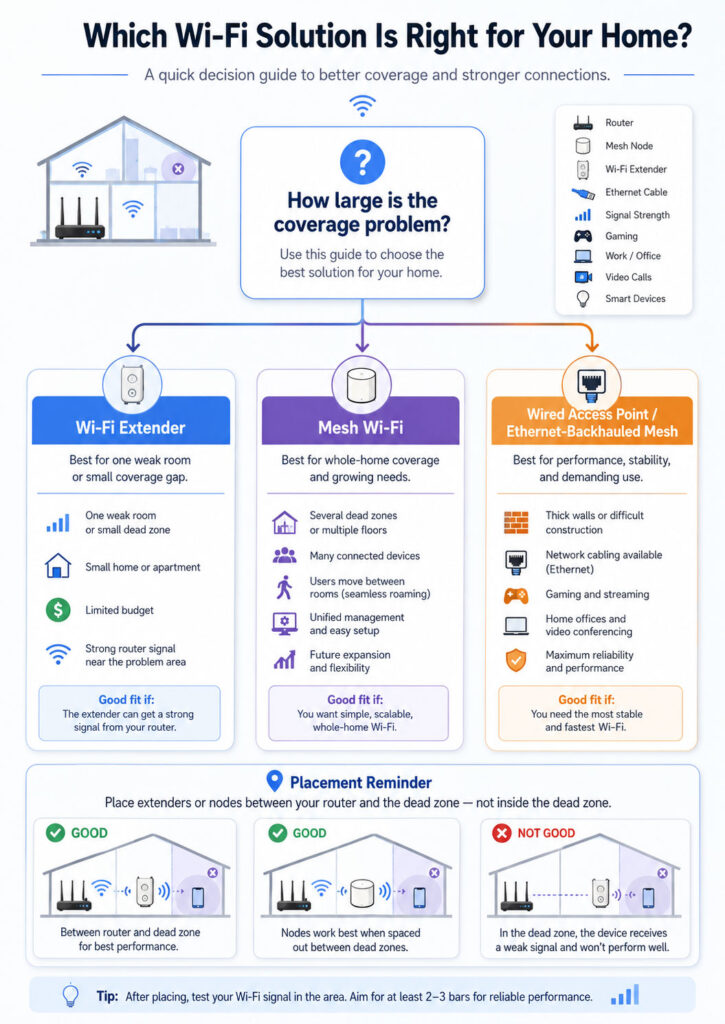
When Should You Choose Mesh Wi-Fi?
Mesh Wi-Fi is usually the better option when the home needs coordinated coverage across several locations.
Consider a mesh system when:
- The property has multiple floors.
- Several rooms receive weak Wi-Fi.
- Users move around during calls or streaming.
- The home contains many connected devices.
- Several family members use the network simultaneously.
- Central management is important.
- You want one network name throughout the home.
- You plan to expand coverage later.
- Ethernet backhaul is available.
- Multiple independent extenders would otherwise be required.
When Should You Choose a Wi-Fi Extender?
A Wi-Fi extender can provide better value when the problem is small and clearly defined.
Consider an extender when:
- Only one room has weak coverage.
- The existing router performs well elsewhere.
- The home is small.
- The budget is limited.
- The extender can be placed where the router signal remains strong.
- Manual network switching is acceptable.
- The extended area does not require maximum performance.
- The product supports access-point mode and Ethernet is available.
When Should You Use a Wired Access Point?
A wired access point is often the strongest option when Ethernet already reaches the weak area.
Choose an access point when:
- The building has network cabling.
- Maximum reliability is required.
- Thick walls block wireless backhaul.
- The connection serves gaming, work, or media equipment.
- A detached room has a safe wired connection.
- The existing router already provides the required routing features.
Alternatively, use a mesh system whose nodes support Ethernet backhaul to combine central management with wired performance.
Should You Upgrade the Router First?
An extender or mesh system may not solve problems caused by an old or failing main router.
Consider replacing the router first when:
- It no longer receives security updates.
- It uses an old Wi-Fi generation.
- It frequently restarts or disconnects.
- Performance is poor even beside the router.
- Ethernet connections are also slow.
- It cannot support the internet-plan speed.
- It lacks the management features you require.
A modern centrally placed router may cover the complete home without additional units.
How to Place a Mesh Router
The main mesh router should be placed in an open and practical location near the modem connection.
Whenever possible:
- Place it above floor level.
- Keep it outside closed cabinets.
- Avoid metal objects.
- Keep it away from large appliances.
- Move it toward the centre of the property.
- Avoid hiding it behind a television.
- Allow ventilation around the unit.
If the modem connection sits in an unsuitable corner, an Ethernet cable may allow the main router to move to a better position.
How to Place Mesh Nodes
A mesh node should sit between the main router and the weak area.
It must receive a strong connection before it can provide useful coverage farther away.
Main router
      ↓ Strong connection
Mesh point
      ↓ Improved coverage
Weak room
Do not begin by placing the node inside the room with no signal.
Instead, move it gradually toward the weak area while checking the mesh-connection quality through the system’s application.
How to Place a Wi-Fi Extender
The same principle applies to an extender.
Start with the extender near the router during setup. Afterwards, move it approximately halfway toward the weak area.
A suitable location should:
- Receive a strong router signal.
- Remain close enough to the problem room.
- Avoid large obstructions.
- Provide ventilation.
- Use a reliable electrical outlet.
- Stay away from high-interference appliances.
Many extenders include a signal indicator that helps identify an acceptable location.
How Far Apart Should Mesh Nodes Be?
There is no universal distance because wall materials, node radios, Wi-Fi bands, home layout, and interference vary.
Instead of following one fixed measurement:
- Place the first node within a strong connection range.
- Run the mesh test or check the connection indicator.
- Test performance beyond that node.
- Move the unit closer when the backhaul is weak.
- Add another node only when a genuine gap remains.
Open spaces may allow greater distances, while concrete walls may require much closer placement.
How to Set Up a Mesh Wi-Fi System
- Record the existing internet and router settings.
- Update the modem or gateway when required.
- Connect the main mesh router to the modem or gateway.
- Install the manufacturer’s management application.
- Create a strong administrator account.
- Set the Wi-Fi name and password.
- Add each compatible mesh node.
- Place nodes between the router and weak areas.
- Run the system’s mesh or connection test.
- Install firmware updates.
- Reconnect important devices.
- Test speed and stability in every room.
When retaining an ISP router, also configure bridge, access-point, or routing mode according to the relevant documentation.
How to Set Up a Wi-Fi Extender
- Update the main router’s firmware.
- Place the extender near the router.
- Connect through the application, browser setup, or WPS when supported.
- Select the main Wi-Fi network.
- Create or confirm the extended network name.
- Apply a strong password.
- Install the latest extender firmware.
- Move the extender halfway toward the weak area.
- Check its router-signal indicator.
- Connect a device and test performance.
Afterwards, confirm whether the device reconnects properly when moving between the main and extended coverage areas.
Should You Use the Same Wi-Fi Name?
Using the same network name can create a simpler appearance for users.
However, a traditional router and extender may not coordinate roaming decisions effectively.
As a result, some devices may remain connected to a weaker access point.
Using separate names makes manual selection easier during troubleshooting. Nevertheless, it requires users to choose the appropriate network themselves.
A compatible mesh system offers the better approach when one centrally managed network is important.
How to Test Wi-Fi Coverage
Test the network in the locations where people actually use it.
For each important room, record:
- Download speed.
- Upload speed.
- Latency.
- Signal strength.
- Connection band.
- Connected mesh node or extender.
- Video-call stability.
- Streaming reliability.
- Device reconnection behaviour.
Run several tests at different times because congestion and interference can change during the day.
Test the Wired Internet Connection First
Before blaming Wi-Fi, connect a computer directly to the router through Ethernet when possible.
If the wired result is also slow, the problem may involve:
- The internet provider.
- The modem.
- The router’s internet port.
- A damaged Ethernet cable.
- The subscribed plan.
- Network congestion.
- A service outage.
Improving wireless coverage cannot repair a slow incoming connection.
Mesh Wi-Fi Troubleshooting
When mesh performance is poor:
- Restart the modem and main router.
- Confirm the internet connection works beside the main unit.
- Run the mesh-connection test.
- Move weak nodes closer to another node.
- Remove unnecessary nodes.
- Install firmware updates.
- Check Ethernet backhaul and switches.
- Test without third-party network equipment.
- Review bridge and routing modes.
- Reconnect affected devices.
If only one device has trouble, update or reset that device’s Wi-Fi connection before changing the entire network.
Wi-Fi Extender Troubleshooting
When an extender performs poorly:
- Confirm that the main router works normally.
- Move the extender closer to the router.
- Check its signal-quality indicator.
- Restart the router and extender.
- Install firmware updates.
- Test a different Wi-Fi band.
- Reconnect to the correct extended network.
- Remove nearby sources of interference.
- Reset and configure the extender again when necessary.
- Use access-point mode if Ethernet is available.
Why Does a Device Connect to the Wrong Mesh Node?
Client devices decide when to change access points.
A phone or laptop may remain connected to a distant node because it still considers the connection usable.
To improve roaming:
- Update the device and mesh firmware.
- Avoid excessive node overlap.
- Place nodes at sensible distances.
- Restart the affected device.
- Forget and reconnect to the network.
- Check whether private-address or compatibility settings affect management.
Still, very old devices may never roam as smoothly as newer clients.
Why Is Wi-Fi Fast Near the Router but Slow Elsewhere?
This pattern usually indicates a coverage or backhaul problem.
Possible causes include:
- The node or extender is too far from the router.
- A thick wall blocks the path.
- The device has connected to a distant access point.
- The network uses several wireless hops.
- Interference affects one room.
- The client supports an older Wi-Fi generation.
- The extender uses a slower wireless band.
Move the coverage unit closer and test again before purchasing additional hardware.
Common Mesh Wi-Fi Mistakes
- Placing nodes directly inside dead zones.
- Adding too many nodes.
- Mixing incompatible product generations.
- Assuming every node includes Ethernet ports.
- Leaving the old router’s Wi-Fi active unnecessarily.
- Creating double Network Address Translation.
- Ignoring backhaul quality.
- Expecting mesh to increase the internet-plan speed.
- Buying based only on theoretical maximum speed.
- Hiding nodes inside cabinets.
Common Wi-Fi Extender Mistakes
- Installing the extender where the router signal is already unusable.
- Expecting full router speed after several wireless hops.
- Using an outdated extender with no security updates.
- Ignoring the difference between network names.
- Adding several independent extenders.
- Assuming the extender supports the router’s mesh platform.
- Using a slow Ethernet port for high-speed equipment.
- Failing to update firmware.
- Connecting important devices to the wrong network.
- Expecting the extender to fix an unreliable router.
Mesh Wi-Fi Buying Checklist
- Measure the home’s size and identify weak areas.
- Review the number of floors and wall materials.
- Check the internet-plan speed.
- Choose a suitable Wi-Fi generation.
- Confirm whether the system supports Ethernet backhaul.
- Review Ethernet-port speeds.
- Check compatibility between node models.
- Review guest, parental, and security features.
- Check whether advanced features require a subscription.
- Confirm ISP gateway and bridge-mode compatibility.
- Review the maximum practical number of nodes.
- Check firmware-support history.
- Consider future internet-plan upgrades.
Wi-Fi Extender Buying Checklist
- Confirm that only a limited coverage area needs improvement.
- Check compatibility with the main router.
- Review supported Wi-Fi bands and generation.
- Check whether the extender supports mesh integration.
- Review Ethernet-port availability and speed.
- Check access-point mode.
- Confirm security and firmware support.
- Review network-name behaviour.
- Check the placement indicator or management application.
- Compare the cost with an entry-level mesh system.
Mesh Wi-Fi vs Wi-Fi Extender Myths
| Myth | Reality |
|---|---|
| Mesh Wi-Fi always provides full speed everywhere | Wireless backhaul, distance, interference, and client capability still affect speed |
| An extender creates internet speed | It only extends access to the existing internet connection |
| More mesh nodes always improve coverage | Too many nodes can create interference and inefficient roaming |
| An extender should be placed in the dead zone | It must receive a strong router signal before repeating it |
| Using one network name creates a mesh | True mesh operation requires compatible coordination between devices |
| Every mesh node works with every mesh router | Compatibility depends on the product family, standard, and firmware |
| Mesh replaces a slow internet plan | It improves local coverage but cannot exceed the incoming service |
| Wi-Fi is always better than Ethernet | Ethernet normally provides greater stability for fixed high-priority devices |
Mesh Wi-Fi vs Wi-Fi Extender Decision Guide
| Your Situation | Recommended Starting Point |
|---|---|
| One weak bedroom in a small home | Wi-Fi extender |
| Several weak rooms | Mesh Wi-Fi |
| Multiple floors | Mesh Wi-Fi |
| Existing Ethernet in the weak room | Wired access point or mesh with Ethernet backhaul |
| Large number of connected devices | Modern mesh Wi-Fi |
| Users move around during calls | Mesh Wi-Fi |
| Fixed television needs a stronger signal | Extender may be sufficient |
| Thick concrete walls | Wired access point or Ethernet-backhauled mesh |
| Gaming PC near network cabling | Ethernet connection |
| Very limited budget | Reposition router first, then consider an extender |
| Several extenders would be required | Mesh Wi-Fi |
| Old unsupported router | Replace the router or install a new mesh system |
Which Option Is Easier to Manage?
Mesh Wi-Fi is usually easier to manage across a larger property.
The application can often show connected devices, node status, guest access, firmware updates, parental rules, and performance information in one place.
A single extender may also be simple. However, management becomes more difficult when several independent extenders are added.
Which Option Offers Better Value?
A Wi-Fi extender provides better value when one inexpensive unit solves one clearly defined coverage gap.
Mesh Wi-Fi provides better value when the home needs several coverage points, consistent roaming, central management, and future expansion.
Therefore, the cheapest product is not always the lowest-cost long-term solution.
Final Verdict
Choose a Wi-Fi extender when the existing router performs well and only one nearby room needs better coverage.
Choose mesh Wi-Fi when several rooms, multiple floors, many devices, or moving users require coordinated whole-home connectivity.
Whenever Ethernet is available, consider a wired access point or mesh system with Ethernet backhaul for the strongest performance.
Most importantly, place the equipment where it receives a strong connection. Neither an extender nor a mesh node can reliably repeat a signal that barely reaches it.
Conclusion
The Mesh Wi-Fi vs Wi-Fi extender decision depends on the size and layout of the coverage problem.
First, reposition and update the existing router. Next, test the wired internet speed and identify the exact weak areas.
For one isolated dead zone, a suitable extender may provide an affordable solution. However, a coordinated mesh system is usually better for whole-home coverage, multiple floors, and many connected devices.
Ultimately, the best home network combines good equipment with correct placement, strong backhaul, current firmware, secure settings, and realistic expectations about the internet plan.

AboutTPJ Technical Team
The Project Jugaad Technical Team creates practical, easy-to-follow content on software development, web technologies, artificial intelligence, cybersecurity, cloud platforms, and digital tools. Our articles are informed by more than 13 years of hands-on experience with .NET, Angular, SQL Server, AWS, WordPress, Linux hosting, application deployment, and real-world troubleshooting. Each guide is researched, reviewed, and updated to provide accurate, useful, and actionable information for developers, businesses, and everyday technology users.