
Technology
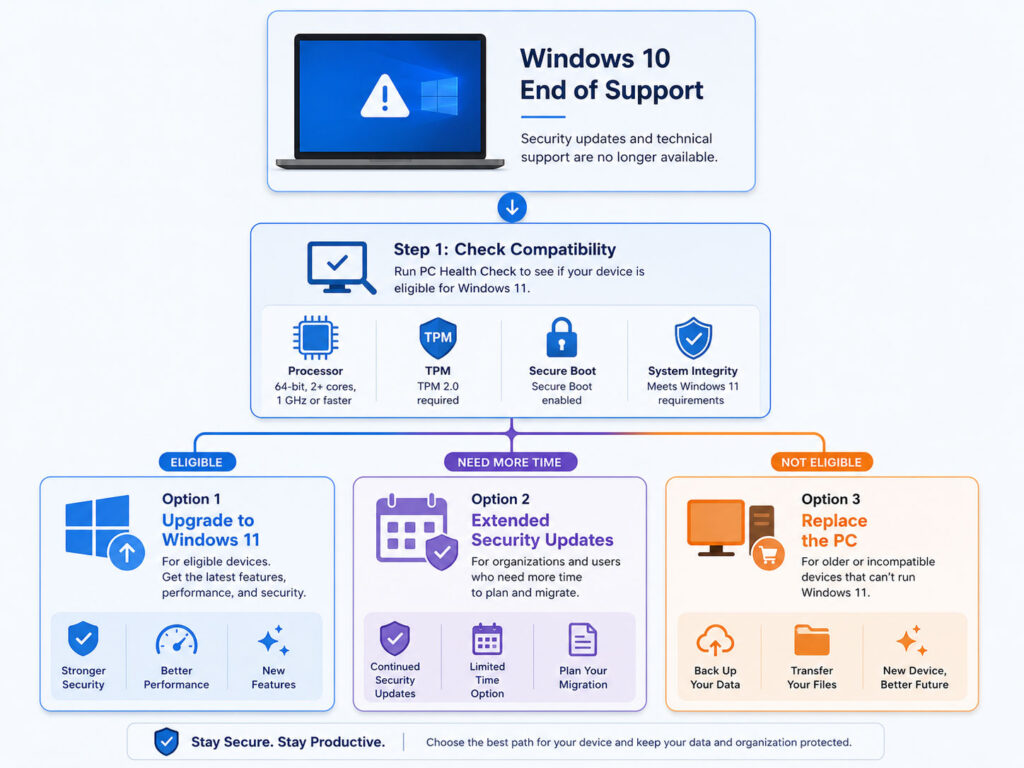
Windows 10 support ended on October 14, 2025. Computers running the operating system still work, but they no longer receive normal Windows security fixes, software updates, feature improvements, or technical support from Microsoft.
Therefore, continuing to use Windows 10 without additional protection can increase security and compatibility risks over time.
The best option depends on your computer hardware, software requirements, budget, and how long you need to keep the existing device. Some users can upgrade to Windows 11 at no additional licence cost. Meanwhile, others may need Extended Security Updates or a replacement computer.
What Does Windows 10 End of Support Mean?
End of support means that Microsoft has stopped providing its normal servicing for standard Windows 10 installations.
After the support date, Microsoft no longer provides the following through the regular Windows 10 lifecycle:
- Windows security updates and fixes.
- Feature updates.
- General software updates for the operating system.
- Normal Windows 10 technical support.
However, the end of support does not remotely disable or delete Windows 10.
Your computer can still start, run installed applications, connect to the internet, and access local files. Nevertheless, the lack of regular operating-system security fixes creates increasing risk as new vulnerabilities appear.
Will a Windows 10 PC Stop Working?
No. A Windows 10 computer does not automatically stop working because support has ended.
Existing programs may continue to run as before. In addition, printers, browsers, games, and other accessories may continue working for some time.
However, software companies and hardware manufacturers can gradually stop testing or supporting their products on Windows 10.
Consequently, users may eventually face:
- Applications that require a newer operating system.
- Browsers that stop receiving full support.
- New hardware without Windows 10 drivers.
- Security products with reduced compatibility.
- Performance or reliability issues in updated applications.
- Limited help from software vendors.
Therefore, the computer may remain usable while becoming less suitable for secure daily use.
Why Security Updates Matter
An operating-system security update fixes known weaknesses that attackers may use to access a computer, install malware, steal information, or disrupt normal operation.
Antivirus software can still provide useful protection. However, antivirus cannot replace operating-system fixes.
For example, security software may detect a malicious file. Nevertheless, it cannot permanently repair an unpatched weakness inside Windows itself.
As a result, users should not assume that installing another antivirus product makes an unsupported operating system fully secure.
Which Windows 10 Editions Reached End of Support?
This guide mainly focuses on standard consumer and general-purpose editions such as Windows 10 Home and Pro.
Windows 10 version 22H2 was the final feature version for those editions, and its normal support ended on October 14, 2025.
However, some Long-Term Servicing Channel editions follow separate lifecycle dates. Therefore, organisations using specialised Enterprise, IoT, LTSB, or LTSC editions should check the lifecycle for their exact version.
Windows 10 Support Ended: Your Main Options
| Your Situation | Recommended Starting Point |
|---|---|
| PC meets Windows 11 requirements | Back up your files and upgrade through Windows Update |
| PC does not meet the requirements but you need more time | Check eligibility for Windows 10 Extended Security Updates |
| PC is old, slow, damaged, or unreliable | Consider replacing it with a supported Windows 11 device |
| Critical application does not support Windows 11 | Confirm vendor plans and use a controlled temporary transition |
| Computer belongs to an employer or school | Follow the organisation’s IT policy |
Before making a decision, confirm the exact operating-system version and hardware compatibility.
How to Check Your Windows Version
You can check the current Windows version through the Settings app.
- Open
Settings. - Select
System. - Open
About. - Review the Windows edition and version.
Alternatively, press Windows + R, enter winver, and select OK.
The information window should display the Windows edition, version, and operating-system build.
Can Your PC Run Windows 11?
Windows 11 has stricter hardware requirements than Windows 10.
A computer must meet the minimum requirements and use a supported processor before Microsoft considers it eligible for a normal upgrade.
Windows 11 Minimum System Requirements
| Component | Minimum Requirement |
|---|---|
| Processor | 1 GHz or faster, two or more cores, and a compatible 64-bit processor or system-on-chip |
| Memory | 4 GB RAM |
| Storage | 64 GB or more |
| System Firmware | UEFI with Secure Boot capability |
| Security Module | TPM version 2.0 |
| Graphics | DirectX 12 compatible graphics |
| Display | Larger than 9 inches with at least 720p resolution |
| Initial Setup | Internet connectivity and a Microsoft account for personal Windows 11 Home and Pro setup |
Meeting only the RAM and storage requirements is not enough. The processor, TPM, Secure Boot, firmware, and graphics requirements also matter.
What Is TPM 2.0?
Trusted Platform Module, or TPM, is a security component that helps protect encryption keys, credentials, and device integrity.
Some computers already include TPM 2.0 but have it disabled in the firmware settings. Therefore, a failed compatibility check does not always mean the computer lacks the feature physically.
However, users should not change firmware settings without understanding the effect. Incorrect settings can prevent the computer from starting or affect drive encryption.
What Is Secure Boot?
Secure Boot helps the computer verify trusted software during startup.
Windows 11 requires UEFI firmware with Secure Boot capability. Consequently, older systems that rely only on legacy BIOS modes may not qualify.
Before changing a computer from legacy boot to UEFI, confirm the disk configuration, encryption status, and manufacturer instructions.
Use PC Health Check
Microsoft provides the PC Health Check application to assess Windows 11 compatibility.
After running the check, the tool can tell you whether the computer meets the minimum requirements. If it does not qualify, the application may also identify the relevant reason.
For example, the result may point to an unsupported processor, disabled TPM, missing Secure Boot capability, or another requirement.
How to Check Through Windows Update
- Open
Settings. - Select
Update & Security. - Open
Windows Update. - Select
Check for updates. - Review whether Windows 11 is offered for the device.
If Microsoft has approved the upgrade for the computer, Windows Update should provide the installation option.
However, the offer may not appear when required Windows 10 updates remain pending or when Microsoft has placed a temporary compatibility hold on the device.
Is the Windows 11 Upgrade Free?
The Windows 11 upgrade remains available without an additional Windows licence charge for eligible Windows 10 computers.
Normally, the upgrade keeps the equivalent edition. For example, Windows 10 Home upgrades to Windows 11 Home, while Windows 10 Pro upgrades to Windows 11 Pro.
Nevertheless, internet charges, data usage, software upgrades, hardware changes, or professional assistance may create other costs.
Should You Upgrade to Windows 11?
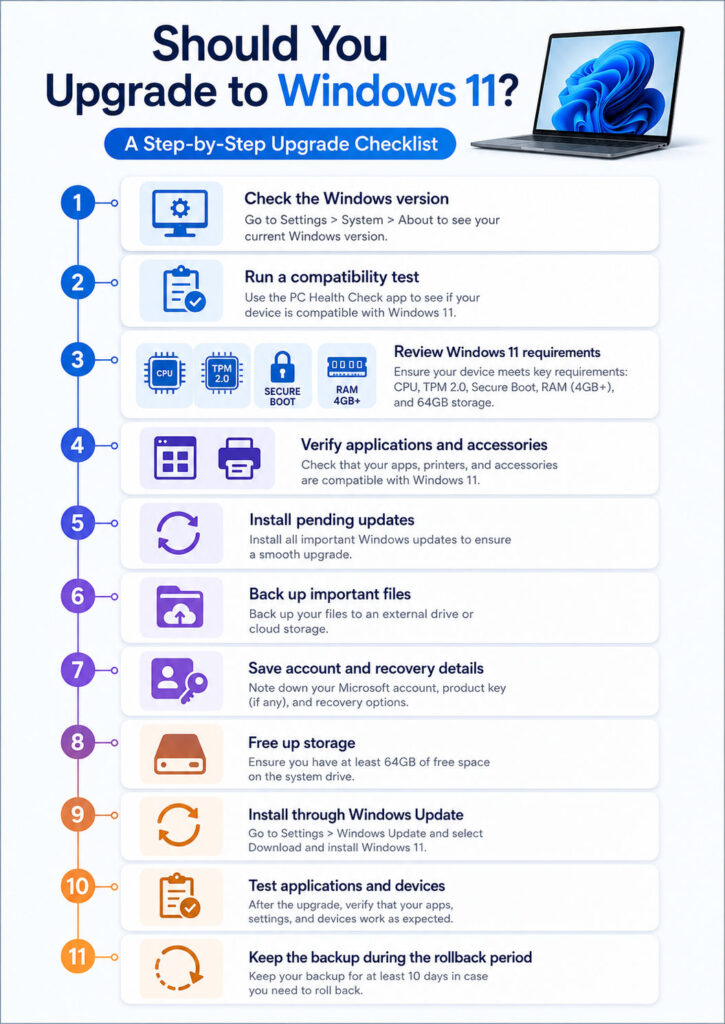
You should normally upgrade when your computer meets the requirements, your important applications support Windows 11, and you have a verified backup.
Moving to a supported operating system restores access to regular Windows security servicing and improves long-term software compatibility.
However, you should still prepare carefully. A successful compatibility check does not guarantee that every old printer, specialist application, game, scanner, or business tool will work exactly as before.
Reasons to Upgrade
- Windows 11 continues receiving supported security updates.
- Newer applications increasingly target Windows 11.
- Modern hardware generally receives better Windows 11 driver support.
- The operating system supports current security requirements.
- Future Windows features will target supported releases.
- Microsoft recommends Windows 11 for eligible Windows 10 computers.
Therefore, upgrading usually provides the most sustainable option for a compatible personal computer.
Reasons to Delay Briefly
A short and controlled delay may make sense when:
- A critical business application has not completed compatibility testing.
- A specialised device lacks a verified Windows 11 driver.
- The computer controls laboratory, manufacturing, medical, or other dedicated equipment.
- An organisation has not completed security and deployment testing.
- The user needs time to back up files or replace unsupported software.
- A replacement computer has already been ordered.
However, delay should form part of a migration plan rather than become a permanent decision.
Check Application Compatibility
Create a list of the software you use before upgrading.
Include:
- Office and productivity applications.
- Accounting and billing software.
- Development tools.
- VPN and remote-access clients.
- Games and launchers.
- Printer and scanner utilities.
- Database tools.
- Security software.
- Legacy browser applications.
- Hardware-control applications.
Next, check each vendor’s official Windows 11 compatibility information.
Do not rely only on the fact that an application opens successfully. Instead, test important workflows such as printing, exports, backups, updates, plugins, database access, and licence activation.
Check Hardware and Accessories
Most standard accessories may continue to work when suitable Windows 11 drivers exist.
Nevertheless, older printers, scanners, webcams, audio interfaces, drawing tablets, fingerprint readers, and industrial devices may require additional checks.
Therefore, visit the manufacturer’s support website and confirm:
- Windows 11 driver availability.
- Firmware updates.
- Known limitations.
- Required application versions.
- Support for the specific model number.
Back Up Before Upgrading
Microsoft’s upgrade process normally transfers personal files and data. However, every major operating-system change carries some risk.
Therefore, create a verified backup before starting.
What You Should Back Up
- Documents, spreadsheets, and presentations.
- Photos and videos.
- Desktop files.
- Downloads that still matter.
- Email archives stored locally.
- Browser bookmarks and saved profiles.
- Application settings.
- Development projects and source code.
- Database backups.
- Licence keys and installation details.
- Two-factor authentication recovery information.
- Encryption recovery keys.
Afterwards, open several backed-up files from the destination. This step confirms that the backup is readable rather than merely copied.
Keep Important Account Information Ready
Before upgrading, confirm that you can access:
- Your Microsoft account.
- Primary email account.
- Windows licence information when required.
- Application subscription accounts.
- Wi-Fi password.
- BitLocker or device-encryption recovery key.
- Password manager.
- Authenticator application or recovery codes.
These details become especially important if the installation requires recovery or reactivation.
Prepare the Computer
- Install pending Windows 10 updates.
- Restart the computer.
- Confirm Windows 11 eligibility.
- Back up important files.
- Free sufficient storage space.
- Update important applications.
- Update device drivers and firmware when recommended.
- Connect a laptop to power.
- Save open work.
- Disconnect unnecessary external devices.
In addition, schedule the installation when you do not urgently need the computer.
How to Upgrade Through Windows Update
- Open
Settings. - Select
Update & Security. - Open
Windows Update. - Select
Check for updates. - Install pending Windows 10 updates first.
- Restart the computer when required.
- Return to Windows Update.
- Select the Windows 11 download and installation option.
- Follow the on-screen instructions.
The download can run while you continue using the computer. However, the installation stage requires restarts and can take longer than a normal monthly update.
In-Place Upgrade vs Clean Installation
| Method | What It Does | Best Fit |
|---|---|---|
| In-Place Upgrade | Moves the existing Windows installation, applications, settings, and personal files to Windows 11 | Most compatible home and office computers |
| Clean Installation | Installs a fresh copy and requires applications and settings to be configured again | Advanced users, replacement drives, or systems with persistent software problems |
An in-place upgrade usually creates less work. In contrast, a clean installation can remove accumulated software problems but requires more preparation.
Most importantly, a clean installation can erase data from the selected drive. Therefore, do not continue without a complete backup.
Will Your Files and Applications Remain?
During a standard eligible upgrade, Windows normally keeps personal files and installed applications.
However, Windows may remove or disable incompatible software. In addition, some settings can change during migration.
After the upgrade, verify:
- Personal folders.
- Internet access.
- Audio and camera operation.
- Printers and scanners.
- VPN access.
- Security software.
- Business applications.
- Backup software.
- External drives.
- Windows activation.
Can You Return to Windows 10?
After an in-place upgrade, Windows normally provides a limited rollback period.
Microsoft currently allows users to return to Windows 10 within 10 days while retaining the files transferred during the upgrade.
After that period, returning generally requires a manual backup and clean installation.
However, Windows 10 itself remains unsupported without ESU. Therefore, rollback should normally serve as a temporary troubleshooting step rather than a long-term plan.
Common Upgrade Problems
Upgrade issues can result from:
- Insufficient storage.
- Pending Windows updates.
- Outdated firmware.
- Incompatible drivers.
- Third-party antivirus software.
- Connected external devices.
- Disk errors.
- Damaged system files.
- Compatibility holds.
If Windows Update reports a compatibility hold, do not force the upgrade immediately. Instead, review the manufacturer or Microsoft guidance and wait for the relevant fix.
Should You Bypass Windows 11 Requirements?
Microsoft does not recommend installing Windows 11 on computers that fail the minimum requirements.
An unsupported installation may face compatibility problems and does not receive normal Microsoft support. In addition, Microsoft states that such devices are not entitled to receive updates.
Therefore, bypassing processor, TPM, or Secure Boot checks creates an uncertain long-term setup.
A supported Windows 11 device, temporary ESU enrolment, or planned replacement usually provides a safer path.
Will Windows 11 Make an Old PC Faster?
An operating-system upgrade does not automatically improve weak hardware.
Performance depends on the processor, memory, storage drive, drivers, applications, startup programs, cooling, and available disk space.
For example, replacing an old mechanical drive with a compatible solid-state drive may produce a larger everyday improvement than changing the operating-system interface.
However, hardware changes should only be considered when the computer still meets Windows 11 requirements and the upgrade cost remains sensible.
What If Your PC Cannot Run Windows 11?
An incompatible computer does not always need to be replaced immediately.
However, you should create a clear transition plan because standard Windows 10 support has ended.
Your main options include:
- Use Windows 10 Extended Security Updates temporarily.
- Replace the computer with a supported Windows 11 device.
- Upgrade eligible hardware when practical and supported.
- Move critical work to another supported computer.
- Retire or isolate the old device from sensitive online activity.
What Is Windows 10 Extended Security Updates?
Windows 10 Extended Security Updates, commonly called ESU, provide additional critical and important security updates for eligible computers after normal support has ended.
The consumer ESU programme acts as a temporary bridge while users prepare to move to Windows 11 or replace their computer.
However, ESU does not restore complete Windows 10 support.
What Consumer ESU Includes
- Critical Windows 10 security updates.
- Important Windows 10 security updates.
- Protection through the programme’s published end date.
What Consumer ESU Does Not Include
- New Windows features.
- General product improvements.
- Non-security enhancements.
- Normal Windows 10 technical support.
- A permanent extension of Windows 10.
Therefore, ESU should provide migration time rather than become a reason to postpone the transition indefinitely.
Consumer ESU Eligibility
Microsoft currently requires an eligible consumer device to use Windows 10 version 22H2 with current updates installed.
Supported consumer editions include:
- Windows 10 Home.
- Windows 10 Pro.
- Windows 10 Pro Education.
- Windows 10 Pro for Workstations.
The Microsoft account used for enrolment must also have administrator access and cannot be a child account.
Business-managed, domain-joined, kiosk, and device-management scenarios follow different ESU rules. Therefore, organisations should use Microsoft’s commercial programme rather than consumer enrolment.
How Long Does Consumer ESU Last?
Microsoft’s consumer ESU programme provides eligible Windows 10 devices with updates through October 13, 2026.
Users may enrol before the programme ends. However, a device remains more exposed during any period before enrolment.
If a user joins later, Microsoft states that the computer can receive previous ESU updates along with future eligible updates.
How to Enrol in Consumer ESU
- Open
Settings. - Select
Update & Security. - Open
Windows Update. - Install the latest available Windows 10 updates.
- Look for the ESU enrolment option.
- Select
Enroll now. - Sign in with an eligible Microsoft administrator account.
- Select one of the available enrolment methods.
- Confirm that enrolment completed successfully.
The option may not appear when the device, edition, account, or update level does not meet the prerequisites.
Consumer ESU Enrolment Options
Microsoft currently provides three enrolment routes for eligible consumers:
- Enrol without an additional charge by syncing supported PC settings.
- Redeem 1,000 Microsoft Rewards points.
- Make a one-time purchase listed as US$30 or the local equivalent, plus applicable tax.
All three routes provide the same published ESU period through October 13, 2026.
Because pricing, currency, availability, and account options can vary by region, review the enrolment screen shown on your computer.
Can One ESU Licence Cover Multiple PCs?
Microsoft currently allows a consumer ESU licence linked to one Microsoft account to cover up to 10 eligible devices.
Each additional device must still meet the programme requirements and use the same Microsoft account associated with the original enrolment.
Is ESU Better Than Upgrading?
ESU offers useful temporary protection, but it does not provide the long-term benefits of a supported Windows version.
| Point | Windows 10 with ESU | Windows 11 |
|---|---|---|
| Security Updates | Limited critical and important ESU security updates | Normal supported security servicing |
| Feature Updates | No new Windows 10 features | Receives supported Windows 11 improvements |
| Technical Support | Not included through consumer ESU | Supported according to the Windows 11 lifecycle |
| Hardware Requirement | Runs on eligible Windows 10 hardware | Requires Windows 11 compatible hardware |
| Best Use | Short transition period | Longer-term supported use |
Therefore, upgrade to Windows 11 when the device supports it and important applications remain compatible.
What Happens to Microsoft 365 on Windows 10?
Microsoft 365 applications may continue running on Windows 10. However, Microsoft no longer treats Windows 10 as a normally supported operating system for Microsoft 365.
Microsoft currently plans to provide Microsoft 365 security updates on Windows 10 until October 10, 2028 to support customers during the transition.
Feature-update schedules vary by Microsoft 365 servicing channel. Therefore, users should not confuse Microsoft 365 security updates with renewed support for the Windows 10 operating system.
What About Standalone Microsoft Office?
Support depends on the exact Office version and its own lifecycle.
For example, an Office release may continue functioning while Microsoft limits support for problems caused by the unsupported Windows 10 environment.
Therefore, check both the Windows lifecycle and the Office lifecycle rather than assuming one automatically extends the other.
Should You Buy a New PC?
Replacing the computer may provide better value when the existing device:
- Cannot meet Windows 11 requirements.
- Uses an old or slow processor.
- Has limited memory or storage.
- Needs expensive repairs.
- No longer receives manufacturer firmware updates.
- Has poor battery life.
- Lacks drivers for important current hardware.
- Cannot meet your work or study requirements.
However, replacement is not automatically necessary when the current computer qualifies for Windows 11 and performs reliably.
What to Check Before Buying a Windows 11 PC
- Processor generation and performance.
- Available memory and upgradeability.
- Solid-state storage capacity.
- Display size and resolution.
- Battery life.
- Ports and docking support.
- Webcam and microphone quality.
- Keyboard and trackpad quality.
- Repairability and warranty.
- Compatibility with your software and accessories.
Minimum specifications may run Windows 11, but they may not provide a comfortable experience for demanding work.
Therefore, choose specifications based on your applications rather than only the operating-system minimum.
Moving Files to a New Computer
Before retiring the old PC, create a verified backup and transfer the required data.
Review:
- Desktop, Documents, Downloads, Pictures, and Videos.
- Browser bookmarks and saved profiles.
- Email archives.
- Accounting or billing data.
- Application licence information.
- Development projects.
- Certificates and digital signatures.
- Locally stored passwords or exports.
- Device-encryption recovery keys.
After the transfer, test important files and applications on the new computer before erasing the old one.
Securely Retire the Old PC
Deleting visible files does not always remove recoverable data from the drive.
Therefore, use the supported Windows reset or manufacturer recovery process before selling, donating, recycling, or transferring ownership.
Also, sign out of accounts, remove the device from account dashboards, and confirm that encryption recovery information remains available until the process finishes.
Windows 10 Security Tips While You Transition
If you must continue using Windows 10 temporarily:
- Enrol in ESU when eligible.
- Install every available security update.
- Use a supported and updated browser.
- Keep applications updated.
- Remove software that you no longer use.
- Use strong and unique passwords.
- Enable two-factor authentication.
- Avoid unknown downloads and email attachments.
- Back up important files regularly.
- Use a standard account for routine work when practical.
- Limit sensitive activity on devices without ESU.
Nevertheless, these steps cannot convert Windows 10 into a fully supported operating system.
Windows 10 End of Support for Businesses
Business migration requires more planning than a personal upgrade.
Organisations should inventory:
- Computers and Windows editions.
- Processor and TPM compatibility.
- Business applications.
- Printers and specialist equipment.
- Security tools.
- VPN and remote-access systems.
- Device-management policies.
- Encryption recovery keys.
- Licensing.
- Commercial ESU requirements.
Next, test representative devices before deploying Windows 11 broadly.
In addition, organisations should define rollback, backup, support, and replacement procedures.
Common Windows 10 Transition Mistakes
- Assuming the PC will stop working immediately.
- Assuming antivirus replaces Windows security updates.
- Forcing Windows 11 onto unsupported hardware.
- Upgrading without a verified backup.
- Ignoring printer and application compatibility.
- Waiting until ESU ends before planning a replacement.
- Confusing Microsoft 365 updates with Windows 10 support.
- Buying a new computer based only on minimum specifications.
- Deleting the old drive before verifying the transfer.
- Using consumer ESU on a business-managed device.
Windows 10 or Windows 11 Decision Guide
| Your Situation | Recommended Action |
|---|---|
| PC passes PC Health Check | Back up and upgrade to Windows 11 |
| PC qualifies but one application needs testing | Test the application and plan a controlled upgrade |
| PC does not qualify and replacement is coming soon | Use eligible ESU temporarily |
| PC does not qualify and handles sensitive work | Prioritise replacement or move the work to a supported device |
| PC is very old or unreliable | Replace rather than invest heavily in upgrades |
| Computer belongs to a business or school | Follow the IT administrator’s migration and commercial ESU plan |
| Unsupported Windows 11 installation is being considered | Avoid it and choose a supported path |
Windows 11 Upgrade Checklist
- Confirm the current Windows edition and version.
- Run PC Health Check.
- Review Windows Update eligibility.
- Check application and peripheral compatibility.
- Install current updates.
- Create a verified backup.
- Save recovery keys and account details.
- Free sufficient storage.
- Disconnect unnecessary devices.
- Install Windows 11 through a supported method.
- Test applications, files, printers, audio, and internet access.
- Keep the backup until the new setup remains stable.
Final Verdict
Windows 10 support has ended, but Windows 10 computers continue to operate.
However, standard installations no longer receive regular Windows security fixes, feature updates, or technical support. Therefore, continuing indefinitely without a migration plan creates growing risk.
If your computer meets the Windows 11 requirements, back up your files and upgrade through Windows Update. Alternatively, use consumer ESU as a temporary bridge when the PC cannot move immediately.
When the hardware is old, unsupported, or unreliable, replacing the computer may provide better long-term value than forcing Windows 11 onto it.
Conclusion
The Windows 10 end of support requires action, but it does not require panic.
First, confirm whether your PC can run Windows 11. Next, check software and device compatibility. Then, create a verified backup before upgrading.
If the computer cannot qualify, review ESU and prepare for replacement before the temporary protection period ends.
Most importantly, use a supported operating system for banking, business, personal documents, and other sensitive activities.

AboutTPJ Technical Team
The Project Jugaad Technical Team creates practical, easy-to-follow content on software development, web technologies, artificial intelligence, cybersecurity, cloud platforms, and digital tools. Our articles are informed by more than 13 years of hands-on experience with .NET, Angular, SQL Server, AWS, WordPress, Linux hosting, application deployment, and real-world troubleshooting. Each guide is researched, reviewed, and updated to provide accurate, useful, and actionable information for developers, businesses, and everyday technology users.