
Technology
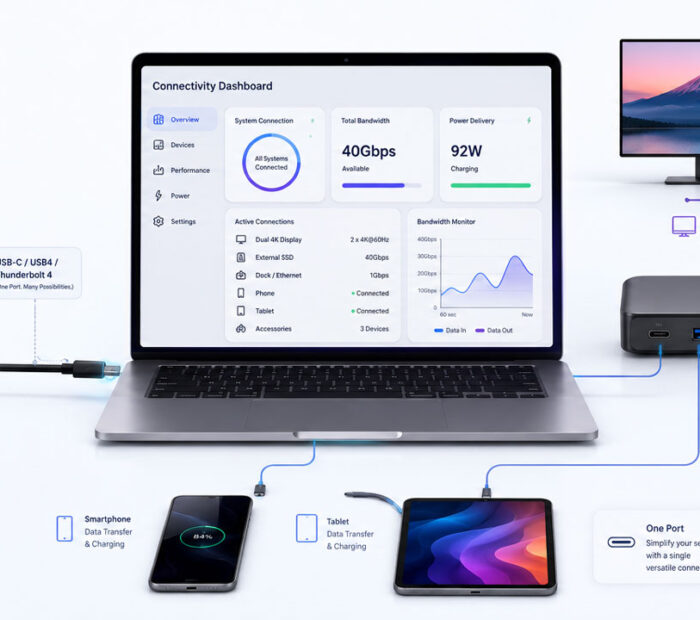
USB-C vs USB4 vs Thunderbolt 4 can be confusing because all three may use the same small and reversible connector.
However, the terms do not describe the same thing. USB-C primarily describes the physical connector, while USB4 and Thunderbolt 4 describe communication technologies with defined performance and feature requirements.
Therefore, two ports that look identical may provide very different data speeds, charging power, display support, docking features, and compatibility.
What Is USB-C?
USB-C, also called USB Type-C, is a reversible connector used by computers, phones, tablets, monitors, chargers, storage devices, docks, and many other products.
Depending on the implementation, the connector can carry:
- USB data.
- Power for charging.
- Display signals.
- Audio.
- Thunderbolt connections.
- USB4 connections.
- Other supported Alternate Mode signals.
However, the connector shape alone does not guarantee that every feature is available.
For example, one USB-C port may support only USB 2.0 data and charging. Meanwhile, another may support USB4, external monitors, high-speed storage, and laptop charging through the same connector shape.
USB-C Is a Connector, Not a Speed
A common mistake is to treat USB-C as a specific data-speed standard.
In reality, a USB-C connector can be used with several data technologies and performance levels.
| USB-C Implementation | Possible Maximum Data Rate |
|---|---|
| USB 2.0 over USB-C | 480 Mbps |
| USB 5Gbps | 5 Gbps |
| USB 10Gbps | 10 Gbps |
| USB 20Gbps | 20 Gbps |
| USB4 40Gbps | 40 Gbps |
| USB4 80Gbps | 80 Gbps |
These figures represent theoretical signalling rates. In practice, file-transfer performance is lower because of protocol overhead, hardware limits, storage speed, software, and other factors.
Can Every USB-C Port Charge a Laptop?
No. A USB-C port may accept power for the computer, provide power to accessories, support limited charging, or provide no laptop-charging capability at all.
Charging depends on:
- The computer or device port.
- The charger.
- The cable’s supported power rating.
- The USB Power Delivery profile.
- The power required by the receiving device.
Therefore, connecting a high-wattage charger does not guarantee that the device will receive the charger’s full advertised power.
Can Every USB-C Port Connect to a Monitor?
No. A USB-C port needs suitable display support.
For instance, many laptops provide video through DisplayPort Alternate Mode, commonly called DisplayPort Alt Mode. Thunderbolt and suitable USB4 implementations can also carry display traffic.
However, a data-and-charging-only USB-C port may not produce any video signal.
Before purchasing an adapter or dock, check whether the computer specification mentions:
- DisplayPort over USB-C.
- DisplayPort Alt Mode.
- USB4.
- Thunderbolt 3 or Thunderbolt 4.
- External display support.
What Is USB4?
USB4 is a high-speed USB architecture that operates through the USB-C connector.
It can dynamically share available bandwidth between several types of traffic, including USB data, display traffic, and supported tunnelling protocols.
As a result, USB4 can provide a flexible single-cable connection for high-speed storage, displays, docks, hubs, and other devices.
USB4 Speed Levels
USB4 products can support different performance levels.
| Performance Label | Maximum Signalling Rate | Common Description |
|---|---|---|
| USB 20Gbps | 20 Gbps | Entry USB4 performance tier |
| USB 40Gbps | 40 Gbps | High-speed USB4 connection |
| USB 80Gbps | 80 Gbps | USB4 Version 2.0 performance |
In addition, USB4 Version 2.0 can support an optional asymmetric configuration that provides up to 120 Gbps in one direction while retaining 40 Gbps in the other direction.
Nevertheless, a product labelled only as USB4 does not automatically provide the fastest available USB4 performance.
How USB4 Shares Bandwidth
USB4 can combine several traffic types across one connection.
USB-C Port
    ↓
USB4 Connection
    ↓
├── USB Data
├── Display Traffic
└── PCIe or Other Supported Tunnelling
The connection allocates bandwidth according to the connected devices and their requirements.
For example, a dock may use part of the available bandwidth for an external monitor. At the same time, the remaining capacity can support storage, Ethernet, audio, and other USB devices.
Does Every USB4 Port Support the Same Features?
No. USB4 defines an architecture, but manufacturers can implement different performance levels and optional capabilities.
Differences may include:
- 20, 40, or 80 Gbps performance.
- Number and resolution of supported displays.
- PCIe tunnelling support.
- Charging input and output.
- Docking behaviour.
- Compatibility with older Thunderbolt devices.
- Wake-from-sleep support.
Therefore, read the device specification instead of relying only on the USB4 name.
What Is Thunderbolt 4?
Thunderbolt 4 is a high-speed connectivity standard developed and certified by Intel.
Like USB4, it uses the USB-C connector. However, it adds stricter minimum requirements for compatible computers, docks, cables, and accessories.
Consequently, a certified Thunderbolt 4 computer port provides 40 Gbps connection bandwidth and must satisfy defined requirements for data, display, security, docking, and compatibility.
Main Thunderbolt 4 Requirements
Thunderbolt 4 certification includes requirements such as:
- 40 Gbps connection bandwidth.
- PCIe data performance of at least 32 Gbps.
- Support for two 4K displays or one 8K display on suitable systems.
- Support for docks with multiple Thunderbolt ports.
- Wake from sleep through a compatible Thunderbolt dock.
- DMA protection on supported computers.
- Compatibility with earlier Thunderbolt generations and USB devices.
Still, the actual monitor resolution, refresh rate, and number of displays depend on the computer’s graphics hardware and operating system.
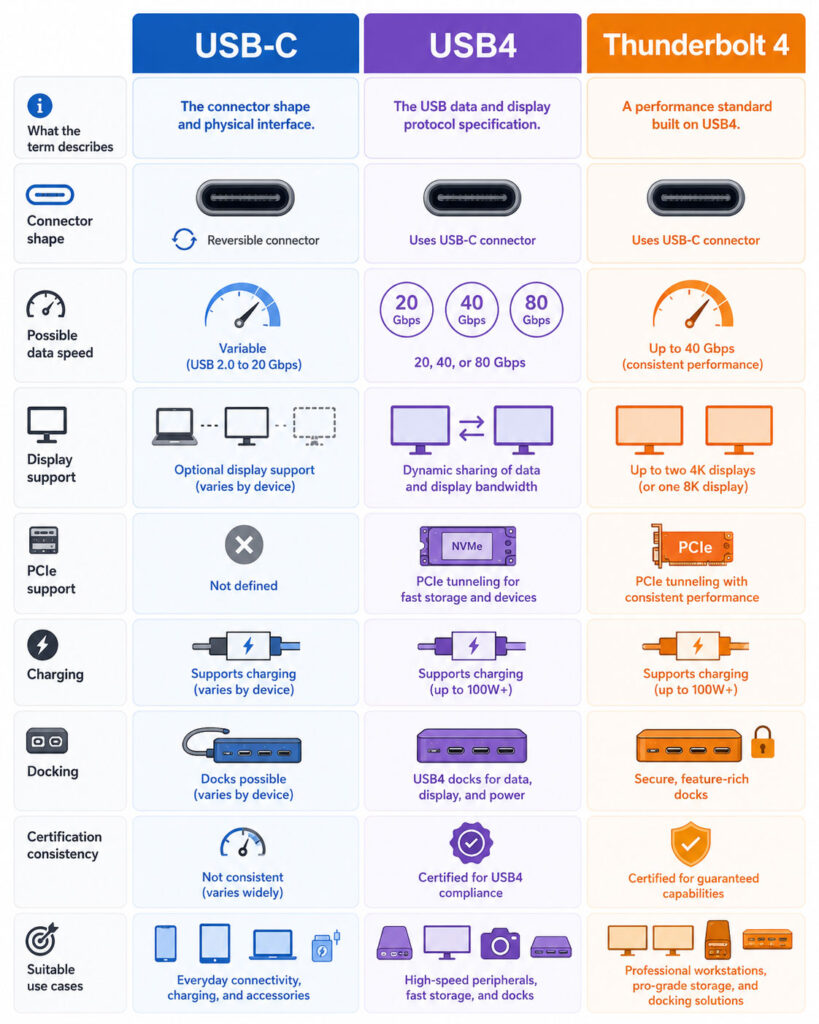
USB-C vs USB4 vs Thunderbolt 4: Quick Comparison
| Point | USB-C | USB4 | Thunderbolt 4 |
|---|---|---|---|
| What It Describes | Physical connector | USB communication architecture | Certified high-speed connectivity standard |
| Connector | USB-C | USB-C | USB-C |
| Possible Data Speed | Varies from USB 2.0 to high-speed USB implementations | 20, 40, or 80 Gbps depending on product | 40 Gbps |
| Display Support | Optional | Depends on implementation and device | Required certification capabilities, subject to system graphics support |
| PCIe Tunnelling | Not provided by connector alone | Can be supported | Required with minimum PCIe performance |
| Charging | Varies by port, charger, cable, and device | Varies by implementation | Supported according to certified system and device design |
| Dock Support | May support basic USB-C docks | Can support advanced USB4 docks | Supports certified Thunderbolt docks and multi-port configurations |
| Certification Consistency | Connector alone provides limited feature information | Capabilities can vary | Stricter mandatory minimum requirements |
Is USB4 the Same as USB-C?
No. USB4 uses USB-C, but a USB-C port is not automatically a USB4 port.
For example:
USB4 Port → Always uses USB-C

USB-C Port → May use USB 2.0, USB 5Gbps,
USB 10Gbps, USB 20Gbps, USB4, or Thunderbolt
Therefore, the computer specification must explicitly mention USB4 when that capability is required.
Is Thunderbolt 4 the Same as USB4?
No. Thunderbolt 4 uses the USB4 architecture, but it applies additional certification requirements.
A USB4 port may provide excellent performance. However, its minimum features may be lower than those required for a certified Thunderbolt 4 computer.
Consequently, Thunderbolt 4 provides more predictable minimum capabilities, while USB4 products can vary more widely.
Why Do Identical Ports Work Differently?
The USB-C connector was designed to support several technologies through one compact port.
Although this flexibility reduces the number of connector types required on a device, it also means that users cannot determine every capability from shape alone.
The final result depends on four parts:
Computer Port
+
Cable
+
Dock or Accessory
+
Connected Device
=
Available Features and Performance
Ultimately, the connection operates according to the capabilities shared by all connected components.
USB-C vs USB4 vs Thunderbolt 4 Speed
Connection speed depends on the port, cable, dock, device, and workload.
A Thunderbolt 4 port provides 40 Gbps connection bandwidth. Meanwhile, USB4 may support 20, 40, or 80 Gbps. A standard USB-C port may provide anything from USB 2.0 to a much faster USB data connection.
However, the advertised signalling rate does not equal the final file-transfer speed.
Why Real Transfer Speed Is Lower
Actual performance is affected by:
- Protocol overhead.
- Storage-device speed.
- Computer processor and chipset.
- File size and file count.
- Dock or hub design.
- Cable length and capability.
- Thermal limits.
- Encryption.
- Operating-system and driver performance.
- Other devices sharing the same connection.
For example, a 40 Gbps port cannot make a slow hard drive transfer files at 40 Gbps.
External SSD Performance
An external solid-state drive must support the same high-speed technology as the computer to reach its intended performance.
| Drive and Port Combination | Likely Result |
|---|---|
| USB 10Gbps SSD on USB 10Gbps port | Operates within USB 10Gbps limits |
| USB 10Gbps SSD on Thunderbolt 4 port | Usually operates as a USB 10Gbps device |
| Thunderbolt SSD on basic USB-C port | May not work or may require USB fallback support |
| Thunderbolt SSD on Thunderbolt 4 port | Can use the supported Thunderbolt connection |
| USB4 40Gbps SSD on USB4 20Gbps port | Limited by the slower port capability |
Therefore, check both the drive protocol and the computer port before comparing storage speeds.
Thunderbolt 4 and PCIe Devices
Thunderbolt can tunnel PCI Express traffic for suitable high-performance devices.
Common examples include:
- High-speed NVMe storage enclosures.
- Professional audio interfaces.
- Video-capture equipment.
- PCIe expansion devices.
- External graphics enclosures on supported computers.
In addition, Thunderbolt 4 requires at least 32 Gbps of PCIe data capability on certified computers.
Nevertheless, the performance of an external PCIe device remains lower than an equivalent device connected directly to an internal PCIe slot.
USB-C Display Support
A USB-C port can carry a DisplayPort signal when the computer supports DisplayPort Alt Mode or another suitable display technology.
Possible uses include:
- USB-C to DisplayPort adapter.
- USB-C to HDMI adapter.
- USB-C monitor connection.
- USB-C docking station.
- Single-cable monitor with charging and USB hub features.
However, the adapter cannot create a display signal when the computer port does not support video output.
USB4 Display Support
USB4 can allocate bandwidth dynamically between data and display traffic.
For instance, a USB4 dock may connect a monitor, Ethernet, storage, keyboard, and other accessories through one cable.
Nevertheless, the supported number of displays and their maximum resolutions depend on:
- The computer’s graphics processor.
- The USB4 implementation.
- The dock.
- The monitor.
- The operating system.
- Display compression support.
- Refresh rate and colour depth.
Therefore, the presence of a USB4 port does not guarantee one universal monitor configuration.
Thunderbolt 4 Display Support
Thunderbolt 4 certification requires stronger minimum display capabilities than a basic USB4 implementation.
Certified Thunderbolt 4 computers are designed to support two 4K displays or one 8K display when the system’s graphics capabilities and connected equipment allow it.
However, some computers, operating systems, or processor configurations may impose additional restrictions.
Before purchasing a dock, always confirm the laptop manufacturer’s supported external-display table.
Can USB-C Support Two Monitors?
Potentially, but not every USB-C port or dock supports two monitors.
Dual-display support may depend on:
- DisplayPort Multi-Stream Transport.
- Thunderbolt.
- USB4 display tunnelling.
- DisplayLink or another dock technology.
- Computer graphics capability.
- Operating-system restrictions.
In addition, connecting two displays can reduce the remaining bandwidth available for storage and other devices.
Display Resolution Is Not the Complete Story
A dock may advertise support for 4K or 8K output. However, users should also check:
- Refresh rate.
- Colour depth.
- High dynamic range support.
- Display compression.
- Number of simultaneous monitors.
- Available video connectors.
- Computer graphics limitations.
For example, a dock may support one 4K monitor at a high refresh rate but require a lower refresh rate when two monitors are connected.
USB-C Charging and USB Power Delivery
USB Power Delivery, commonly called USB PD, allows compatible devices to negotiate charging power through USB-C.
Current USB PD specifications can support power levels up to 240 watts through suitable chargers, cables, ports, and devices.
However, 240-watt support is not automatic for every USB-C product.
How USB-C Power Negotiation Works
Device connects to charger
        ↓
Charger and device identify supported power levels
        ↓
Device requests an appropriate profile
        ↓
Charger supplies the agreed voltage and current
        ↓
Device manages battery charging
The receiving device controls how much compatible power it requests. Therefore, a 100-watt charger does not force 100 watts into a phone that requires much less.
USB-C Cable Power Ratings
Modern certified USB-C to USB-C cables are identified according to supported power capability.
Common ratings include:
- 60W.
- 240W.
A cable must support the required current and USB Power Delivery features before it can carry higher charging levels safely.
Consequently, an old or basic cable may charge a laptop slowly even when the charger can provide more power.
Does Thunderbolt 4 Charge Faster?
Not automatically.
Thunderbolt 4 defines high-speed connectivity and certain power requirements, but the actual charging rate depends on the computer, dock, charger, and cable.
For example, a Thunderbolt dock may provide 60, 90, 100, 140, or another supported wattage depending on its design.
Therefore, check the dock’s host-charging output instead of assuming that every Thunderbolt 4 dock provides the same power.
Can a Phone Charger Charge a Laptop?
Sometimes, but the result depends on power requirements.
A low-wattage phone charger may charge a laptop very slowly, work only while the computer sleeps, or fail to provide enough power during use.
Furthermore, some laptops require a particular minimum charging profile before they accept the connection.
For reliable charging, use a charger and cable that meet the laptop manufacturer’s requirements.
Data Speed and Charging Are Separate Capabilities
A cable can provide high charging power while supporting only slow data.
Likewise, a high-speed data cable may not provide the maximum power required by a demanding laptop.
| Cable Capability | Possible Example |
|---|---|
| High Power, Slow Data | 240W cable with USB 2.0 data |
| High-Speed Data, Standard Power | 40Gbps cable rated for 60W |
| High-Speed Data and High Power | Certified high-speed cable rated for 240W |
| Charging Only or Minimal Data | Basic charging cable |
Therefore, read both the data-rate and power markings when purchasing a cable.
Why USB-C Cables Are Different
USB-C cables may differ by:
- Maximum data rate.
- Power rating.
- Video support.
- USB4 support.
- Thunderbolt certification.
- Cable length.
- Passive or active electronics.
- Build quality.
- Connector durability.
As a result, two cables with the same USB-C plugs may behave differently.
Passive vs Active Cables
A passive cable carries signals without active signal-conditioning electronics.
By contrast, an active cable includes electronics that help maintain high-speed performance over longer distances or under more demanding conditions.
However, active cables may support a narrower set of fallback technologies depending on their design.
Therefore, check compatibility before buying an active cable for older USB devices or specialised equipment.
Thunderbolt 4 Cable Benefits
A certified Thunderbolt 4 cable is tested for relevant Thunderbolt performance and interoperability requirements.
Consequently, it can provide a more predictable connection for Thunderbolt docks, high-speed storage, and displays.
Still, certification does not mean that every connected computer supports every possible monitor, charging, or PCIe feature.
USB-C Dock vs USB4 Dock vs Thunderbolt 4 Dock
| Dock Type | Typical Capability | Best Fit |
|---|---|---|
| Basic USB-C Dock | USB devices, Ethernet, card readers, charging, and supported video | General office use and standard laptops |
| USB4 Dock | Higher-speed data, displays, storage, charging, and USB4 tunnelling | Modern USB4 computers |
| Thunderbolt 4 Dock | Certified 40 Gbps connection, advanced displays, storage, PCIe devices, and downstream Thunderbolt ports | Professional workstations and compatible premium laptops |
However, a more expensive dock does not improve a computer port that lacks the required technology.
Can a Thunderbolt 4 Dock Work with USB-C?
Many Thunderbolt 4 docks provide some backward compatibility with USB-C computers.
However, available features may be reduced.
For example, the connection may provide:
- USB data at a lower rate.
- One display instead of multiple displays.
- Charging.
- Ethernet and basic accessories.
Meanwhile, some Thunderbolt-specific features may remain unavailable.
Therefore, check the dock manufacturer’s compatibility table for USB-C, USB4, Thunderbolt 3, and Thunderbolt 4 hosts.
Can a USB-C Dock Work with Thunderbolt 4?
Usually, a Thunderbolt 4 port can connect to ordinary USB-C docks.
Nevertheless, the dock continues operating according to its own supported USB and display capabilities.
In other words, a Thunderbolt 4 port cannot transform a basic USB-C dock into a 40 Gbps Thunderbolt dock.
Daisy-Chaining Devices
Thunderbolt supports daisy-chaining compatible devices.
Computer
   ↓
Thunderbolt Dock
   ↓
External Storage
   ↓
Display or Another Thunderbolt Device
This arrangement can reduce the number of cables connected directly to a laptop.
However, every device shares the available connection bandwidth. In addition, the final chain must follow the supported device order and port configuration.
Thunderbolt 4 Security
Thunderbolt devices can use PCIe tunnelling, which provides powerful access to the computer.
Therefore, Thunderbolt 4 certification requires suitable DMA protection on supported computers.
This protection helps the operating system and hardware control how external devices access memory.
Nevertheless, users should install only trusted docks and accessories, keep firmware updated, and avoid unknown devices.
How to Identify a USB-C Port
The connector shape confirms that the port is USB-C, but it does not confirm its complete feature set.
Look for symbols near the port, such as:
- A USB data-rate symbol.
- A charging or battery symbol.
- A DisplayPort symbol.
- A lightning-bolt Thunderbolt symbol.
- A USB4 performance label.
However, manufacturers do not always print every supported capability beside the port.
Therefore, the product specification or user manual remains the most reliable reference.
How to Check a Laptop Port
- Find the exact laptop model number.
- Open the manufacturer’s official specification page.
- Locate the ports or connectivity section.
- Check the supported USB data rate.
- Confirm whether the port supports charging input.
- Check DisplayPort or external-monitor support.
- Look for USB4 or Thunderbolt certification.
- Review the maximum number of external displays.
- Check whether every USB-C port has the same capabilities.
Some laptops include two identical-looking ports with different functions. Therefore, review each port separately.
How to Identify a USB-C Cable
Check the cable, packaging, and manufacturer specification for:
- Data-rate marking.
- 60W or 240W power rating.
- USB4 certification.
- Thunderbolt certification.
- Supported display capability.
- Cable length.
Current USB-IF certification guidance requires certified USB-C to USB-C cables to use suitable performance and power markings.
However, older cables and uncertified products may not include clear labels.
Why an Unmarked Cable Is Difficult to Identify
A cable does not always reveal its internal wiring and electronic capabilities visually.
As a result, an unmarked cable may be suitable only for charging, may use USB 2.0 data, or may support a faster connection.
When the original specification is unavailable, avoid using the cable for high-power charging or important high-speed equipment.
Which Cable Should You Buy?
| Requirement | Recommended Cable Type |
|---|---|
| Phone charging and basic data | Certified USB-C cable with suitable charging power |
| Laptop charging | Certified cable matching the laptop’s required wattage |
| USB 10Gbps external SSD | Certified USB 10Gbps or faster cable |
| USB4 storage or dock | Certified cable matching the required USB4 speed |
| Thunderbolt 4 dock | Certified Thunderbolt 4 cable |
| High-resolution monitor | Cable certified for the required display technology and bandwidth |
| One cable for charging, display, and data | Certified full-featured cable matching all three requirements |
Buying the highest specification is not always necessary. However, the cable must satisfy every feature required by the setup.
USB-C vs USB4 vs Thunderbolt 4 for External Storage
A basic USB-C connection can support flash drives, portable hard drives, and standard external SSDs.
Meanwhile, USB4 offers higher performance for suitable SSDs and professional storage systems.
Thunderbolt 4 provides predictable 40 Gbps connectivity and required PCIe data capability for demanding storage devices.
Therefore, choose according to the actual drive rather than the connector shape.
Which Is Better for Video Editing?
Video editing can require high-speed storage, multiple displays, card readers, audio equipment, and charging through one dock.
Thunderbolt 4 offers a strong option because of its certified bandwidth, PCIe performance, monitor support, and docking requirements.
Similarly, a suitable USB4 40Gbps or 80Gbps setup can provide excellent performance.
However, editors should confirm:
- External SSD throughput.
- Monitor resolution and refresh rate.
- Colour-depth support.
- Card-reader speed.
- Dock charging output.
- Available bandwidth when several devices operate together.
Which Is Better for Gaming?
Most gaming accessories, such as controllers, keyboards, headsets, and standard storage devices, do not require Thunderbolt 4.
However, Thunderbolt may help when using:
- High-speed external storage.
- High-resolution gaming monitors.
- Advanced docking stations.
- External capture equipment.
- External graphics enclosures on supported systems.
Nevertheless, an internal graphics card and internal storage usually provide lower latency and higher performance than external equivalents.
Which Is Better for Office Work?
A normal USB-C dock may be sufficient for documents, web browsing, email, video calls, one or two standard monitors, Ethernet, keyboard, mouse, and charging.
USB4 or Thunderbolt 4 becomes more valuable when users need:
- Several high-resolution monitors.
- Fast external storage.
- Multiple downstream high-speed devices.
- A more capable one-cable workstation.
- Reliable dock wake and reconnection.
Therefore, standard office users should compare their actual monitor and device requirements before paying for a premium dock.
Which Is Better for Phones and Tablets?
Many phones and tablets use USB-C, but their data and display capabilities vary widely.
For example, some devices support only USB 2.0 data. Others support fast USB data, monitor output, desktop modes, USB4, or Thunderbolt.
In addition, a tablet may accept high-power charging but provide limited output power to accessories.
Therefore, review the device specification before purchasing an external monitor, SSD, hub, or dock.
Common USB-C Problems
1. Device Charges but Data Does Not Work
The cable may support charging only or use damaged data wires.
First, try a certified data cable. Afterwards, test another compatible port.
2. External Monitor Is Not Detected
The computer port may not support video, the adapter may use an unsupported standard, or the cable may lack the required capability.
Therefore, check DisplayPort Alt Mode, USB4, or Thunderbolt support in the computer specification.
3. Laptop Charges Slowly
The charger or cable may provide less power than the laptop requires.
Consequently, you should check the charger output, cable power rating, and computer charging requirement.
4. External SSD Is Slower Than Expected
The port, cable, enclosure, or drive may use a slower data standard.
In addition, small-file transfers, encryption, heat, and storage-cache limits can reduce speed.
5. Dock Works with One Monitor but Not Two
The computer may support only one external display through that port. Alternatively, the dock may require Thunderbolt, USB4, DisplayLink, or another specific technology for dual displays.
Therefore, review the dock’s host requirements and the computer’s external-display limits.
6. Thunderbolt Device Is Not Detected
First, confirm that the port is actually Thunderbolt rather than ordinary USB-C.
Next, check the cable, firmware, operating-system updates, security approval, and Thunderbolt management software where applicable.
7. Connection Disconnects Under Heavy Use
Possible causes include:
- Low-quality cable.
- Excessive cable length.
- Insufficient dock power.
- Outdated firmware.
- Overheating.
- Loose connectors.
- Too many high-bandwidth devices.
- Operating-system or driver issues.
To narrow down the cause, test the setup with fewer devices and a known certified cable.
USB-C Troubleshooting Order
- Confirm the computer port’s capabilities.
- Check the connected device requirements.
- Use the original or certified cable.
- Connect directly without the dock.
- Test another suitable port.
- Restart the computer and device.
- Install operating-system and firmware updates.
- Reconnect devices individually.
- Check power requirements.
- Review the manufacturer’s compatibility information.
By following this order, you can identify whether the port, cable, dock, or accessory causes the problem.
Common USB-C, USB4, and Thunderbolt Myths
| Myth | Reality |
|---|---|
| Every USB-C port is fast | A USB-C port can support anything from USB 2.0 to much faster technologies |
| Every USB-C port supports a monitor | Video output is optional and depends on the device implementation |
| Every USB-C cable supports laptop charging | Cables have different power ratings |
| A 240W cable always charges at 240W | The charger and device must also support that power |
| Thunderbolt 4 is faster than every USB4 port | Thunderbolt 4 is 40 Gbps, while newer USB4 can support 80 Gbps |
| USB4 always supports every Thunderbolt device | Backward compatibility can depend on the host implementation |
| A faster port makes every drive faster | The drive and enclosure remain possible bottlenecks |
| Any USB-C dock works fully with any laptop | Display, charging, and high-speed features depend on both products |
Where Does Thunderbolt 5 Fit?
Thunderbolt 5 is a newer generation that increases minimum connection performance beyond Thunderbolt 4.
It supports 80 Gbps bidirectional bandwidth. In addition, it can use a bandwidth-boost mode of up to 120 Gbps in one direction for display-heavy workloads.
However, Thunderbolt 4 remains common in current laptops, docks, and professional accessories.
Therefore, users should not assume that Thunderbolt 4 has become unsuitable. It still provides capable and predictable 40 Gbps connectivity for many workstations.
Should You Upgrade from Thunderbolt 4?
An upgrade may provide value when:
- You use several very high-resolution or high-refresh-rate displays.
- Your professional storage workflow exceeds Thunderbolt 4 capacity.
- You are buying a new computer and suitable Thunderbolt 5 accessories are available.
- Your workload requires greater PCIe bandwidth.
Otherwise, a well-designed Thunderbolt 4 setup can continue supporting docks, displays, storage, networking, audio, and charging effectively.
USB4 and Thunderbolt Compatibility Checklist
- Identify the exact computer model.
- Confirm whether the port is USB-C, USB4, or Thunderbolt.
- Check the port’s maximum data rate.
- Confirm external-display support.
- Review the number and resolution of supported monitors.
- Check charging input and output limits.
- Review the dock’s host requirements.
- Choose a cable with the correct data and power ratings.
- Check operating-system support.
- Install current firmware and drivers.
Buying Checklist for a USB-C Dock
- Host connection technology.
- Maximum connection bandwidth.
- Number of external displays.
- Maximum resolution and refresh rate.
- Charging output to the laptop.
- USB-A and USB-C port speeds.
- Ethernet speed.
- Card-reader speed.
- Audio ports.
- Downstream Thunderbolt or USB4 ports.
- Operating-system compatibility.
- Power-supply capacity.
- Firmware-update support.
Most importantly, verify the dock with the exact laptop model rather than relying on a general USB-C compatibility statement.
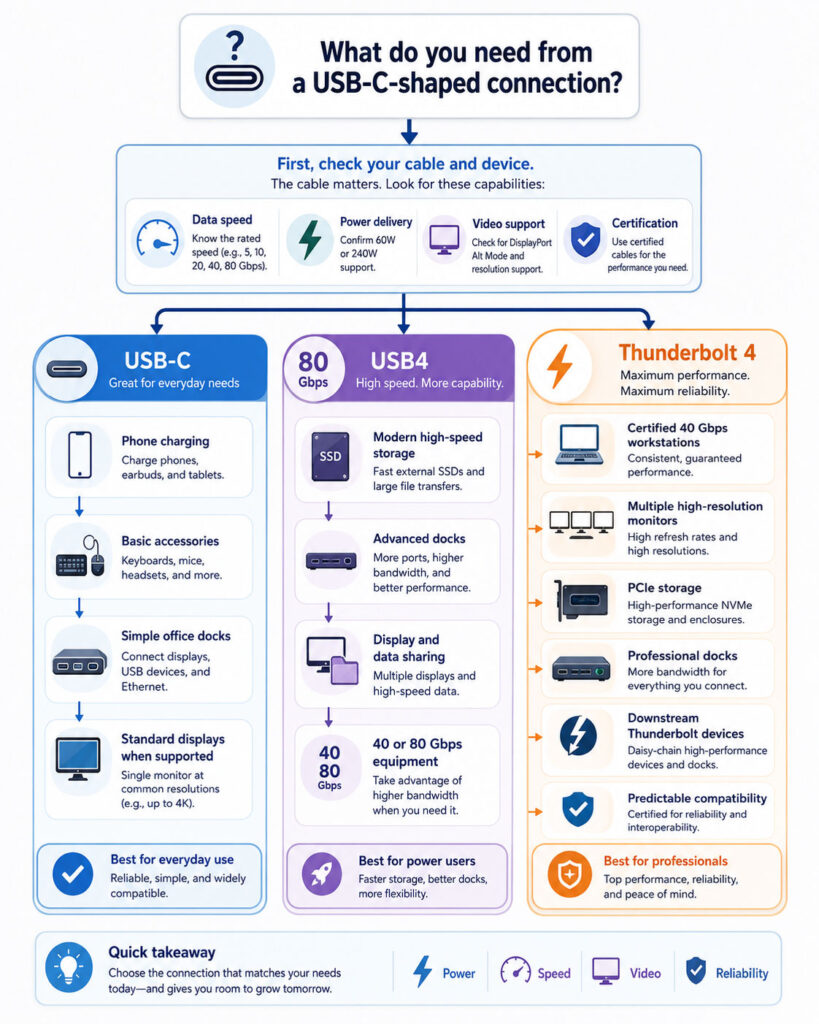
USB-C vs USB4 vs Thunderbolt 4 Decision Guide
| Your Requirement | Recommended Starting Point |
|---|---|
| Phone charging and basic accessories | Suitable certified USB-C |
| Standard office dock with one monitor | Full-featured USB-C may be sufficient |
| Fast external USB SSD | USB 10Gbps, 20Gbps, or suitable USB4 |
| Modern high-speed universal dock | USB4 or Thunderbolt 4 |
| Multiple high-resolution monitors | USB4 or Thunderbolt 4 after verifying display support |
| PCIe storage or professional expansion | Thunderbolt 4 or suitable USB4 implementation |
| Predictable certified 40 Gbps workstation setup | Thunderbolt 4 |
| New 80 Gbps equipment | USB4 80Gbps or Thunderbolt 5 |
| Only connector shape is known | Check the device specification before buying |
Final Verdict
USB-C describes the reversible physical connector, but it does not define one fixed speed or feature set.
Meanwhile, USB4 is a high-speed USB architecture that can carry data, display traffic, and other supported protocols through USB-C. Its performance and optional features can differ between devices.
Thunderbolt 4 also uses USB-C and the USB4 architecture. However, it adds stricter certification requirements for 40 Gbps bandwidth, PCIe performance, displays, docking, compatibility, wake behaviour, and security.
Therefore, Thunderbolt 4 provides more predictable minimum features, while USB4 can offer greater flexibility and, in newer implementations, higher maximum bandwidth.
Conclusion
USB-C vs USB4 vs Thunderbolt 4 is mainly a comparison between connector shape, communication technology, and certification requirements.
Therefore, do not select a cable, dock, monitor, or storage device based only on the USB-C connector.
Instead, check data speed, display support, charging power, cable rating, operating-system compatibility, and the capabilities of every connected product.
Most importantly, remember that a connection performs according to its weakest component. The right port still needs the right cable, dock, and device.

AboutTPJ Technical Team
The Project Jugaad Technical Team creates practical, easy-to-follow content on software development, web technologies, artificial intelligence, cybersecurity, cloud platforms, and digital tools. Our articles are informed by more than 13 years of hands-on experience with .NET, Angular, SQL Server, AWS, WordPress, Linux hosting, application deployment, and real-world troubleshooting. Each guide is researched, reviewed, and updated to provide accurate, useful, and actionable information for developers, businesses, and everyday technology users.