
Technology Guide
Cache and Cookies are common browser terms, but many users do not know the difference between them. Both help websites work better, but they store different types of information.
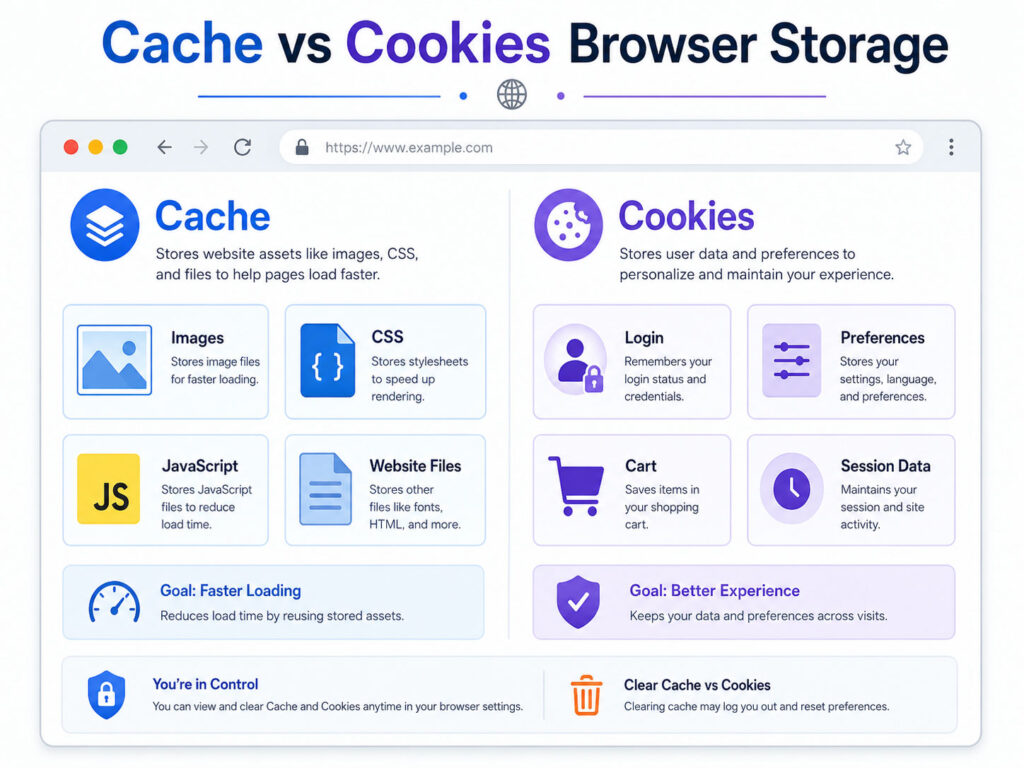
Cache mainly helps websites load faster by saving website files on your device. Cookies mainly help websites remember information about you, such as login status, preferences, or activity.
Because both work in the background, users often get confused when a website asks them to clear cache or cookies. So, let’s understand both in simple words.
What Is Browser Cache?
Browser cache is temporary storage used by your web browser.
When you visit a website, the browser downloads files such as images, scripts, style sheets, logos, and page resources. Instead of downloading the same files again every time, the browser can save some of them in the cache.
As a result, the website may load faster the next time you visit it.
For example, if a website has the same logo on every page, your browser does not need to download that logo again and again. It can load the saved version from cache.
What Are Cookies?
Cookies are small pieces of data that websites store in your browser.
Websites use cookies to remember useful information. For example, cookies may help keep you logged in, remember your language preference, save items in your shopping cart, or understand how you use a website.
Cookies do not usually store full website files like images or design files. Instead, they store small information related to your visit, session, or preferences.
Quick Difference Between Cache and Cookies
The easiest way to remember the difference is this: cache stores website files, while cookies store website-related user information.
| Point | Cache | Cookies |
|---|---|---|
| Main Purpose | Load websites faster | Remember user information |
| Stores | Images, scripts, CSS, and page files | Login status, preferences, sessions, and tracking data |
| Used By | Browser | Website and browser |
| User Impact | Improves loading speed | Improves personalization and session handling |
| Privacy Impact | Usually lower | Can be higher depending on cookie usage |
How Cache Helps Websites Load Faster
Cache improves speed by reducing repeated downloads.
When you open a website for the first time, your browser may download many files. Later, when you open the same website again, the browser can reuse some saved files from cache.
This can make the page load faster and reduce internet usage. It can also improve the browsing experience, especially on websites with many images or design files.
However, cache can sometimes create problems. If a website updates its design or code, your browser may still show an older saved version. In that case, clearing cache can help load the latest website files.
How Cookies Help Websites Remember You
Cookies help websites remember small details between visits.
For example, when you log in to a website and return later without signing in again, cookies may help maintain that session. Similarly, an online store may use cookies to remember items in your cart.
Cookies can also save preferences such as language, theme, location setting, or display choices.
However, some cookies may also track user activity for analytics or advertising. Because of this, cookies are more closely connected with privacy than cache.
Common Examples of Cache and Cookies
Here are some simple examples that show how cache and cookies work in daily browsing.
| Situation | Cache or Cookies? | Reason |
|---|---|---|
| A website logo loads faster next time | Cache | The browser saved the image file |
| You stay logged in after closing the browser | Cookies | The website remembers your session |
| A website remembers dark mode | Cookies | The website saved your preference |
| A page shows old design after an update | Cache | The browser may show saved files |
| A shopping cart keeps selected items | Cookies | The website remembers your cart activity |
When Should You Clear Cache?
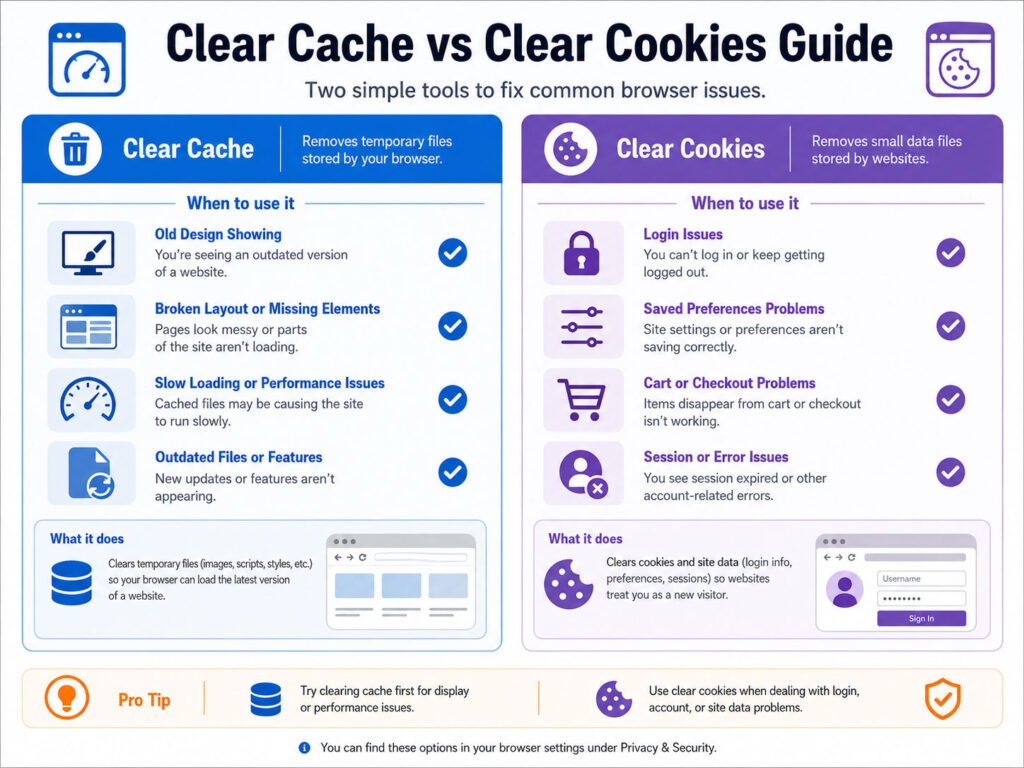
You should clear cache when a website does not load correctly or shows old content.
For example, images may look broken, design changes may not appear, buttons may not work properly, or a page may keep showing an older version.
Clearing cache forces the browser to download fresh website files. Therefore, it often fixes display and loading issues.
When Should You Clear Cookies?
You should clear cookies when login, session, or preference-related issues occur.
For example, you may face login loops, incorrect saved settings, broken shopping carts, or account-related errors. In such cases, clearing cookies for that website may help.
However, clearing cookies can sign you out from websites. It can also remove saved preferences. So, clear cookies carefully, especially for important accounts.
Does Clearing Cache Delete Passwords?
Clearing cache usually does not delete saved passwords. Cache mainly stores website files such as images, scripts, and style files.
However, browser settings can vary. If you select multiple options while clearing browsing data, you may also remove cookies, history, saved form data, or passwords.
So, always check the selected options before clearing browser data.
Does Clearing Cookies Log You Out?
Yes, clearing cookies can log you out from websites.
Cookies often help websites remember your login session. When you delete them, the website may not recognize your previous session anymore.
After that, you may need to log in again and set your preferences again.
Cache and Cookies in Private Browsing
Private browsing or incognito mode reduces saved browsing data after the private window closes.
It can help when you want to avoid saving local history, cookies, or temporary data on that device. However, private browsing does not make you completely invisible online.
Websites, internet service providers, office networks, or school networks may still see some activity depending on the network and service settings.
Privacy Tips for Cookies
Cookies can improve user experience, but you should manage them carefully.
- Review cookie permissions on websites when possible.
- Avoid accepting unnecessary cookies on unknown websites.
- Clear cookies from public or shared computers after use.
- Use strong passwords and two-factor authentication for important accounts.
- Do not stay logged in on devices you do not own.
- Check browser privacy settings regularly.
These habits can improve privacy while keeping browsing convenient.
Best Practices for Cache and Cookies
You do not need to clear cache and cookies every day. In many cases, they help websites work better.
Still, you should clear them when you face website issues, login problems, outdated pages, or privacy concerns.
- Clear cache when a website shows old or broken content.
- Clear cookies when login or session problems happen.
- Clear browsing data after using public or shared devices.
- Keep your browser updated for better security and performance.
- Review privacy settings if websites track too much activity.
Conclusion
Cache and Cookies both help websites work better, but they serve different purposes.
Cache stores website files to improve loading speed. Cookies store small pieces of information to remember login sessions, preferences, and user activity.
If a website looks broken or outdated, clearing cache may help. If you face login or session issues, clearing cookies may help. By understanding the difference, you can fix browser problems faster and manage your online privacy more confidently.

AboutTPJ Technical Team
The Project Jugaad Technical Team creates practical, easy-to-follow content on software development, web technologies, artificial intelligence, cybersecurity, cloud platforms, and digital tools. Our articles are informed by more than 13 years of hands-on experience with .NET, Angular, SQL Server, AWS, WordPress, Linux hosting, application deployment, and real-world troubleshooting. Each guide is researched, reviewed, and updated to provide accurate, useful, and actionable information for developers, businesses, and everyday technology users.