
Web Development
The WebP vs AVIF vs JPEG vs PNG comparison helps developers, designers, and website owners select a suitable format for every image. The right choice can reduce file size, preserve visual quality, support transparency, and improve page-loading performance.
AVIF and WebP are modern formats that often produce smaller files than older formats. JPEG remains a practical choice for photographs and broad compatibility, while PNG provides lossless image storage and reliable transparency for graphics.
However, no format is best for every image. A photograph, logo, screenshot, infographic, product image, and transparent icon may each need a different approach. Therefore, website image optimization should begin with the type of visual content rather than one preferred file extension.
WebP vs AVIF vs JPEG vs PNG: Quick Answer
- Choose AVIF when achieving a small file size at strong visual quality is the main priority.
- Choose WebP for a practical modern format that supports lossy compression, lossless compression, transparency, and animation.
- Choose JPEG for photographs that need dependable compatibility with browsers, software, content systems, and external platforms.
- Choose PNG for lossless graphics, interface screenshots, diagrams, and images that require precise transparent edges.
- Choose SVG instead when a logo, icon, or illustration can be represented as scalable vector artwork.
For many websites, a sensible strategy is to serve AVIF first, WebP second, and JPEG or PNG as a fallback. However, the smallest file should still meet the required visual-quality standard.
Why Image Format Matters
Images often represent a significant part of a web page’s downloaded data. Large image files can delay the main content, increase mobile-data usage, consume storage, and make a website feel slow.
The selected format determines how the image stores colour, transparency, detail, and repeated visual information. It also affects how much data the browser must download and decode.
A suitable format can reduce file size without creating visible damage. In contrast, the wrong format may create unnecessary weight, blurred text, colour banding, block artifacts, or missing transparency.
Image format is only one part of optimization. Correct dimensions, responsive image variants, compression quality, caching, lazy loading, and content delivery also affect the final result.
Raster Images vs Vector Images
WebP, AVIF, JPEG, and PNG are raster image formats. A raster image stores a grid of coloured pixels. When it is enlarged beyond its original dimensions, individual pixels may become visible and the image can lose sharpness.
SVG is a vector format. It describes shapes, paths, text, and colours mathematically, so suitable artwork can remain sharp at different display sizes.
Photographs and detailed natural images normally require raster formats. Logos, basic icons, charts, and simple illustrations may work better as SVG files.
Therefore, before comparing raster formats, first confirm whether the image needs to be raster at all.
Lossy vs Lossless Compression
Lossy compression reduces file size by discarding some image information. Higher compression normally creates a smaller file, but it can also introduce visible artifacts.
JPEG commonly uses lossy compression. WebP and AVIF can also use lossy modes that are suitable for photographs and other visually complex images.
Lossless compression reduces file size without discarding the original pixel information. PNG uses lossless compression, while WebP and AVIF can also support lossless storage.
Lossless does not mean that the file will be small. A lossless photograph may remain much larger than a carefully compressed lossy version.
What Is JPEG?
JPEG, also commonly written as JPG, is a long-established image format designed primarily for photographs and other images containing many colours and gradual tonal changes.
JPEG uses lossy compression. Developers can adjust the quality level to balance file size and visible detail. A moderate quality setting often reduces a photograph considerably while preserving an acceptable appearance.
JPEG files are widely supported across browsers, content-management systems, editing software, social platforms, email clients, and older devices. Therefore, JPEG remains a dependable fallback format.
However, JPEG does not support an alpha transparency channel. It is also less suitable for screenshots, interface text, line drawings, and graphics with sharp colour boundaries because compression artifacts can appear around edges.
Advantages of JPEG
- Excellent compatibility with browsers and software.
- Practical compression for photographs.
- Adjustable quality and file-size balance.
- Support for progressive encoding in suitable workflows.
- Easy editing, exporting, and uploading across platforms.
- Useful as a fallback when newer formats are unavailable.
Limitations of JPEG
- No alpha transparency support.
- Lossy compression can create visible artifacts.
- Repeated editing and re-exporting can reduce quality.
- Poorer results for text, diagrams, and sharp interface graphics.
- Often produces larger files than well-encoded WebP or AVIF images at comparable visual quality.
What Is PNG?
PNG stands for Portable Network Graphics. It uses lossless compression, which preserves the stored pixel information when the file is saved.
PNG supports alpha transparency. As a result, designers can create smooth transparent edges, partial opacity, shadows, and overlays without placing the image on a fixed background colour.
The format works well for screenshots, interface elements, diagrams, illustrations, and graphics containing text or sharp boundaries. These elements can remain crisp without the block artifacts associated with heavy JPEG compression.
However, PNG photographs are often unnecessarily large. Modern lossless WebP or AVIF files may also provide similar capabilities with smaller transfer sizes, depending on the image and encoder.
Advantages of PNG
- Lossless image storage.
- Reliable alpha transparency.
- Sharp text, edges, and interface elements.
- Strong compatibility with browsers and design software.
- Suitable for screenshots, diagrams, and graphics requiring precise pixels.
- No additional quality loss when the same file is opened and saved without recompression changes.
Limitations of PNG
- Large files for photographs and complex images.
- Often less efficient than modern lossless formats.
- Can increase page weight when used for full-width photographic banners.
- Not the best choice for scalable logos and icons when SVG is available.
What Is WebP?
WebP is a modern raster image format developed for web use. It supports both lossy and lossless compression, alpha transparency, and animated images.
Lossy WebP can replace many JPEG photographs, while lossless WebP can replace many PNG graphics. Its flexible feature set allows one format to cover several common web-image requirements.
WebP is supported by current major browsers and many content-management, image-processing, and delivery platforms. Consequently, it has become a practical default modern format for many websites.
However, some older applications, devices, editing tools, and external upload systems may not handle WebP as reliably as JPEG or PNG. A fallback or original source file may still be necessary.
Advantages of WebP
- Supports lossy and lossless compression.
- Supports alpha transparency.
- Supports animation.
- Often produces smaller files than comparable JPEG or PNG images.
- Works across current major browsers.
- Provides a practical balance between efficiency and compatibility.
Limitations of WebP
- Some older tools and platforms may not accept it.
- Quality varies according to encoder and settings.
- Does not provide traditional progressive JPEG-style rendering.
- Original JPEG or PNG files may still be needed for editing and distribution.
- A poorly compressed WebP can still look worse or become larger than a well-optimized alternative.
What Is AVIF?
AVIF stands for AV1 Image File Format. It uses image compression based on technology from the AV1 video codec and is designed to provide high compression efficiency.
AVIF supports lossy and lossless compression, transparency, high colour depth, wide colour ranges, and high-dynamic-range image information. These capabilities make it suitable for modern photographic and visually detailed content.
At a comparable visual quality, AVIF can often produce a smaller file than JPEG and may also outperform WebP. However, the result depends on the source image, encoder, quality settings, and processing time.
AVIF encoding can require more computation, and some tools or publishing systems may have less mature support than they do for JPEG, PNG, or WebP. Therefore, teams should test their complete editing and delivery workflow.
Advantages of AVIF
- Strong compression efficiency.
- Supports lossy and lossless compression.
- Supports alpha transparency.
- Supports high bit depths, wider colour ranges, and HDR information.
- Can preserve photographic detail at relatively small file sizes.
- Supported by current major browsers.
Limitations of AVIF
- Encoding can take longer than older formats.
- Some editing tools and upload systems may provide limited support.
- Image decoding performance can vary by device and file.
- Does not use traditional progressive rendering.
- Very aggressive compression can damage fine texture, text, or edges.
- A WebP or JPEG fallback may still be useful for older environments and external systems.
WebP vs AVIF vs JPEG vs PNG Comparison
| Feature | WebP | AVIF | JPEG | PNG |
|---|---|---|---|---|
| Lossy compression | Yes | Yes | Yes | No |
| Lossless compression | Yes | Yes | No | Yes |
| Alpha transparency | Yes | Yes | No | Yes |
| Animation support | Yes | Possible through image sequences | No | Not in standard PNG files |
| Photograph efficiency | Very good | Excellent in many cases | Good | Usually poor |
| Sharp text and graphics | Good in lossless mode | Good with suitable settings | Often unsuitable | Excellent |
| Broad legacy compatibility | Good | Lower than older formats | Excellent | Excellent |
| Progressive-style loading | No traditional progressive mode | No traditional progressive mode | Available | Interlacing is available but often inefficient |
| Common website role | Modern general-purpose image | Highly compressed modern image | Photograph fallback | Lossless transparent graphic |
The WebP vs AVIF vs JPEG vs PNG table shows why one universal format is rarely appropriate. AVIF may produce the smallest photographic file, WebP provides broad modern flexibility, JPEG offers dependable compatibility, and PNG preserves graphics and transparency without lossy artifacts.
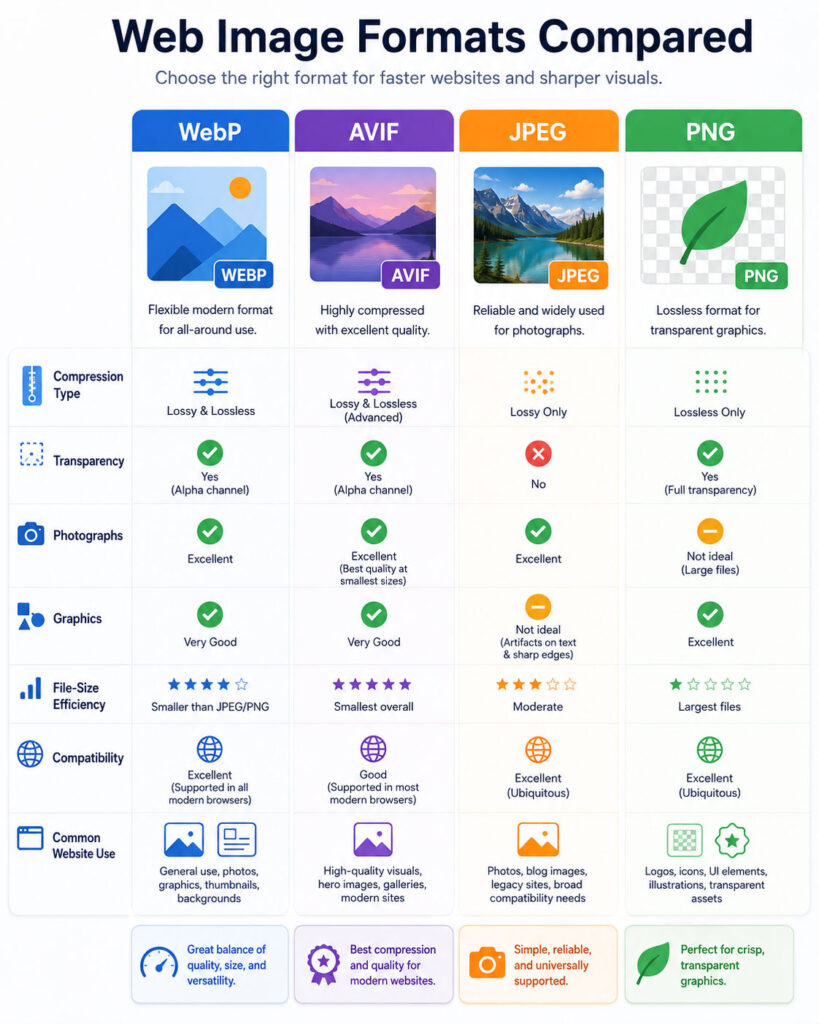
WebP vs AVIF for Website Images
The WebP vs AVIF decision usually depends on compression efficiency, encoding speed, compatibility, and the website’s image-delivery workflow.
AVIF often creates a smaller file for photographs while preserving strong visual quality. It can also store high colour depth, transparency, and HDR-related information.
WebP may encode and decode more quickly in some workflows, and its support across tools and publishing platforms is generally mature. It also provides lossy, lossless, transparent, and animated image options.
Therefore, AVIF may be the first choice when the smallest practical file matters, while WebP can act as an effective modern fallback. Always compare the actual output because one format will not win for every image.
JPEG vs PNG for Website Images
The JPEG vs PNG decision is mainly based on image content. JPEG suits photographs, gradients, and natural scenes because lossy compression can reduce complex visual data effectively.
PNG suits screenshots, text-heavy graphics, diagrams, icons, and transparent elements because it preserves sharp edges and exact pixels.
Saving a photograph as PNG can create a very large file. Conversely, saving a screenshot with small text as a heavily compressed JPEG can create blur and ringing around the letters.
Choose the format that matches the image structure instead of assuming that higher visual quality always requires PNG.
Which Format Produces the Smallest File?
AVIF frequently produces the smallest file among these formats for photographic content at a comparable visual quality. WebP commonly follows with a useful balance between compression and compatibility.
JPEG may remain competitive when an experienced editor selects an appropriate quality setting and the modern alternatives are not available. PNG generally produces the largest file for photographs because it preserves image information losslessly.
However, the result can change according to colour complexity, transparency, dimensions, encoder, metadata, quality level, and visual content. A simple graphic may compress extremely well as PNG, while a detailed photograph may benefit greatly from AVIF.
Therefore, image optimization for web should compare output files rather than rely on a fixed percentage or assumed winner.
Which Format Provides the Best Image Quality?
Image quality depends on the selected compression mode and settings. PNG can preserve exact raster pixels, but that does not make it the best choice when the resulting file is unnecessarily large.
Lossless WebP and lossless AVIF can also preserve visual information. For photographic images, a carefully encoded lossy AVIF, WebP, or JPEG may look identical to most viewers while transferring much less data.
The objective is not to select the format with the highest theoretical quality. Instead, choose the smallest file that looks acceptable at the displayed dimensions and on the intended screens.
Review important images at normal size and at high zoom. Pay particular attention to faces, hair, text, thin lines, gradients, shadows, and high-contrast edges.
Transparency Support
PNG, WebP, and AVIF support alpha transparency. This feature allows each pixel to have an opacity level ranging from fully transparent to fully visible.
JPEG does not support transparency. A transparent source converted to JPEG must use a solid background colour, or the transparent area may be filled automatically by the editing tool.
PNG remains dependable for precise transparent assets, especially when compatibility with design tools matters. However, WebP and AVIF may produce smaller transparent files.
For logos and simple icons, SVG may provide an even better solution because it remains sharp at multiple sizes.
Text, Screenshots, and Interface Graphics
Screenshots and interface graphics often contain flat colours, small text, thin borders, and sharp transitions. Heavy lossy compression can make those elements appear fuzzy.
PNG is a safe choice when exact clarity matters. Lossless WebP can also work well and may reduce the file size.
AVIF can compress screenshots efficiently, but teams should inspect text and fine edges carefully because aggressive settings may soften them.
Before publishing a screenshot, crop unnecessary areas and resize it to the largest dimensions it will actually use.
Photographs and Blog Hero Images
Photographs contain complex colour changes and natural detail. AVIF, WebP, and JPEG are generally more appropriate than PNG for this type of content.
AVIF may provide excellent compression for large hero photographs. WebP offers a strong alternative with broad modern support, while JPEG remains a reliable fallback.
For a prominent hero image, visual quality and loading behaviour both matter. Compress the file carefully, generate responsive sizes, and avoid uploading an image that is much wider than the maximum rendered area.
The hero or largest above-the-fold image should not be delayed unnecessarily because it may become the page’s Largest Contentful Paint element.
Logos and Icons
A logo or icon built from simple paths should normally use SVG. Vector artwork remains sharp on standard and high-density screens without requiring several raster dimensions.
PNG remains useful when the asset contains raster effects that cannot be represented easily as SVG or when a platform does not accept vector files.
WebP and AVIF can store transparent logos, but editing workflows and third-party platforms may still expect PNG.
Do not convert a simple SVG icon into a large raster image only to follow a general WebP or AVIF optimization rule.
Illustrations and Infographics
The best format for an illustration depends on its complexity. Simple vector illustrations should use SVG, while detailed raster artwork may use WebP, AVIF, or PNG.
Infographics containing small text need careful quality testing. Lossless WebP or PNG may preserve readability better than aggressive lossy compression.
For large decorative illustrations without small text, lossy WebP or AVIF may reduce the size substantially.
Always export at the intended display dimensions and inspect the result on both desktop and mobile screens.
Colour Depth and HDR Images
AVIF can store higher bit-depth and wider-colour information, which makes it suitable for advanced photographic workflows and HDR-capable displays.
Traditional JPEG and common PNG website workflows may not preserve the same range of modern HDR information in a consistently practical way.
However, colour-managed and HDR delivery requires more than choosing AVIF. The complete workflow must handle source colour profiles, encoding, browser behaviour, operating systems, and display capabilities.
For standard website images, consistent appearance across devices may matter more than theoretical colour range.
Browser and Platform Compatibility
JPEG and PNG offer the broadest compatibility across browsers, devices, editing tools, office applications, email systems, and third-party upload platforms.
WebP and AVIF are supported by current major browsers. However, older browsers, embedded web views, legacy applications, and external services may not support every modern format.
A website can provide modern formats while retaining a JPEG or PNG fallback through the HTML <picture> element.
Before removing fallback files, review the actual browsers, devices, applications, crawlers, and integration systems used by the target audience.
Using the Picture Element
The <picture> element allows a browser to select the first format it supports. The final <img> remains a fallback and also provides the alternative text and dimensions.
<picture>
  <source
    srcset="/images/hero.avif"
    type="image/avif">
  <source
    srcset="/images/hero.webp"
    type="image/webp">
  <img
    src="/images/hero.jpg"
    width="1200"
    height="675"
    alt="Team reviewing a website performance dashboard">
</picture>
A browser that supports AVIF can select the first source. Another browser may select WebP, while an older environment can use the JPEG fallback.
The source order matters. Place the preferred format first and keep a widely compatible <img> source last.
Responsive Images with Srcset
Changing the file format does not solve oversized image dimensions. A mobile device should not need to download a desktop image when a smaller version would display correctly.
The srcset and sizes attributes allow the browser to select an appropriate image width:
<picture>
  <source
    type="image/avif"
    srcset="
      /images/article-480.avif 480w,
      /images/article-800.avif 800w,
      /images/article-1200.avif 1200w"
    sizes="(max-width: 768px) 100vw, 800px">
  <source
    type="image/webp"
    srcset="
      /images/article-480.webp 480w,
      /images/article-800.webp 800w,
      /images/article-1200.webp 1200w"
    sizes="(max-width: 768px) 100vw, 800px">
  <img
    src="/images/article-800.jpg"
    srcset="
      /images/article-480.jpg 480w,
      /images/article-800.jpg 800w,
      /images/article-1200.jpg 1200w"
    sizes="(max-width: 768px) 100vw, 800px"
    width="1200"
    height="675"
    alt="Comparison of modern website image formats">
</picture>
This markup combines format selection with responsive dimensions. The browser can choose both a supported format and a suitable image width.
CSS Background Images
CSS backgrounds can also provide alternative formats through image-set() in supported environments:
.hero-banner {
  background-image: image-set(
    url('/images/hero.avif') type('image/avif'),
    url('/images/hero.webp') type('image/webp'),
    url('/images/hero.jpg') type('image/jpeg')
  );
}
However, important content images should normally use semantic HTML with meaningful alternative text rather than decorative CSS backgrounds.
Use CSS backgrounds for decorative visuals that do not add essential information to the page.
WebP vs AVIF vs JPEG vs PNG for SEO
An image format does not make a page rank higher merely because it is modern. However, smaller and correctly sized files can improve loading performance and user experience.
Image SEO also depends on descriptive alternative text, useful surrounding content, suitable filenames, accessible markup, correct indexing controls, and relevant page context.
Do not remove meaningful image quality only to reach the smallest possible size. A blurred or unreadable image can reduce usefulness even when it loads quickly.
The best image format for websites balances transfer size, visual clarity, compatibility, and the role of the image on the page.
Images and Core Web Vitals
A large hero or featured image can become the page’s Largest Contentful Paint element. An oversized file, slow server, late discovery, or unnecessary script dependency can delay its appearance.
Images without known dimensions can also contribute to layout movement. Add accurate width and height attributes so the browser can reserve the correct space.
Lazy loading can reduce downloads for images that begin below the visible area. However, the main above-the-fold or LCP image should normally load promptly rather than waiting for lazy-loading logic.
Format conversion can help performance, but it should be combined with responsive dimensions, compression, caching, and efficient delivery.
Best Format by Image Type
| Image Type | Recommended Starting Format | Alternative |
|---|---|---|
| Large photograph | AVIF | WebP or JPEG |
| Blog hero photograph | AVIF or WebP | JPEG fallback |
| Product photograph | AVIF or WebP | JPEG |
| Transparent raster graphic | WebP or PNG | AVIF |
| Screenshot with small text | PNG or lossless WebP | Carefully tested AVIF |
| Logo or simple icon | SVG | PNG |
| Detailed raster illustration | WebP or AVIF | PNG |
| External-platform upload | JPEG or PNG | WebP when supported |
| Animated web image | WebP | Video for longer animation |
| Archival editable source | Original design or lossless source | PNG or another production format |
When AVIF Is the Best Choice
- The image is a photograph or visually complex hero image.
- Reducing transfer size is a major priority.
- The publishing and delivery system supports AVIF reliably.
- The team can generate a WebP or JPEG fallback.
- Encoding time is acceptable.
- The image benefits from high colour depth or modern colour capabilities.
When WebP Is the Best Choice
- The website needs a flexible modern format.
- The same workflow handles photographs and transparent graphics.
- Broad current-browser compatibility is important.
- The content-management system or CDN already generates WebP.
- AVIF creation or decoding is unsuitable for the current workflow.
- The website uses short animated images.
When JPEG Is the Best Choice
- The image is a photograph requiring maximum platform compatibility.
- An external service does not accept WebP or AVIF.
- The image must work in older software or email workflows.
- The team needs a dependable fallback format.
- A well-optimized JPEG already meets the page-performance target.
When PNG Is the Best Choice
- The image contains text, diagrams, or sharp interface details.
- Exact raster pixels must be preserved.
- The asset requires reliable alpha transparency.
- The platform does not accept WebP or AVIF transparency.
- The image is a screenshot that does not compress well with lossy formats.
- A vector version is not available or appropriate.
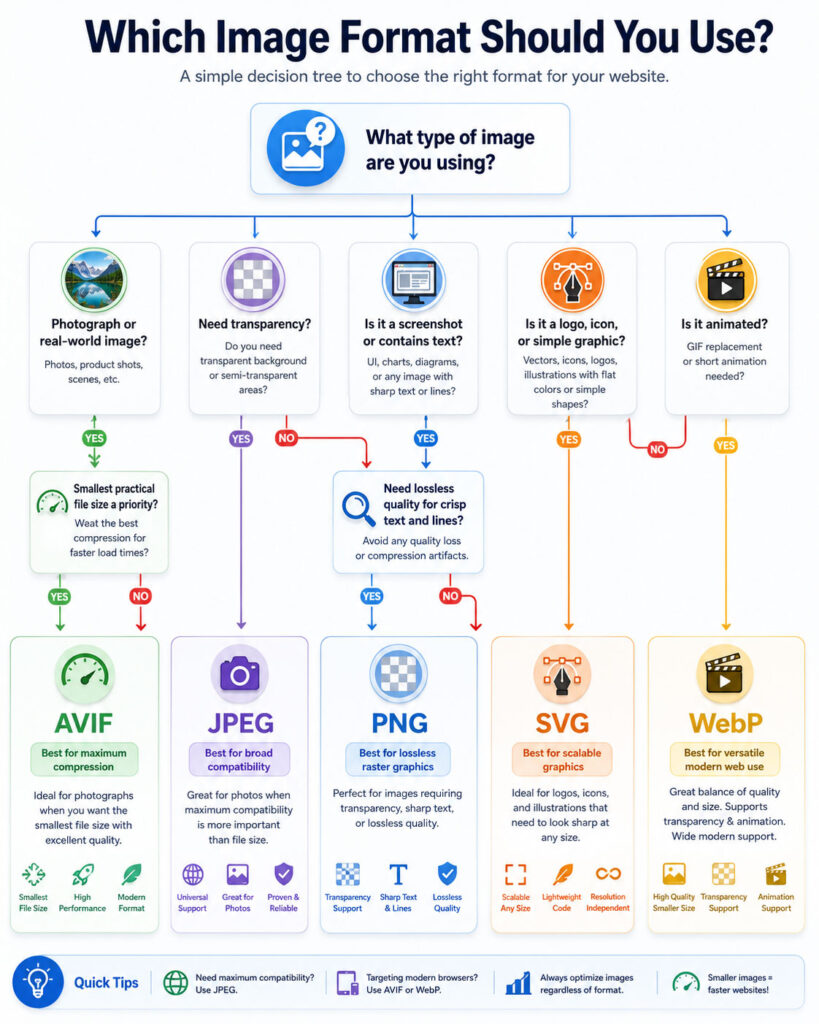
How to Choose the Best Image Format for a Website
Start by identifying the image type and its purpose. A decorative photograph has different requirements from a product screenshot, transparent logo, or technical infographic.
Next, decide whether the image needs transparency, lossless detail, animation, broad external compatibility, or advanced colour information.
Export two or more suitable formats and compare them at the dimensions used on the website. Review file size and visual quality rather than relying only on the encoder’s quality number.
The WebP vs AVIF vs JPEG vs PNG decision should be made per image category. A website does not need to force every visual into one format.
Step 1: Resize Before Compressing
Do not upload a 4,000-pixel photograph when the page displays it at a maximum width of 1,200 pixels. The browser may still need to download and decode the larger file.
Create image variants that match the site’s actual layout breakpoints and high-density-screen requirements.
Keep the original high-resolution source outside the public website workflow. Use it to create future sizes rather than repeatedly enlarging an already compressed web image.
Step 2: Remove Unnecessary Metadata
Photographs may contain camera details, editing information, thumbnails, location data, and colour metadata. Some information is useful, but unnecessary metadata increases file size and may create privacy concerns.
Use an image-processing workflow that removes metadata not required for display while preserving any colour profile needed for consistent appearance.
Do not assume that renaming or converting an image automatically removes every embedded field.
Step 3: Select an Appropriate Quality Level
Lossy formats expose quality or compression controls, but the numbers are not standardized across every encoder. A quality value of 75 in one application may not match 75 in another.
Begin with a moderate setting and inspect the output. Reduce quality gradually until artifacts become noticeable, then move back to an acceptable level.
Important hero images may justify a higher quality setting than small decorative thumbnails. Conversely, tiny card images may tolerate more compression.
Step 4: Compare Visual Quality
Review the image at its normal rendered size and at high zoom. Check areas that commonly reveal compression problems:
- Faces, skin, and hair.
- Small text and interface labels.
- Thin lines and borders.
- Smooth gradients and shadows.
- Clouds, skies, and dark areas.
- Leaves, grass, fabric, and repeated fine texture.
- Transparent edges and semi-transparent shadows.
- High-contrast boundaries.
Automated quality metrics can support the comparison, but the final decision should consider how real users see the image in its page context.
Step 5: Keep a Reliable Fallback
When the target environment includes older software or unpredictable third-party tools, retain a JPEG or PNG fallback.
The fallback does not necessarily need to load for every visitor. The browser can select AVIF or WebP through the <picture> element when those formats are supported.
Store the original production asset separately so the team can generate new formats without converting from a previously compressed file.
Avoid Repeated Lossy Conversion
Repeatedly opening and exporting a JPEG, WebP, or AVIF image in lossy mode can accumulate compression damage.
For example, converting JPEG to WebP, editing the WebP, and later exporting it as AVIF does not restore details already discarded by the JPEG.
Always generate web derivatives from the highest-quality original or lossless working source available.
Do Not Convert Every PNG Automatically
A conversion plugin may turn every PNG into WebP or AVIF, but automatic conversion does not guarantee a useful result.
A small optimized PNG logo may already be efficient. A lossless conversion might save little, while a lossy conversion could soften transparent edges or text.
Test screenshots, icons, diagrams, and transparent assets separately from photographs. Use rules based on image content and measurable file-size savings.
Do Not Use PNG for Every High-Quality Image
PNG is not a general “maximum quality” setting for all web images. A large photograph saved as PNG can be many times heavier than a visually similar AVIF, WebP, or JPEG.
Lossless storage preserves pixel data, but users may gain no visible benefit from downloading that additional information.
Reserve PNG for images that benefit from its lossless characteristics or compatibility.
Do Not Use AVIF Only Because It Is Newer
AVIF can provide excellent compression, but it should still be tested. A particular encoder or low-quality setting may damage fine details, while another format may produce a better practical result.
Encoding large AVIF collections can also require more processing time. This may matter for dynamic image-generation services or high-volume publishing systems.
Use AVIF when its measured benefits justify the workflow rather than treating it as an automatic winner.
Image Dimensions and Layout Stability
Add accurate width and height attributes to HTML images:
<img
  src="/images/article.webp"
  width="1200"
  height="675"
  alt="Web image format comparison chart">
The browser can use these values to calculate the aspect ratio and reserve space before the file finishes loading.
CSS can still make the image responsive:
img {
  max-width: 100%;
  height: auto;
}
Lazy Load Below-the-Fold Images
Images that begin well below the visible area can use native lazy loading:
<img
  src="/images/comparison.webp"
  loading="lazy"
  width="1200"
  height="800"
  alt="Detailed image format feature comparison">
Do not apply lazy loading blindly to the page’s main hero or likely LCP image. Delaying that image can make the page’s most important visual appear later.
Test actual page behaviour instead of assuming that every lazy-loaded image improves performance.
Use Meaningful File Names and Alternate Text
A file name should describe the image briefly, such as:
webp-vs-avif-image-comparison.webpAvoid meaningless names such as:
IMG_8472-final-new-2.webpAlternative text should communicate the image’s purpose to users who cannot see it. It should not repeat keywords unnaturally or describe decorative details that do not add meaning.
Decorative images can use an empty alt value when appropriate, while informative diagrams need a useful text equivalent.
Use a CDN or Image Optimization Service
An image CDN can resize, compress, and convert images according to the requesting device or browser. This approach can reduce the number of manually generated files.
However, teams should confirm caching behaviour, transformation limits, URL stability, image quality, privacy, cost, and fallback behaviour.
Keep access to original assets so the website is not permanently dependent on one transformation provider.
Cache Optimized Images
Versioned image files can use long browser-cache durations because the URL changes when the content changes.
A CDN can also store generated AVIF and WebP variants near users, reducing repeated processing and improving delivery time.
Do not regenerate the same image format on every request when a cached derivative can be reused safely.
Using WebP and AVIF in WordPress
Modern WordPress versions can work with WebP images, and WordPress 6.5 added AVIF upload and processing support when the hosting environment provides the required image-library capabilities.
Before relying on AVIF, confirm that the server’s image-processing library supports creating thumbnails and resized variants. A WordPress installation may accept one format differently depending on its PHP, Imagick, or GD configuration.
An optimization plugin or CDN can generate WebP and AVIF versions automatically. However, verify that it preserves original images, serves correct MIME types, creates fallbacks, and does not break social-sharing previews or media-library functions.
After changing the image-delivery setup, clear website and CDN caches and test posts, archive pages, Open Graph previews, responsive sizes, and older uploaded images.
WordPress Image Optimization Checklist
- Upload an image close to the maximum required dimensions.
- Keep an original source outside the compressed website copy.
- Confirm that WordPress generates the expected thumbnail sizes.
- Check whether the host supports WebP and AVIF processing.
- Use one optimization plugin or service rather than overlapping tools.
- Verify that generated files use correct MIME types.
- Keep JPEG or PNG fallbacks where external systems require them.
- Test featured images and Open Graph previews.
- Check mobile responsive-image selection.
- Exclude the main hero image from harmful lazy-loading behaviour.
- Add descriptive alternate text where the image communicates information.
- Clear all caches after changing format or delivery rules.
Open Graph and Social-Sharing Images
Social platforms may not handle every modern image format consistently in every crawler or integration. JPEG and PNG remain dependable choices for Open Graph and social-sharing images.
A website can serve AVIF or WebP to browsers while referencing a separate JPEG or PNG file in its social metadata.
Always test the final page URL through the relevant social preview or debugging tool after publishing.
Email and Downloadable Images
Email clients, office applications, and customer download workflows may have different compatibility requirements from modern browsers.
When an image must be downloaded, edited, printed, or inserted into another application, JPEG or PNG may provide a smoother user experience.
The browser-facing version and downloadable version do not need to use the same format.
Should You Convert Existing Website Images?
Begin with the largest and most frequently viewed images. Hero images, blog thumbnails, product photographs, gallery items, and background visuals often provide the greatest opportunity.
Do not convert every media-library file without measuring the likely benefit. Small icons and already optimized graphics may produce little savings.
Keep the original URLs working or configure redirects carefully when a migration changes public image addresses.
After conversion, compare transfer size, visual quality, LCP, caching, server load, and error logs.
Image Format Migration Plan
- Audit image dimensions, formats, and transfer sizes.
- Identify the pages and images with the greatest traffic or performance impact.
- Choose target formats for photographs, graphics, and transparent assets.
- Create AVIF and WebP test outputs from original sources.
- Compare visual quality at real display sizes.
- Configure JPEG or PNG fallbacks where required.
- Test browsers, mobile devices, social previews, and external integrations.
- Enable caching and CDN delivery.
- Monitor broken images, server processing, and page performance.
- Expand the conversion workflow gradually.
Common Image Optimization Mistakes
- Uploading images much larger than their displayed dimensions.
- Using PNG for large photographs.
- Using highly compressed JPEG for screenshots containing small text.
- Converting from an already damaged lossy source.
- Assuming AVIF is always smaller or visually better.
- Ignoring transparent edges during conversion.
- Serving one large image to every screen size.
- Lazy loading the main above-the-fold image.
- Omitting image dimensions and causing layout movement.
- Using meaningless filenames and missing alternate text.
- Deleting original files before verifying the new workflow.
- Using several optimization plugins that process the same image.
- Failing to test social-sharing and email compatibility.
- Judging quality only from the encoder’s percentage value.
Is AVIF Better Than WebP?
AVIF often provides stronger compression for photographs and supports advanced colour capabilities. WebP may offer faster processing and broader support across existing tools and platforms.
Therefore, AVIF is not automatically better for every website. Generate both formats and compare file size, quality, processing time, and delivery compatibility.
Is WebP Better Than JPEG?
WebP often produces a smaller photograph than JPEG at a comparable visual quality. It also supports transparency and lossless compression.
JPEG still provides broader compatibility with older software, external platforms, downloadable files, and social integrations. A website can serve WebP to browsers while retaining JPEG as a fallback.
Is WebP Better Than PNG?
Lossless WebP may produce a smaller file than PNG and can also preserve transparency. However, results vary according to the image and encoder.
PNG remains useful for precise screenshots, graphics, editing workflows, and systems that do not accept WebP.
Is AVIF Good for Transparent Images?
Yes. AVIF supports alpha transparency and can compress transparent images efficiently.
However, test transparent edges, shadows, colour accuracy, editing support, and fallback behaviour before replacing established PNG or WebP assets.
Does JPEG Support Transparency?
No. Standard JPEG images do not support alpha transparency. Transparent areas must be placed against a solid background or saved in another format.
Does PNG Lose Quality?
PNG uses lossless compression, so its normal compression process does not discard stored pixel data. However, resizing, colour reduction, editing, or converting from a previously compressed source can still change the image.
Can AVIF Replace JPEG?
AVIF can replace JPEG for many browser-delivered photographs when the website provides suitable compatibility and fallback handling.
JPEG may still be needed for external platforms, downloadable copies, email, older applications, and production workflows.
Can WebP Replace PNG?
WebP can replace many PNG files, particularly transparent graphics that compress well in lossless WebP mode.
However, retain PNG when exact compatibility, editing support, or a third-party requirement makes it the safer format.
Which Format Is Best for a WordPress Website?
WebP is a practical modern default for many WordPress websites. AVIF may reduce photographs further when the host and image-processing workflow support it correctly.
JPEG remains useful as a fallback and for social-sharing images, while PNG suits screenshots and transparent graphics. The best WordPress setup normally uses several formats according to image type.
Which Format Is Best for SEO?
No image format guarantees better search rankings. Use a format that delivers a clear and useful image efficiently.
Combine format selection with responsive dimensions, meaningful alternate text, descriptive filenames, stable URLs, fast delivery, and relevant page content.
Final Verdict: WebP vs AVIF vs JPEG vs PNG
The WebP vs AVIF vs JPEG vs PNG comparison does not produce one winner for every website image. AVIF often provides excellent compression for photographs and modern visual content. WebP offers a flexible balance of file size, transparency, animation, and current-browser compatibility.
JPEG remains a dependable format for photographs, downloads, fallbacks, and external platforms. PNG remains valuable for lossless screenshots, transparent raster graphics, and images containing sharp text or interface details.
Choose AVIF when strong compression is the priority and the workflow supports it. Choose WebP as a practical modern website format. Use JPEG when compatibility matters, and use PNG when precise lossless graphics or transparency are required.
Finally, do not optimize by format alone. Resize images correctly, create responsive variants, select suitable compression settings, preserve original sources, specify dimensions, and test real page performance. The best image format for websites is the one that provides the required visual quality with the lowest practical transfer cost.

AboutTPJ Technical Team
The Project Jugaad Technical Team creates practical, easy-to-follow content on software development, web technologies, artificial intelligence, cybersecurity, cloud platforms, and digital tools. Our articles are informed by more than 13 years of hands-on experience with .NET, Angular, SQL Server, AWS, WordPress, Linux hosting, application deployment, and real-world troubleshooting. Each guide is researched, reviewed, and updated to provide accurate, useful, and actionable information for developers, businesses, and everyday technology users.