
Technology Guide
Google Drive vs OneDrive vs Dropbox is a common comparison when users want to store files online, sync documents, share folders, or back up important data.
All three are popular cloud storage services. They help you keep files online and access them from different devices. However, each one has different strengths.
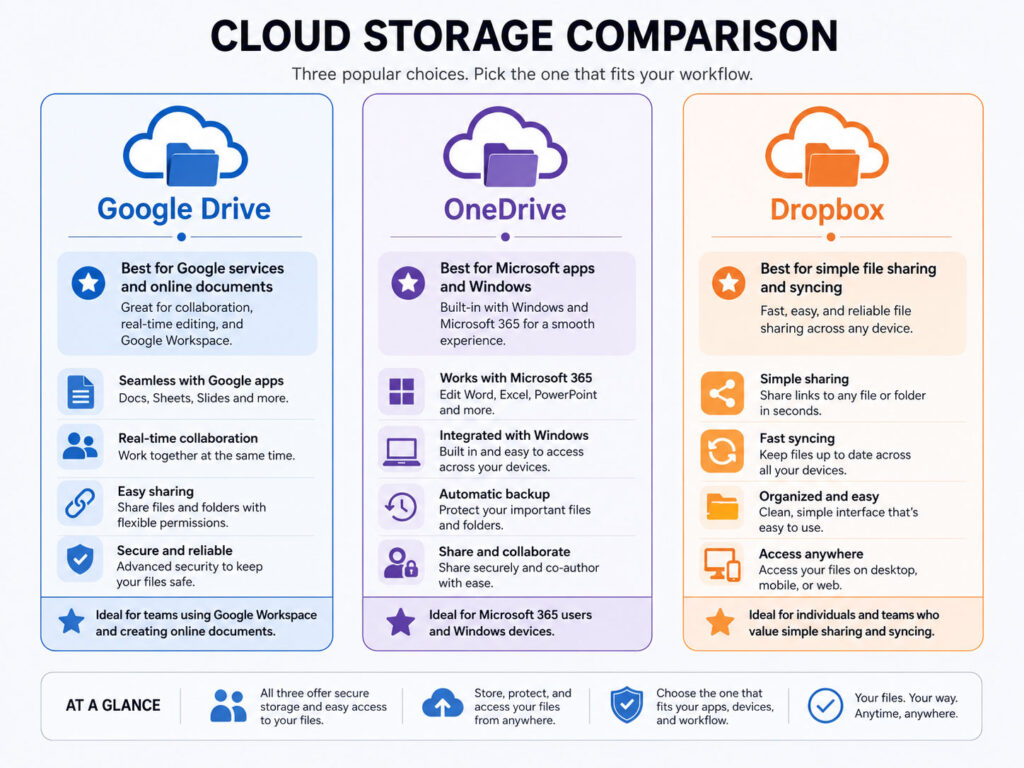
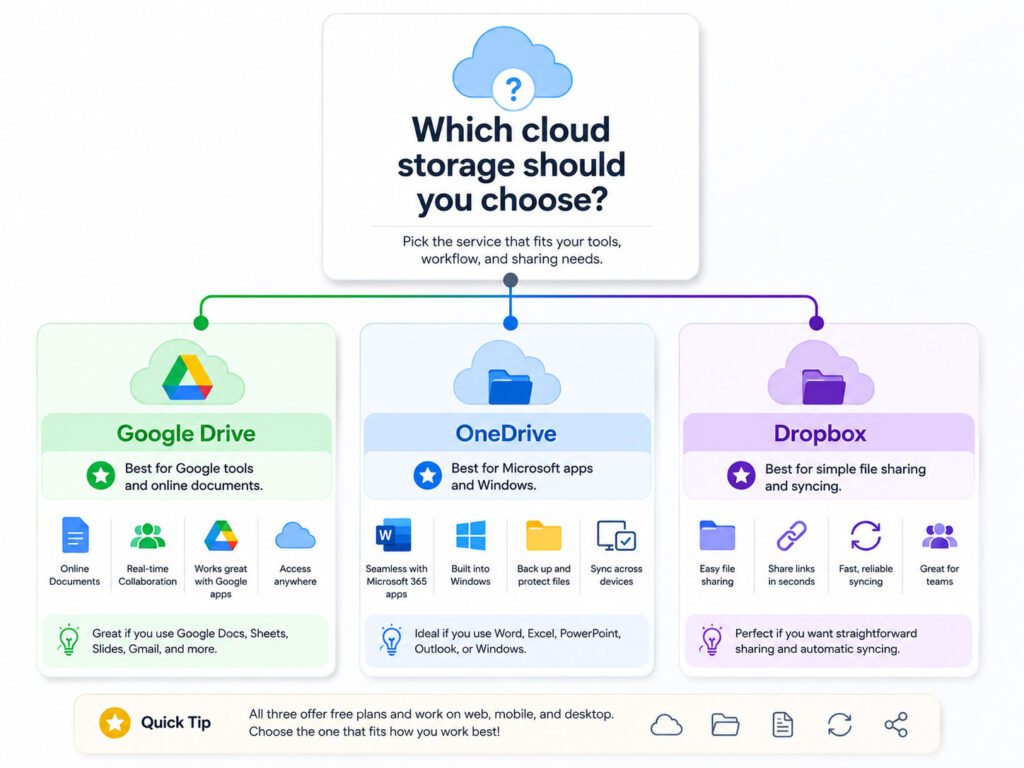
Google Drive works well for users who use Google services. OneDrive fits naturally with Microsoft apps and Windows. Dropbox is known for simple file syncing and sharing.
What Is Cloud Storage?
Cloud storage means storing your files on online servers instead of keeping them only on your phone, laptop, or external hard drive.
After uploading files to cloud storage, you can access them from a browser, mobile app, desktop app, or shared link. This makes cloud storage useful for documents, photos, videos, project files, school work, and office files.
Cloud storage also helps reduce the risk of losing files when one device gets damaged or lost.
What Is Google Drive?
Google Drive is a cloud storage service connected with Google accounts and Google Workspace tools.
It works well with Google Docs, Sheets, Slides, Gmail, Android devices, and browser-based collaboration. If you already use Google services regularly, Google Drive can feel simple and convenient.
It is useful for students, teams, office users, and anyone who frequently creates or shares documents online.
What Is OneDrive?
OneDrive is Microsoft’s cloud storage service.
It works closely with Windows, Microsoft 365, Word, Excel, PowerPoint, Outlook, and Teams. If you use Microsoft apps for work or study, OneDrive can be a practical choice.
It is useful for users who want cloud storage connected with Office documents and Windows-based file management.
What Is Dropbox?
Dropbox is a cloud storage service focused on file syncing, sharing, and collaboration.
Many users like Dropbox because it keeps file sharing simple across different devices and platforms. It can be useful for freelancers, teams, designers, content creators, and users who work with shared folders.
Dropbox is also helpful when you want a clean file-syncing experience without depending heavily on one office ecosystem.
Quick Comparison
The easiest way to compare these tools is to check how they fit your daily work.
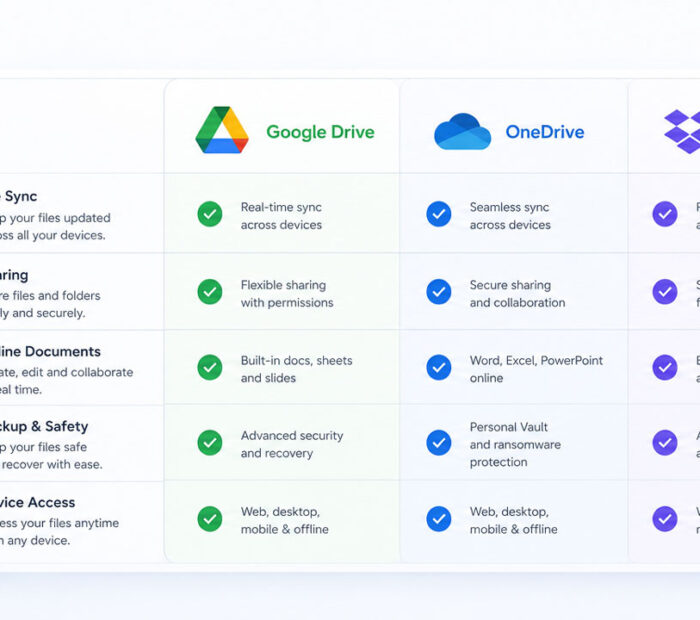
| Point | Google Drive | OneDrive | Dropbox |
|---|---|---|---|
| Best For | Google Docs, Gmail, Android, and online collaboration | Windows, Microsoft 365, Word, Excel, and Teams users | Simple file sync, sharing, and cross-platform folders |
| File Sharing | Easy sharing with Google account users | Easy sharing with Microsoft account users | Simple shared links and shared folders |
| Document Editing | Strong with Docs, Sheets, and Slides | Strong with Word, Excel, and PowerPoint | Works with file previews and third-party integrations |
| Device Use | Works well across browser, Android, and apps | Works well with Windows and Microsoft apps | Works well across many devices and platforms |
| Simple Use Case | Create and share online documents | Manage Office files and Windows backup | Sync and share folders with others |
Google Drive Advantages
Google Drive is useful when you already use Google services daily.
- It works well with Gmail and Google accounts.
- It supports easy document collaboration through Google Docs, Sheets, and Slides.
- It is simple to share files with other Google users.
- It works well on Android phones and browser-based workflows.
- It is useful for school, office, and personal document storage.
Because of this, Google Drive is a good option for users who prefer online editing and collaboration.
Google Drive Limitations
Google Drive may not be the best choice for everyone.
- Users who mainly use Microsoft Office may prefer OneDrive.
- Storage can fill up quickly if Gmail, photos, and files all use the same account storage.
- Large file organization can become messy without proper folders.
- Sharing settings need careful review to avoid unwanted access.
So, Google Drive works best when you manage folders and sharing permissions properly.
OneDrive Advantages
OneDrive is useful when you work with Microsoft apps or Windows devices.
- It connects well with Windows file explorer.
- It works smoothly with Word, Excel, PowerPoint, Outlook, and Teams.
- It can support document editing and collaboration through Microsoft 365.
- It is practical for office users and Windows-based workflows.
- It helps keep work files available across devices.
As a result, OneDrive is a strong option for users who already depend on Microsoft tools.
OneDrive Limitations
OneDrive also has some limitations.
- Users outside the Microsoft ecosystem may not need all its features.
- Sync settings can feel confusing if users do not understand local and cloud file behavior.
- Storage and app benefits may depend on the plan used.
- Sharing permissions still need careful control.
Therefore, OneDrive works best for users who understand Microsoft account and sync settings.
Dropbox Advantages
Dropbox is useful when your main need is simple file syncing and sharing.
- It works well for shared folders.
- It supports clean file syncing across devices.
- It is useful for teams that exchange files often.
- It can work well for creative files, project folders, and client sharing.
- It does not depend heavily on only one office software ecosystem.
Because of this, Dropbox can be a good option for users who want a direct file-sharing and syncing experience.
Dropbox Limitations
Dropbox may not be the best choice if you mainly want built-in office document editing.
- It may depend more on integrations for document editing.
- Users who already use Google or Microsoft tools may prefer their connected storage options.
- Storage plans and feature availability can vary.
- Shared folder permissions still need careful review.
So, Dropbox works best when file syncing and sharing are more important than built-in office tools.
Which Cloud Storage Should You Choose?
The best cloud storage service depends on your daily tools and file habits.
| Your Need | Better Choice |
|---|---|
| You use Gmail, Google Docs, and Android | Google Drive |
| You use Windows, Word, Excel, and Teams | OneDrive |
| You need simple folder sharing across platforms | Dropbox |
| You work mainly with online documents | Google Drive or OneDrive |
| You share files with clients or teams often | Dropbox, Google Drive, or OneDrive depending on the team |
| You want backup safety for important files | Use cloud storage with another backup option |
Cloud Storage Safety Tips
Cloud storage is useful, but account safety is very important.
- Use a strong and unique password for your cloud account.
- Enable two-factor authentication.
- Review shared links and folder permissions regularly.
- Do not share sensitive files with public links.
- Remove access for people who no longer need the files.
- Keep local backup for very important documents.
- Do not depend on only one storage location for critical files.
These habits can help protect your files from accidental sharing, account misuse, or data loss.
Best Backup Approach
Cloud storage is helpful, but it should not be your only backup for important files.
For better protection, keep one copy on your main device, one copy in cloud storage, and one copy on an external drive. This gives you more safety if one option fails.
This approach works well for photos, certificates, documents, project files, and important personal records.
Conclusion
Google Drive vs OneDrive vs Dropbox is not about one perfect winner for everyone. Each service works better for different needs.
Google Drive is strong for Google users and online collaboration. OneDrive is strong for Microsoft and Windows users. Dropbox is strong for simple file syncing and sharing.
Choose the cloud storage service that matches your daily tools, sharing needs, and backup habits. Also, protect your account with strong security settings and keep important files backed up in more than one place.

AboutTPJ Technical Team
The Project Jugaad Technical Team creates practical, easy-to-follow content on software development, web technologies, artificial intelligence, cybersecurity, cloud platforms, and digital tools. Our articles are informed by more than 13 years of hands-on experience with .NET, Angular, SQL Server, AWS, WordPress, Linux hosting, application deployment, and real-world troubleshooting. Each guide is researched, reviewed, and updated to provide accurate, useful, and actionable information for developers, businesses, and everyday technology users.